Item No. 8105089 – 12/2013 Page 3 of 6
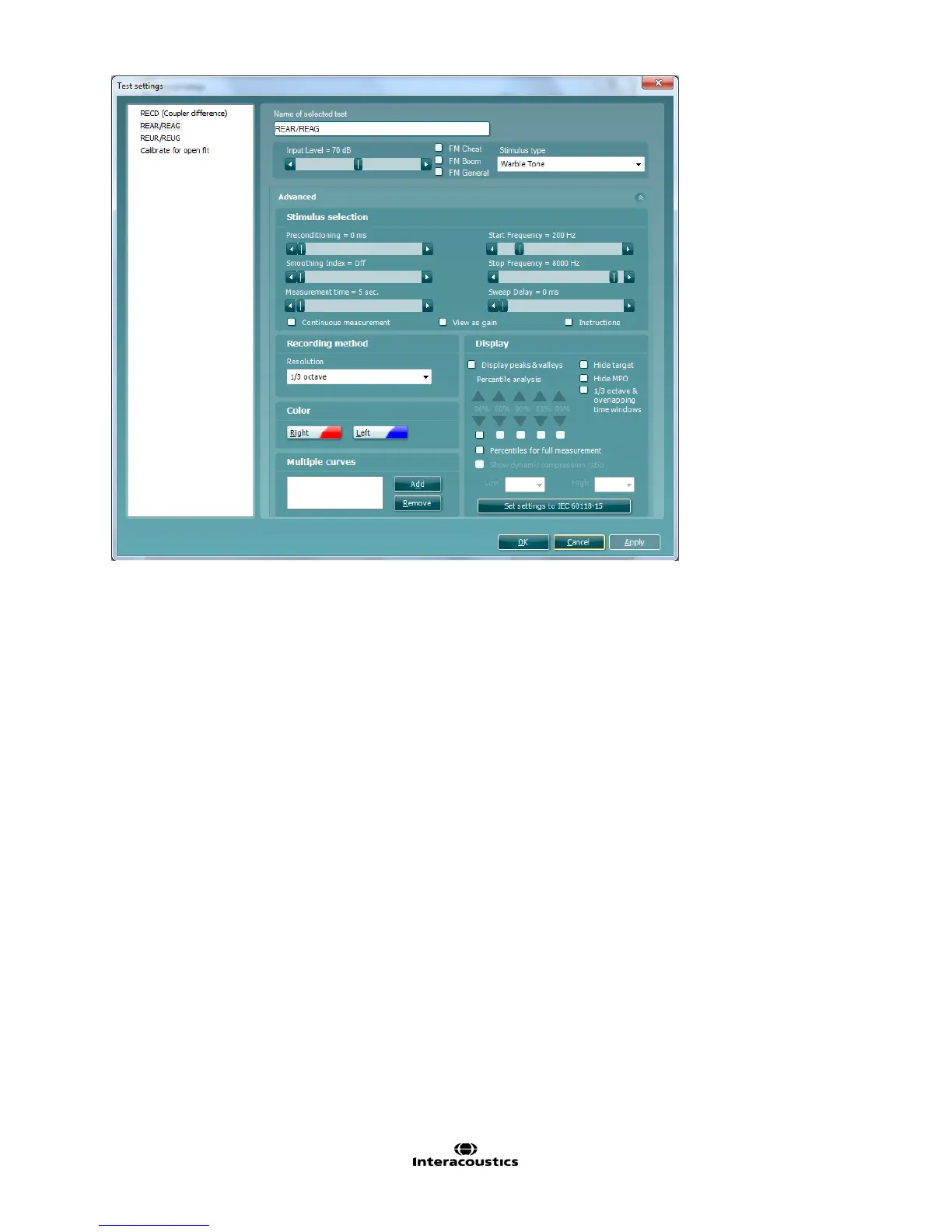
In this window you can manipulate your individual parameters which relate to the test within your test battery
including renaming, input level, stimulus type, curve smoothing index etc. Once you have set and are happy
with this, please click Apply to save and keep the screen open or OK to save and Exit. Pressing Cancel will exit
the window and discard your amendments.
8. You may also notice that in the bottom left corner of the Test settings window that there are additional
settings (see below). These settings can help you to define how you want your software to be displayed and
how curves are grouped via the Combined Screen section. You can also default your REM protocol to
select the most recent Audiogram here. Finally, your prescription settings can be defaulted in this section by
clicking on Fitting Prescription.


 To Next Page