© 2015 UTC Fire & Security Americas Corporation, Inc. 1 / 7 P/N 230444 • REV D • ISS 08DEC15
NXG-1820-EUR Touch Screen User Manual
Introduction
The NXG-1820 is an intuitive graphical touch screen interface
for users of the xGen security system. It is offering simple
fingertip control, via its clear 3.5” touch screen with easy to
understand graphic icons.
1. System Status bar – this colour coded section will provide
detailed information about your system.
2. Away – touch this button to arm the system in Away Mode.
3. Stay – touch this button to arm the system in Stay Mode.
4. Off – touch this button to disarm the system and to
acknowledge fault messages.
5. Status – touch this button for detailed status on partitions,
zones, and devices.
6. Menu – touch this button to access the menus.
7. Partition List – touch this button to view partition details.
8. SOS – touch this button to access emergency features
and the installer information.
Navigating the NXG-1820E Touch Screen
Status and information typically appears in the top section of
the screen.
User functions are in the middle of the screen. Navigation
buttons to scroll through lists up and down will appear
here. Left and right arrows will switch to the previous/next
item. Sometimes a "Go to" button will appear to allow you
to navigate directly to the item you need.
The bottom tool bar typically includes a back button to
return to the previous screen, and a home button to save
the current settings and return to the home screen.
Entering a PIN Code
You will need a valid PIN code to access to various features
and system information.
After a period of inactivity, a screensaver will appear and it will
go into power save mode. Tap the screen to wake it up. A
screen will appear requesting to enter your code. A valid PIN is
required to unlock the screen and access the system.
Enter a valid user code followed by ENTER . User PIN
codes can be between 4 and 8 digits in length. The default
master user PIN code is 1234.
If you make a mistake, press the Delete key .
If the PIN code is invalid for the feature you are trying to
access you will be returned to the home screen.
Permissions are assigned to users and keypads to determine
what features a user can access and at what times. If you are
unable to access a feature, contact your installation company
or building manager.
System Status
The xGen will display colour coded system status messages
on the top of the main screen.
Speake
System Awa
Arm
2
Main Menu (6)
Status Bar (1)
System
Disarm (4)
System Stay
rm (3)
Emergency (8)
Partition
List (7)
Status (5)

 Need help?
 General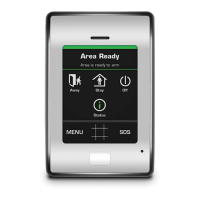

 To Next Page