Need help?
Do you have a question about the Intermec 1007CP02 and is the answer not in the manual?
Provides essential safety warnings, cautions, and notes for operating the device safely.
Details on obtaining technical support and understanding product warranty.
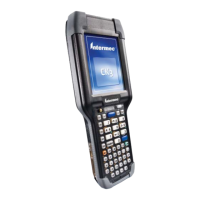
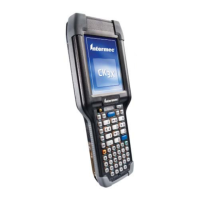
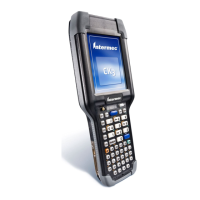
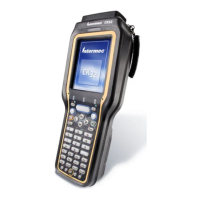
Overview of the Intermec CK3 Mobile Computer and its features.
Instructions on charging, removing, installing, and checking the battery status.
Explanation of the alphanumeric and numeric keypads and their functions.
How to operate the power button for suspend/resume and navigate the touch screen interface.
Step-by-step guide for installing and using a microSD card for storage and software.
Details on the device's dimensions, weight, and environmental operating conditions.
List and description of available accessories compatible with the CK3 mobile computer.
The Intermec CK3R and CK3X are ergonomically designed mobile computers built on the Microsoft® Windows® Embedded Handheld 6.5 operating system. These lightweight and easy-to-use devices are designed to run most software developed for the Windows Mobile platform, including standalone, client-server, and browser-based applications. The CK3 series is available in two main models: the CK3R, which features a DHIB 802.11b/g/n radio, and the CK3X, which includes a DDIB 802.11a/b/g/n radio. Both models are Wi-Fi® certified, ensuring interoperability with other wireless LAN devices.
The CK3 mobile computers offer a range of features to support various operational needs. They come with either 256 MB DDR SDRAM and 512 MB Flash (CK3R) or 256 MB DDR SDRAM and 1GB Flash (CK3X). Users can choose between an alphanumeric or a numeric keypad, depending on their primary data entry requirements. The alphanumeric keypad is ideal for applications requiring significant alphabetic data input, offering special characters, numbers, symbols, and functions through color-coded key sequences. The numeric keypad is tailored for applications that predominantly require numeric data, also allowing for special characters and the alphabet via color-coded key sequences. The keypad can be remapped for customized functionality.
The device's power management system is designed for efficiency and data integrity. The CK3 supports AB17, AB18, 1001AB01, or 1001AB02 batteries as its main power source. The standard battery provides 7.4 Watt hours, while the extended battery offers 18.8 Watt hours. Battery life is influenced by factors such as extreme temperatures, input devices, and usage patterns. Before initial use, the battery must be fully charged, a process that takes approximately 4 to 7 hours depending on the battery type. When replacing the battery, an internal super capacitor maintains the device's status, memory, and real-time clock for about 10 minutes, minimizing data loss risk.
To conserve battery life, the CK3 can be put into suspend mode by pressing the Power button. In this mode, power is supplied to all memory, but most hardware, including the display, is turned off. Pressing the Power button again resumes the device to the previously displayed screen. If WPA or 802.1x security is in use, the CK3 may need to reauthenticate upon resuming. A flashing battery light and failure to resume after pressing the Power button indicate a critically low battery that needs replacement.
The CK3 features a touch screen interface, with the Windows Embedded Handheld 6.5 Home screen appearing upon startup. This screen includes a Title bar, a horizontal scroll bar, and a Tile bar for navigation. Screen icons on the navigation and command bars provide quick access to network connection status and other system information. These icons indicate volume status (on/off), network connection status (connected/not connected), 802.11 radio connection, USB connection to a desktop PC, and the iConnect application for Ethernet or Wireless settings. The screen backlight can be toggled on and off using specific key combinations on both alphanumeric and numeric keypads.
Status LEDs provide visual feedback on the device's operational state. The Notification LED, when orange, indicates a pending alarm or message. The Good Read LED, when green, confirms a successful bar code decode. The Intermec Ready-to-Work™ indicator, when blue, signifies that the CK3 is suspending or resuming with the display off. A blinking blue light indicates that Intermec Terminal Emulator has been successfully loaded and activated, or that it is loaded but inactive. If the indicator is off, the Intermec Terminal Emulator application is missing or disabled. The Battery Status LED below the display indicates charging status: steady green for over 95% charged, blinking red for low battery (device enters Suspend mode), steady red for charging, steady red when not connected to external power (software issue), steady amber for missing battery or charging temperature outside range, and off when not on external power and operating normally.
For increased file storage and software installation, the CK3 supports microSD™ cards up to 2 GB. The microSD card slot is located in the battery compartment. To install a card, the battery must first be removed, and a cover needs to be opened using a paper clip or slotted screwdriver. After sliding the microSD card cover to the OPEN position and lifting it, the card can be inserted. The cover is then closed and slid to the LOCK position before being replaced. After installing the battery and turning on the CK3, the contents of the microSD card should be accessible in the SDMMC Disk folder. If the card is bootable, the CK3 will boot from it; if it contains operating system upgrade files, the upgrade process will start automatically.
A reset button is located in the battery compartment. To perform a reset, a stylus should be used to press the button. Users are cautioned against using force or sharp objects to avoid damaging the button.
Accessories available for the CK3 include various charging solutions and carrying options. The Quad Charger (AC20) can charge up to four AB17 or AB18 batteries simultaneously. The Single Dock (AD20) powers the CK3, charges a spare battery, and provides a two-wire serial debug port along with client and host USB connectivity. For multi-device charging and connectivity, the Ethernet Multidock (AD21) provides Ethernet and power for up to four CK3 computers, while the Charge-Only Multidock (AD22) charges up to four CK3 computers. Vehicle-specific accessories include the Vehicle Dock (AV10) for holding and charging the CK3 in a vehicle, and the Vehicle Battery Adapter (AE33) which, when used with the AA23 power adapter, provides power from the vehicle. An RS-232 Adapter (AA21) allows connection to RS-232 devices. The Power Adapter (AA23) provides external power. For enhanced usability, a Scan Handle offers an alternative grip and a convenient scanning trigger for bar code labels. A Vehicle Holder and Holster are also available for storing and carrying the CK3 when not in use.


 To Next Page
 General