EasyManua.ls Logo

Inteset INT-422-2 - User Manual

Inteset INT-422-2
8 pages
Print Icon
To Next Page IconTo Next Page
Loading...
Inteset 4-in-1
IR Remote Control
User’s Guide
(Model: INT-422-2)
Introduction
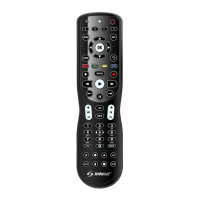
The Inteset INT-422-2 IR remote allows you to control
up to 4 audio and video devices with a single, fully
backlit, easy-to-use remote. It is specifically designed
to work with popular streaming devices such as Xbox,
Apple TV, Roku, Windows Media Center, and many
more. The remote is loaded with features allowing
you to accomplish total control of your A/V devices
with the fewest button presses.
Button Label Stickers
A full complement of button label stickers is provided
so that you can customize your remote to your exact
needs. The label sheet is scored vertically into
columns. Use sharp scissors to cut out the individual
labels.
We hope that you are pleased with your new remote.
Help is available at http://remotecontrol.inteset.com.
This page has all the information you need to get
started with your new remote including the device
setup code database, button mappings, warranty
information, and more.
Installing the Batteries
Your Inteset INT-422-2 remote control comes with
2 AA alkaline batteries.
Battery Use and Safety
Replace with only fresh batteries.
Do not mix old and new batteries, different types
of batteries (alkaline, or rechargeable), or
rechargeable batteries of different capacities.
If you do not plan to use the remote for an
extended period, remove the batteries.
WARNING: Dispose of old batteries promptly and
properly. Do not burn or bury batteries.
To Install the Batteries
1. Open the battery compartment cover located on
the back of the remote (slide the cover
downward).
2. Place the included AA batteries in the
compartment ensuring that the positive and
negative ends of the batteries match the symbols
labeled on the remote.
3. Replace the cover
NOTE: When the battery voltage is low, the red signal
LED blinks 5 times after a button press.
Programming Device Control
Before proceeding with programming the Inteset
remote, you should first find the remote setup codes
for the A/V devices you own (up to four). You can find
these codes easily by searching our vast Device Setup
Codes database at the following website (search
instructions are found on the website):
http://remotecontrol.inteset.com
Once you have the setup codes, it takes just a few
minutes to configure the remote for your A/V
devices. Note that if you own an AppleTV, Xbox One,
Windows Media Center system, or Roku device, the
setup codes for these devices are already pre-
programmed to the A, B, C, and D device mode
buttons respectively on the remote. If you do not use
one or any of these devices, you can overwrite the
pre-programming with your own setup codes. Follow
the steps below to program the remote to work with
your devices:
1. Turn on the device (ie: your TV).
2. Press the Device key on the remote you wish to
program (ie: A, B, C, or D).
3. Press and hold the SET button on the remote until
the signal LED (red light) blinks twice, then release
the button.
4. Enter the first five-digit setup code for the device
(ie: TV) you found in the database search. The LED
blinks once as each digit is entered. If the code is
valid, the LED will blink twice quickly.
NOTE: If the LED does not blink twice after entering
the five-digit code, repeat steps 2-4.
5. Aim the remote at the device (ie: TV) and press
the remotes POWER button (top right corner).
The device should turn off. If it does not, you
should repeat steps 3-5, trying each code for your
devices brand until you find the one that works.
6. Repeat steps 1-5 for the other devices you want
to control.
Most buttons on the remote are already intuitively
labeled, but some, such as the Device mode buttons
(ie: A, B, C, and D) will need labels. You can add the
appropriate supplied sticker labels above the buttons
on the remote to clarify the buttons function.
Searching for your Device Setup Code
If in the unlikely situation you cannot find a setup
code match based on the above instructions, you can
try searching the entire code database by cycling
through all codes. To do this, follow the steps below:
1. Turn on the device you wish to control (ie: TV).
2. Press the desired Device mode button once.
3. Press and hold the SET button until the red LED
blinks twice, then release.
4. Enter 9 9 1. The LED will blink twice.
5. Press the device group number that corresponds
to your device (ie: 0=cable boxes, 1=TVs, 2=DVDs,
Blu-ray players, streaming, 3=audio equipment).
6. Aim the remote at the device and press the
POWER button. The remote will send the first IR
code in its library for the power button within
that device group.
7. If the device does not respond, press the CH+
button and the remote will send the next code.
Continue until the device shuts off (press CH- for
the previous code).
8. Once the device turns off, press the SET button to
save the code to the selected device mode.
Obtaining the Remotes Setup Codes
Sometimes it may be necessary to determine the
device setup codes you are using on your remote. For
example, if you purchase a new Inteset remote
control for a different room with a similar A/V device
setup. Follow the instructions below to obtain the
device setup codes programmed on your remote:
1. Press the Adevice button once.
2. Press and hold the SET button until the red LED
blinks twice, then release.
3. Enter 9 9 0. The LED blinks twice.
4. To determine the first digit of the code, press 1.
Count the red LED blinks (ie: three blinks = 3) and
make note of the number.
NOTE: If a code digit is 0, the LED does not blink.
5. Repeat step 4 for the remaining four digits of the
setup code using 2 for the second digit, 3 for the
third, 4 for the fourth, and 5 for the fifth setup
code digit.
6. To determine other device setup codes
programmed into the other Device buttons (B, C,
and D), repeat steps 1-5, substituting the device
button to check.
Learning another Remotes Buttons
You can learn the IR signal of each button on the
remote that came with your A/V device. It may be
necessary to program particular buttons on your
Inteset remote this way if they are not available after
applying the setup codes to the device buttons.
Before learning a button, there are some
considerations.
Learning Considerations
Your original remote control must be an IR type
remote (Infrared) and be in working order.
Learned buttons are device specific. So, for each
button/device on your Inteset remote, you can
learn a button from the original remote.
The following buttons are not available for
learning: Device, SET, or Record.
Learning capacity is from 42 to 75 buttons
depending on the IR code length of the buttons.
Certain buttons are not learnable including multi
or high frequency types, and other odd formats.
For optimal learning, avoid bright ambient light
such as natural sunlight.
When learning a button, press the original remote
button quickly. Otherwise the Inteset remote may
learn the IR code for the button twice.
Learning a Button
NOTE: If more than 10 seconds passes between
button presses, the remote will exit programming
mode.
1. Place the Inteset remote head-to-head (about 2”
apart) from the training remote. Locate the
button you want to learn on the training remote.
2. On the Inteset remote, press the Device mode
button (ie: A, B, C, or D) on which you want to
learn buttons from the training remote.
3. Press and hold the SET button until the red LED
blinks twice, then release.
4. Enter 9 7 5. The LED will blink twice.
NOTE: If the LED displays one long flash instead,
either the batteries are low, or the remote has a
memory fault (ie: it is out of memory). In either case,
the remote will not be able to learn any buttons.
5. Press the button on the Inteset remote that you
want to learn. The LED will start blinking rapidly,
indicating it is ready to learn.
6. On the training remote, quickly press the button
to be learned. The Inteset remote should blink
twice indicating it has learned the button on the
training remote.
Removing a Learned Button
This procedure returns the previously learned button
to its originally programmed state for the selected
mode. You can also overwrite learned buttons by
retraining them as described in the previous
“Learning another Remotes Buttons section.
NOTE: If more than 10 seconds passes between
button presses, the remote will exit programming
mode.
1. Press the Device mode button (ie: A, B, C, or D)
for which you want to remove a learned button.
2. Press and hold the SET button until the red LED
blinks twice, then release.
3. Enter 9 7 6. The LED will blink twice.
4. Press the button containing the learned function
to be removed twice. The LED will blink twice and
then exit from programming.

Question and Answer IconNeed help?

Do you have a question about the Inteset INT-422-2 and is the answer not in the manual?

Summary

Introduction to Inteset Remote

Remote Customization and Setup

Button Label Stickers

Stickers for customizing remote button functions. Cut out individual labels with scissors.

Installing Remote Batteries

Instructions for installing AA batteries into the remote control.

Battery Safety and Usage

Programming Device Control

Finding and Using Setup Codes

Searching for Device Setup Codes

Procedure to cycle through the entire code database to find a setup code match.

Obtaining Remote Setup Codes

Instructions to retrieve current device setup codes programmed on the remote.

Learning Remote Button Functions

Learning a Button

Process to learn IR signals from an original remote to Inteset remote buttons.

Removing a Learned Button

Procedure to revert a learned button to its original programmed state.

Advanced Remote Programming

Programming Volume Lock

Configure global volume control for all devices or specific device modes.

Programming Channel Lock

Set global channel control for number keys and channel buttons across modes.

Button and Macro Operations

Programming Button-mover

Copy buttons between device modes or within the same mode.

Programming Macros

Assign multiple button presses to a single button for automated sequences.

Remote Maintenance and Defaults

Programming Punch-through Keys

Set keys to send the same IR signal regardless of the selected device mode.

Resetting to Factory Default

Clear all programming and restore the remote to its original settings.

Warranty Information

Overview

The Inteset 4-in-1 IR Remote Control (Model: INT-422-2) is a versatile and user-friendly device designed to consolidate control of up to four audio and video components into a single remote. Its primary function is to simplify your home entertainment experience by eliminating the need for multiple remotes. This remote is particularly well-suited for modern streaming devices such as Xbox, Apple TV, Roku, and Windows Media Center, alongside traditional A/V equipment.

Function Description

The core function of the Inteset INT-422-2 is to transmit Infrared (IR) signals to control various electronic devices. It achieves this through a comprehensive database of pre-programmed setup codes, as well as a learning function that allows it to mimic signals from existing remotes. The remote features four distinct "Device mode" buttons (A, B, C, D), each capable of being programmed to control a different A/V component. This allows for seamless switching between controlling your TV, cable box, Blu-ray player, or streaming device with a single button press.

Beyond basic device control, the remote offers advanced programming capabilities to enhance usability. These include:

  • Global Volume Lock: This feature allows you to designate one device (e.g., your TV) to control the volume across all device modes. This means that regardless of whether you are in "cable box mode" or "Blu-ray mode," the volume buttons will always adjust the volume of your chosen device. This can be particularly convenient for maintaining consistent audio levels without constantly switching device modes.
  • Global Channel Lock: Similar to volume lock, this function enables you to assign channel control (including number keys, CH+, CH-, Last, and Enter buttons) to a single device (e.g., your cable box) across all device modes. This is ideal for users who primarily consume broadcast TV through one source.
  • Button-mover (Copy Function): This powerful feature allows you to copy the function of a button from one device mode to another, or even to a different button within the same device mode. For instance, you could copy the "Play" button function from your Blu-ray player mode to your TV mode, enabling you to control Blu-ray playback while still operating in TV mode. This customization significantly reduces the number of mode switches required for common tasks.
  • Macros: The remote supports programming macros, which are sequences of up to 32 button presses executed with a single button press. Macros can be device-mode independent or dependent. A device-mode independent macro, for example, could be programmed to turn on both your TV and cable box, then switch to your favorite channel, all with one press. Device-mode dependent macros perform their sequence only when the remote is in a specific device mode.
  • Punch-through Keys: This feature allows you to designate specific keys to send the same IR signal regardless of the current device mode. For example, you could program the "Input" button to always control the input selection on your TV, even when the remote is set to control your cable box.

Usage Features

The Inteset INT-422-2 is designed for ease of use, starting with its physical layout and features:

  • Full Backlighting: The remote features full backlighting, making it easy to operate in dimly lit environments. A brief press of any key activates the backlighting for 5 seconds, while a short press of the SET button extends it to 10 seconds.
  • Button Label Stickers: A comprehensive set of button label stickers is included, allowing users to customize the remote's labels to match their specific device functions and preferences. The labels are scored vertically for easy cutting and application.
  • Intuitive Button Layout: Many buttons are already intuitively labeled, but the provided stickers allow for further personalization, especially for the Device mode buttons.
  • Device Setup Code Database: The remote utilizes a vast online database of setup codes, accessible via the Inteset website, to quickly configure control for a wide array of A/V devices. This simplifies the initial setup process.
  • Pre-programmed Codes: For popular streaming devices like Apple TV, Xbox One, Windows Media Center, and Roku, the remote comes with pre-programmed setup codes assigned to the A, B, C, and D device mode buttons, offering out-of-the-box compatibility for many users.
  • Code Search Function: In cases where a direct setup code match isn't found, the remote offers a code search function that cycles through its entire code database, increasing the likelihood of finding a compatible code.
  • Learning Function: For devices or functions not covered by the setup code database, the remote can "learn" IR signals directly from your original remote controls. This ensures compatibility with virtually any IR-controlled device. The learning capacity ranges from 42 to 75 buttons, depending on the IR code length.
  • Code Retrieval: The remote allows users to retrieve the five-digit setup codes currently programmed into each device mode. This is useful for documenting settings or transferring them to a new Inteset remote.

Maintenance Features

Maintaining the Inteset INT-422-2 is straightforward, primarily involving battery management and the option to reset to factory defaults:

  • Battery Installation: The remote operates on two AA alkaline batteries, which are included. The battery compartment is easily accessible on the back of the remote. Clear markings ensure correct polarity during installation.
  • Low Battery Indicator: A red signal LED blinks five times after a button press when the battery voltage is low, providing a clear indication that battery replacement is needed.
  • Battery Safety Guidelines: The manual emphasizes important battery safety practices, including using fresh batteries, avoiding mixing old and new or different types of batteries, and removing batteries during extended periods of non-use to prevent leakage. Proper disposal of old batteries is also highlighted.
  • Removing Learned Buttons: Individual learned buttons can be easily removed, restoring them to their originally programmed state. This is useful if a learned function is no longer desired or if an error occurred during the learning process.
  • Removing All Learned Buttons from a Device Mode: For a more comprehensive reset, all learned buttons within a specific device mode can be cleared, returning that mode to its original programmed state.
  • Restoring All Moved Specific Mode Buttons: If button functions have been moved using the button-mover feature, there's a specific procedure to restore all moved buttons within a device mode to their original assignments.
  • Restoring a Moved Button: Individual moved buttons can also be restored to their original function.
  • Clearing Macros: Macros can be cleared by following the programming steps without specifying a series of commands.
  • Reset to Factory Default: For a complete reset of all programming, including setup codes, learned functions, macros, and lock settings, the remote can be restored to its factory default settings. This is a useful troubleshooting step or when reconfiguring the remote entirely.

The Inteset INT-422-2 is designed to be a durable and adaptable control solution, offering a blend of out-of-the-box compatibility and extensive customization options to suit a wide range of home entertainment setups.

Inteset INT-422-2 Specifications

General IconGeneral
BrandInteset
ModelINT-422-2
CategoryRemote Control
TypeUniversal Remote
Number of Devices Controlled4
Pre-programmed CodesYes
Learning FunctionYes
Backlit KeysYes
Battery Type2 x AAA
Range30 feet
FrequencyInfrared (IR)

Related product manuals