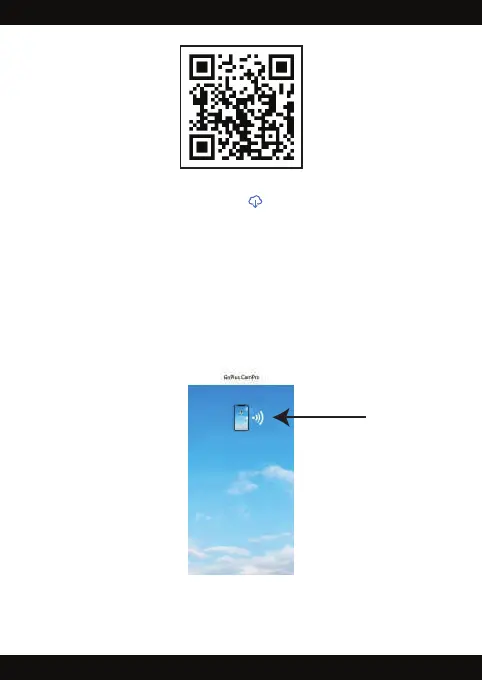
6) When the WiFi DashCam Pro and the GoPlus CamPro APP are connected,
you will see a screen with a real-time video feed as shown on the next page.
1) On Android: select “install” and download the app.
On Apple: click on the download icon and then select “open”.
2) Press and hold the “UP” button with the WiFi icon to turn on the WiFi
network. The LCD screen will display a WiFi icon and then show the
DashCam SSID and WPA2 password.
3) Go to your smartphone general settings and look for your WiFi settings
menu. Search for the WiFi DashCam Pro network SSID: “DashCam”,
add the WPA2 password and your smartphone will show a check mark
next to DashCam when you are properly connected.
4) Look for the GoPlus CamPro APP icon on your smartphone and click on it.
5) Initialize the GoPlus CamPro APP by clicking on the WiFi icon shown in the
APP’s screenshot below.



 To Next Page