1
2
3
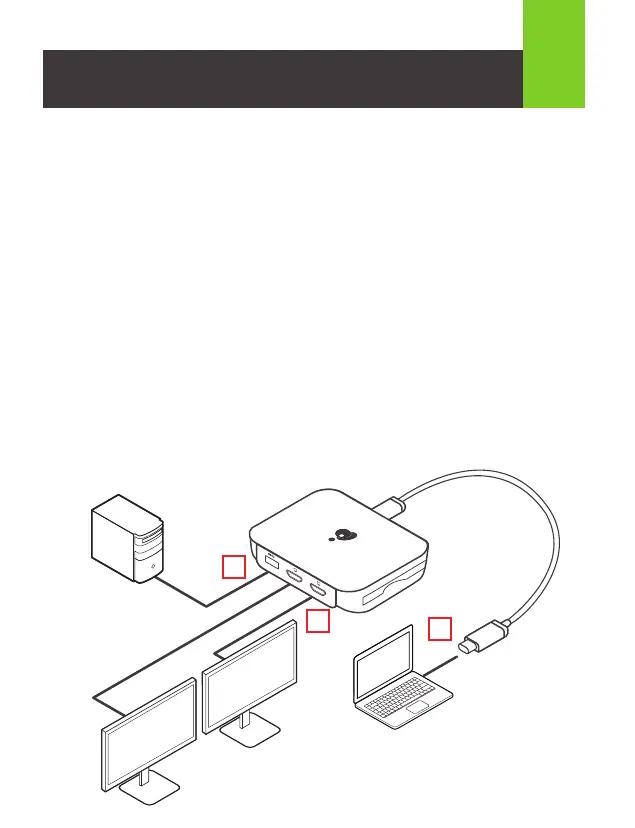
Step 1
Using the included USB-C cable to connect to computer host’s
USB-C port on GUC3CDHD .
Step 2
Connect a USB 2.0/3.0 devices to the USB-A 3.1 port.
If the LED changes from white to orange color, it indicates that the
USB-C cable cannot provide sufficient power to run the connected
USB device, such as external Hard Drive. In that case, please plug
in the USB devices’ own external power adapter.
Step 3
Connect external HDMI monitor to HDMI 1 port and HDMI 2 port on
GUC3CDHD upon needs. The computer screen might appear to
flicker few times before GUC3CDHD finish video sync process.
Hardware Installation
3



 To Next Page