3
Hardware Installation
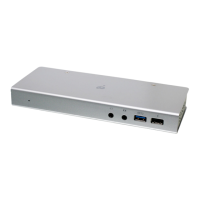
STEP 1. Connect the Laptop AC Adapter to the USB-C charge port on the docking station*
STEP 2. Connect the video output that you wish to use (HDMI, mDP or VGA)**
STEP 3. Connect additional USB peripheral devices as needed to the 3 USB Type-A ports
STEP 4. Insert the SD/MMC or Micro SD cards to the card reader slot
STEP 5. Make sure the laptop is turned on, connect the USB-C cable from the docking
station to the host laptop computer USB-C port
*Note: Please plug in the USB-C charger to USB-C Power charging port before using the
dock as plugging or unplugging of the USB-C charging port will may cause the momentary
disconnect on USB devices connected to the docking station.
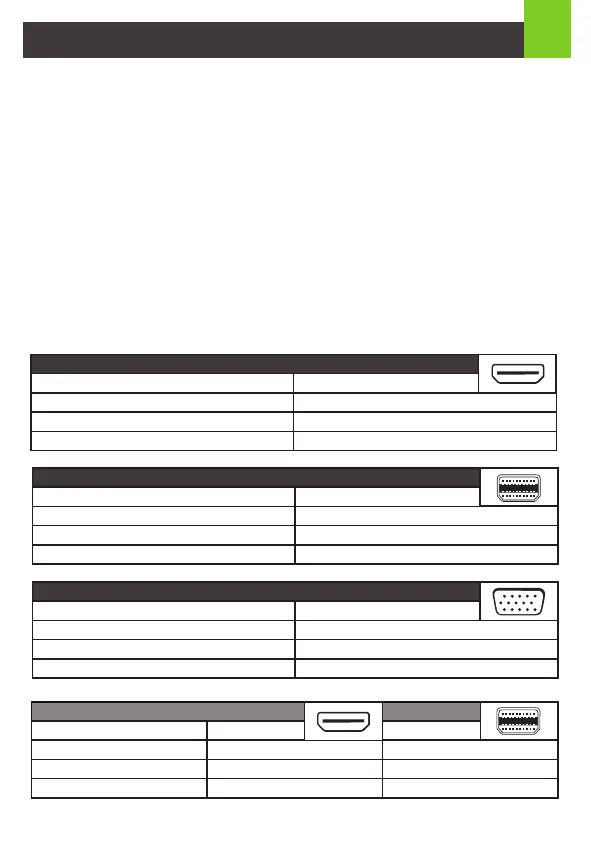
**Video Resolution Chart
Single Video Output
Operating System
Windows
Mac OSX
Chrome OS
up to 3840x2160 @30Hz
up to 3840x2160 @30Hz
up to 3840x2160 @30Hz
Single Video Output
Operating System
Windows
Mac OSX
Chrome OS
up to 1920x1200 @60Hz
up to 1920x1200 @60Hz
up to 1920x1200 @60Hz
Single Video Output
Operating System
Windows
Mac OSX
Chrome OS
HDMI
up to 3840x2160 @30Hz
up to 3840x2160 @30Hz
up to 3840x2160 @30Hz
mDP
VGA
HDMI mDP
Dual Video Outputs
Windows
Mac OSX
Chrome OS
up to 1920x1200 @60Hz
N/A
N/A
up to 1920x1200 @60Hz
N/A
N/A


 To Next Page