Instructions
3
>>
>>
>>
>>
>>
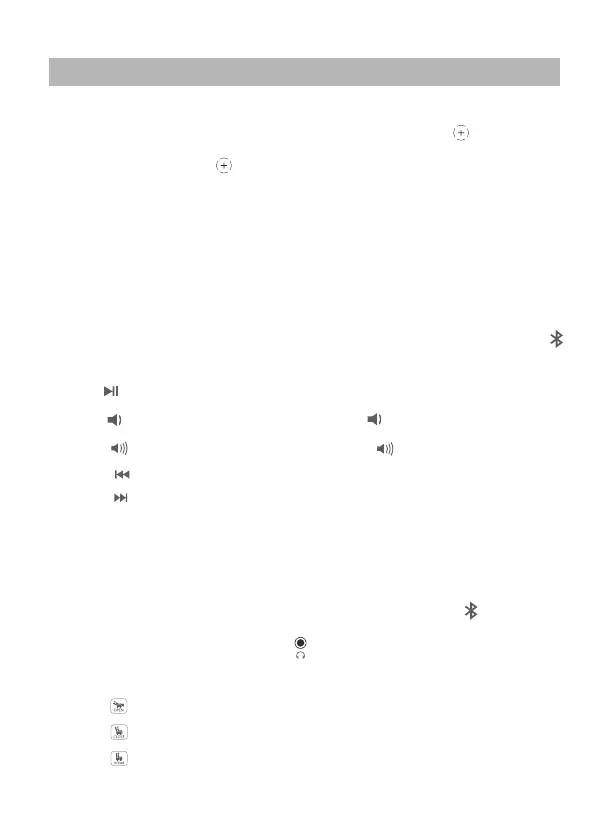
Touch to pause or play music.
>>
>>
>>
>>
>>
>>
>>
>>
>>
>>
Aim your phone’s wireless charging receiver at iTable406 and lay it
flat on top. If the device does not respond, move the mobile phone until
the receiver is aligned .
Push the slider in the middle direction to directly use the power socket
(CN, US, UKCA, CE, AU optional), USB-A charging and USB-C charging.
Long press to power on the audio and seat control system. The sound touch
interface lights up blue, the seat touch interface lights up white. Bluetooth
goes into automatic search mode.
Bluetooth goes into standby mode when the sound and seat control systems
are turned on.Open your Bluetooth device and search for the Bluetooth
name“iTable406” and click connection is successful,the stereo plays a
“beep”.If you want to disconnect the current Bluetooth connection,press
and hold for about 3S,and the Bluetooth will be restored to the state to be
connected.
Touch to reduce the volume, Tap and hold to quickly reduce the volume.
Touch turn up the volume. Tap and hold to quickly increase the volume.
Touch back to the previous song.
Touch to go to the next song.
Insert the USB storage ( the USB port next to the headphone hole) with music
files, and the product will automatically enter the USB playback mode.
Disconnect the USB connection and the device automatically switches to
Bluetooth mode. (supported file formats . Mp3 / . Mp2 / . wam / . asf / . WMV /
. Wav / . Aif / . Aiff /. : m4a /. Aac / . mp4 / . mov / . flac format file. )
If the USB connection is not disconnected, press to switch to Bluetooth
playback mode.
Insert the earphone into the port ,and the device automatically
switches to the earphone output.Disconnect the headphone connection
and automatically switch to the speaker output.
Touch to open the seat.
Touch to close the seat.
Touch to reset seat.
>>
Plug the product into an available household electrical outlet.


 To Next Page
 Loading...