This document describes a line scan camera, providing details on its functions, technical specifications, usage, and maintenance.
Function Description
The line scan camera is a highly reliable and cost-effective camera designed for industrial use. It integrates CameraLink line scan camera and GigE line scan camera according to the interface. The CameraLink line scan camera utilizes a high-performance, photosensitive chip and transmits image data through the CameraLink data interface. It is compatible with various application development tools that meet the CameraLink protocol and GenlCam standards. The maximum theoretical transmission rate can reach 6.8 GB/s, meeting the transmission rate requirements in most industrial applications. It can work stably in various harsh environments, offering highly reliable and cost-effective performance. The GigE line scan camera also employs a high-performance photosensitive chip and supports real-time transmission of image data through Gigabit Ethernet. It is compatible with any application development tools that comply with GigE Vision and GenlCam standards. The maximum transmission rate can reach 1000 Mbps, meeting the needs of most industrial applications, and it can work stably in various harsh environments.
The line scan camera is typically applied to detect materials that continuously move, such as metals, plastics, paper, and fibers. The objects that can be detected usually move at a constant or variable speed, and one or more cameras can be used to scan the object line by line to detect its entire surface evenly.
Important Technical Specifications
CameraLink Line Scan Camera
- Simple installation and convenient operation.
- Supports Deca, Full, Medium, Base, and theoretically, it can provide up to 6.8 GB/s bandwidth.
- Multiple trigger modes such as external trigger, free-run, multi-frame trigger, and more.
- Supports multiple image data formats.
- Compatible with CameraLink or GigE protocol, and GenlCam standard.
- 12–24 VDC wide voltage power supply.
- Conforms to CE, FCC, UL, and RoHS.
GigE Line Scan Camera
- Simple installation and convenient operation.
- Maximum transmission distance of 100 m.
- Multiple trigger modes such as external trigger, free-run, multi-frame trigger, and more.
- Supports multiple image data formats.
- Compatible with CameraLink or GigE protocol, and GenlCam standard.
- 12–24 VDC wide voltage power supply.
- Conforms to CE, FCC, UL, and RoHS.
Application Environment
- Temperature and humidity: The ambient temperature cannot exceed 50 °C, and it is best for the camera to work in an air-conditioned environment.
- Ambient temperature when the camera is working: –30 °C to +50 °C.
- Ambient humidity when the camera is working: 20%–80%, non-condensing.
- Storage temperature: –30 °C to +80 °C.
- Storage humidity: 20%–80%, non-condensing.
- Installation: Install the device indoors and stably, and leave enough space for heat dissipation at four sides of the device.
- Airflow: Certain air flow is required.
Status Indicator Lights
The device features status indicator lights to provide visual feedback on its operation:
- Red (Flashes quickly): Device starting.
- Red (Dim): The address has been allocated, and the application software API is not connected to the device.
- Normal (Blue, Bright): The application software API is connected to the device, free-run mode, no image transmission.
- Normal (Blue, Flashes quickly): The application software API is connected to the device, free-run mode, image transmission is detected.
- Normal (Red + Blue, Flashes slowly): Trigger mode.
- Normal (Red + Blue, Flashes alternately): Firmware upgrading.
- Abnormal (Red, Solid): The device is abnormal, such as no bit stream, firmware upgrade failure.
- Abnormal (Red, Flashes slowly): Network disconnected.
Transmission Layer Management (TAP Settings)
- TapGeometry: Arrangement format of camera output images.
- Configuration: Output type, which includes Base, Medium, Deca and Full.
- TimeSlots: It is One by default.
- BaudRate: Baud rate.
- PixelClock: The clock frequency of pixel transmission. The larger the value, the faster the transmission.
- FrameTriggerCount: Statistics of the camera's external trigger frame signals.
- FrameTriggerLostCount: Statistics of the camera's external trigger frame signal loss.
- LineTriggerCount: Statistics of the camera's external trigger line signals.
- LineTriggerLostCount: Statistics of the camera's external trigger line signal loss.
- StatTriggerCountReset: Clearance of statistics.
GigE Line Scan Camera Transmission Layer
- PayloadSize: The length of each message.
- GevActiveLinkCount: The number of logical channels currently connected.
- GevInterfaceSelector: The number of device network ports. It is 0 by default.
- GevLinkSpeed: The negotiated rate of the current network port.
- GevMACAddress: Device MAC address.
- GevCurrentIPConfigurationLLA: Enable LLA function. When setting GevCurrentIPConfigurationLLA to True, you can set the IP address in LLA mode after the device is powered on.
- GevCurrentIPConfigurationDHCP: Enable DHCP function. When setting GevCurrentIPConfigurationDHCP to True, you can set the IP address in DHCP mode. In this case, the IP address can be automatically obtained.
- GevCurrentIPConfigurationPersistentIP: Static IP function. When setting GevCurrentIPConfigurationPersistentIP to True, you can set the IP address in static mode after the device is powered on.
- GevCurrentIPAddress: IP address of the current device.
- GevCurrentSubnetMask: Subnet mask of the current device.
- GevCurrentDefaultGateway: Gateway of the current device.
- GevIPConfigurationStatus: Displays the method that the IP address is allocated: LLA, DHCP or static IP.
- GevFirstURL: Acquires the first URL address of GenlCam XML.
- GevSecondURL: Acquires the second URL address of GenlCam XML.
- GevNumberOfInterface: Displays the number of logic channels that the device supports.
- GevPersistentIPAddress: Static IP address of the device.
- GevPersistentSubnetMask: Subnet mask of static device IP.
- GevPersistentDefaultGateway: Gateway of device static IP.
- GevMessageChannelCount: Displays the number of message channels that the device supports.
- GevStreamChannelCount: Displays the number of streaming channels that the device supports.
- GevHeartbeatTimeout: Heartbeat timeout period.
- GevTimestampTickFrequency: Frequency of timestamp.
- GevTimestampControlLatch: Latch the current timestamp into GevTimestampValue.
- GevTimestampControlReset: Used to reset the internal timestamp.
- GevTimestampValue: Used to store the latched timestamp.
- GevGVCPExtendedStatusCodeSelector: The version of GigE Vision for extended status code output.
- GevGVCPExtendedStatusCodes: Outputs extended status code or not.
- GevGVCPPendingAck: Reports to Pending_ACK or not when command timed out.
- GevGVCPHeartbeatDisable: Disable heartbeat detection of GVCP.
- GevGVCPPendingTimeout: Timeout period of GVCP command execution.
- GevGVSPExtendedIDMode: Enable GVSP extended ID code.
- GevCCP: Controls the permissions of applications to access the camera. ExclusiveAccess: The application that connected to the camera can run modify the register. ControlAccess: The application that connected to the camera can read the register, but cannot modify it.
- GevPrimaryApplicationSocket: Displays the UDP source port of the application that connected to the camera.
- GevPrimaryApplicationIPAddress: Displays the IP address of the application that connected to the camera.
- GevMCPHostPort: The destination port of the camera message channel.
- GevMCDA: The destination address of the camera message channel.
- GevMCTT: Timeout period of message channel.
- GevMCRC: The maximum number of message channel retransmissions.
- GevMCSP: Displays the source port of message channel.
- GevStreamChannelSelector: Select the streaming channel number if the camera supports multiple streaming channels.
- GevSCPInterfaceIndex: Displays the logic channel of device.
- GevSCPHostPort: Port of the camera streaming channel.
- GevSCPSFireTestPacket: Sends a test message.
- GevSCPSDoNotFragment: If the message is too long, whether to send the message in fragments and add fragmentation position 1 in the IP header.
- GevSCPSPacketSize: Message length of the streaming channel.
- GevSCPS: Controls the interval between messages.
- GevSCPD: Modifying the value can reduce the requirements on the network card, but the maximum bandwidth will be affected. Acquiring a single frame requires more time.
- GevSCDA: The destination address of the streaming channel.
- GevSCSP: The destination port of the streaming channel.
- FrameTriggerCount: The number of signals from frame trigger.
- FrameTriggerLostCount: The number of lost signals from frame trigger.
- LineTriggerCount: The number of signals from line trigger.
- LineTriggerLostCount: The number of lost signals from line trigger.
Usage Features
MV Viewer Installation and Camera Connection
The MV Viewer software is used to manage and control the line scan camera.
- Downloading MV Viewer: Go to
http://download.huaraytech.com/pub/sdk/, select the operating system, download the package, and then install the package on your PC.
- Connecting Camera: After installation, open MV Viewer. The main interface displays. Click "Features" > "AcquisitionControl" to find the camera.
- Menu: See Table 2-2 for details. Includes GigE, USB, CameraLink, and PCIe.
- Device list: Refresh online devices. Device to be connected. Device is connected. Multiple cameras can be connected and operated by using MV Viewer. But for CameraLink cameras, you need to connect the number of capture cards equivalent to the number of cameras that you want to connect and operate.
- Device information: Interface and device information of the selected device.
- Image settings: Includes video stream, image stream, display stream, image position, grayscale, RGB color value, and more. Play/pause. You can click on the right side to select from continuous, single-frame, and multi-frame modes. You can switch play modes only when play is paused. Save one or multiple pictures.
- Tool bar: Zoom in/out the screen. Displays the video image 1:1 or by window size. When the image is zoomed in or out, click to display the video image according to the actual window size. Mirror the video image horizontally or vertically.
- Window operation menu: Maximize/restore/minimize the window. Close MV Viewer.
- Parameters: Collapse/expand all parameters.
- Function parameters: Select and configure specific function parameters.
- Operation level: Click, and then select Beginner, Expert or Guru from the drop-down list. Parameters relating to each level might be different.
- File menu:
- Open file: Select File > Open File, select a file in the pop-up window, and click Open.
- Open recent file: Select File > Recent, and then the software displays 10 files that you have recently opened in MV Viewer. Click the name of a file to open it directly.
- Save: Save changes to the current file.
- Save as: Save the current file with another name to another path.
- Event notification: Make notifications related to events such as device parameter update, channel, and more.
- Statistics: Make statistics of capture frame rate, bandwidth, number of accepted images, frame loss rate, and number of error images.
- General settings: Camera operation level and basic parameters on the client.
- Image saving: Image save path, image format, and more.
- Video recording: Video storage path, video format, and more.
- Cache: Caching parameters of video stream.
- Transmission control: Includes parameters such as command response timeout, heartbeat interval, and streaming data packet timeout.
- Camera tool: The tool can be used to update the camera, configure camera IP address, make corrections, and more.
- Driver management tool: The tool can be used to install or uninstall the MV Viewer basic driver on you PC.
- Network adapter configuration tool: The tool can be used to switch network adapters and configure parameters of network adapters.
- Help: You can view the software version information.
- Language: Chinese and English are available.
Function Parameters
Industrial cameras support three user levels: Beginner, Expert, and Guru. Parameters relating to each level are slightly different. Parameters in black shade can be changed or edited, and parameters in gray shade cannot be changed or edited.
Line Scan Rate
- Exposure: The shorter the exposure time, the higher the line scan rate.
- Pixel format: In the same conditions, the more bytes the pixel format occupies, the lower the line scan rate.
- Bandwidth: The larger the bandwidth of the camera, the more data can be transmitted per second, and the higher the line scan rate.
- Image transmission mode: When the camera works with the optimum SDK, the image data is transmitted to your PC in different image transmission modes, and the PC analyzes the original image data through our SDK. This can further improve the line scan rate, such as the lossless compression function.
- The image lossless compression functions supported by different cameras are different.
To configure the line scan rate:
- Connect the camera through MV Viewer, and then select Features > AcquisitionControl.
- Select AcquisitionLineRate, and then you can view the maximum and minimum line scan rate and also adjust the rate.
- If the maximum line scan rate of the camera is lower than the defined rate, the camera captures images at the actual rate.
- If the maximum line scan rate of the camera is greater than the defined rate, the camera captures images at the defined rate.
- You can view the real-time streaming frequency of the camera through ResultingLineRateAbs.
- (Optional) You can view the real-time frame rate of the line scan camera at the upper-right corner.
Frame Timeout
In the frame + line mode, when the number of line signals has not reached the defined line height, the image will be displayed only after the subsequent line signals reach the defined line height. In special circumstances, if the line signal does not reach the defined line height, the camera will wait for the subsequent line signal. At this time, the frame signal will be filtered out and frame loss will occur. After turning on frame timeout, set the duration of one frame. If there are no enough line signals within this time, the camera will blacken the remaining lines and output a frame of image. Select AcquisitionControl, and then configure time of FrameTimeout. This function needs to enable frame + line trigger at the same time.
Acquisition Mode
Three acquisition modes are available: Continuous acquisition, single frame acquisition, and multi-frame acquisition.
- Click Acquisition Mode to select the corresponding mode.
- Select MultiFrame, that is, multi-frame acquisition.
- Select AcquisitionFrameCount, and then configure the parameters.
Parameter Description:
- SingleFrame: After starting acquisition, the camera captures images consecutively.
- Continuous: When the number of acquisition lines reaches the height of the image, one image will be generated, and then the images will be continuously generated in this mode.
- MultiFrame: Configure the frame rate (1–255) in AcquisitionFrameCount. After starting acquisition, the camera captures images consecutively. When the number of acquisition lines reaches the height of the image, one image will be generated, and then the images will be continuously generated in this mode, until the generated images reaches the value defined in AcquisitionFrameCount.
Trigger Mode
A line scan camera is generally triggered by line, frame, and line + frame. The trigger mode is determined by Trigger Selector and Trigger Mode in Acquisition Control.
Trigger Type
- Line trigger (LineStart): Outputs one line after receiving a trigger signal (rising edge or falling edge), and outputs a frame of image when the received signals meet the defined image height.
- Frame trigger (FrameStart): Outputs a frame of image after receiving a trigger signal (rising edge or falling edge).
- FrameActive: A high-level (low-level) area captures multiple lines, and an image will be generated until meeting the defined line height. If the defined line height is not met, the image will be directly generated according to the captured line height.
- Adaptive line height: The maximum line height that can be continuously captured in a high-/low-level area of the camera after configuring other camera parameters.
- When the adaptive line height is smaller than the defined line height, the height of the captured image is the adaptive line height. In this case, FrameBurstActive is the same as FrameActive.
- When the adaptive line height is greater than the defined line height, the height of the captured image is the defined line height, and multiple frames can be output at the same time. If the line height of the last frame is less than the set line height, the image will be displayed according to the actual last frame line height.
- FrameBurstActive: Multiple images can be outputted within a trigger signal high level (low level). When the adaptive line height is greater than the defined line height, you can set TriggerFrameCount to increase the number of frames captured by the camera.
- FrameBurstStart: Multi-frame mode of frame trigger mode. Outputs multiple images according to the define line height after receiving a trigger internal rising edge (falling edge). The number of images depends on the value defined in TriggerFrameCount.
- Line + frame trigger: When there are multiple trigger signals, you can enable frame trigger and line trigger at the same time, so that the images fit the application environment and the law of object motion.
Trigger Source
- Software trigger: Select Trigger Software from AcquisitionControl > TriggerSoftware to send trigger signals manually through the software.
- I/O trigger: The trigger signal enters the camera from external devices through the I/O interface. For the specific wiring of the camera I/O interface, see the electrical specifications of the camera. As shown in the figure below, set TriggerSelector to FrameBurstActive, TriggerMode to On, TriggerSource to Line2 and TriggerActivation to LevelHigh. After completing the configuration, wire line 2 according to the cable specifications. After that, images can be generated after receiving signals.
- Capture card trigger: A unique trigger mode of CameraLink line scan cameras. External signals enter the camera through the capture card, and the capture card sends the signals to the camera through the CameraLink cable for triggering detection.
- Trigger signal: includes RisingEdge and FallingEdge.
- After selecting the trigger signal source, select the trigger signal from RisingEdge (rising edge) and FallingEdge (falling edge).
- When setting the trigger, you need to configure corresponding parameters on the software of the capture card that the camera actually connects.
- Encoder trigger: The encoder can convert electrical signals by angular displacement or linear displacement of the object, and then the camera can be triggered by these signals, and finally acquire stream and output images.
- Select signal source from RotaryEncoderLineSource.
- Select rotary encoder line input source. For PhaseA and PhaseB, you need to select different input sources. The input source is Line1–6.
- Click RotaryEncoderSelector to select an encoder.
- Click RotaryEncoderLineSelector to select the encoder phase.
- Select line of rotary encoder. You can select from PhaseA and PhaseB. This parameter influences the forward and reverse direction of the movement platform.
- Click RotaryEncoderMode to set the encoder direction.
- ForwardOnly and AnyDirection are available. When the trigger signal reaches the defined line height, a frame of image will be triggered.
- ForwardOnly: Images will be generated when the encoder rotates forward. When it rotates in reverse, the number of reverse signals will be displayed in RotaryEncoderReverseCounter. When it rotates forward continuously, the reverse count will decrease, and an image will be generated when the count reduces to zero, eliminating dithering.
- The value of RotaryEncoderReverseCounterMax must be greater than the maximum of actual reverse signals; otherwise, the dithering will fail.
- AnyDirection: Images will be generated when the encoder rotates in any direction.
- Advantages of encoder trigger:
- The output signal frequency of the encoder is proportional to the speed of the object, ensuring that the pixel frequency is synchronized with the speed of the object's movement.
- The output pulse is used as the trigger signal of the line scan camera to synchronize the acquisition frequency of the camera with the movement speed of object.
- Images can be captured normally in the scene of non-uniform motion.
- When objects jitter in the application environment, set RotaryEncoderMode to ForwardOnly to eliminate the image impact caused by jitter.
Frequency Division and Multiplication Control
You can manage the frequency division and multiplication function of the signal source. For signal sources after frequency division, the frequency will become slow. For signal sources after frequency multiplication, the frequency will become fast. When external signals trigger the camera to start working, the image effect might be poor, or the image might be severely stretched or compressed. The frequency division and multiplication function can be used to adjust signal frequency to increase or decrease line scan rate.
- The image line height is 2048, the theoretical line frequency is 28000, and the frame rate is 0.5 fps. The image is severely compressed. The line scan rate (2048) of trigger signal is lower than movement speed of object, and cannot be changed. You can adjust the image by adjusting the frequency multiplication index.
- To adjust frequency:
- Select frequency controller from FrequencyConverterSelector.
- Set signal source from InputSource.
- Set Divider value (frequency division index) and Multiplier value (frequency multiplication index).
- Set a proper multiplier value (13) to increase the trigger line scan rate 26624 (2048 × 13).
- Similarly, when the image is stretched, you can adjust the divider value.
Trigger Delay
Delay time can be set between the time that the camera receives trigger signal and the time that the camera captures an image. The camera captures an image after the defined trigger delay.
- You can configure Trigger Delay. The unit is µs, and the range is 0 µs–1000000 µs, that is, 0 s–10 s.
I/O Control
The external trigger input of the line scan camera supports three signal interfaces: Non-isolated differential signal, non-isolated single-ended signal, and isolated single-ended signal.
Non-isolated Differential Signal
Connected to incremental rotary encoder with differential output. Often used as a line trigger signal input. We recommend using a differential output (linear drive output) encoder for long-distance transmission.
- Connect the A/B phase output of the encoder to the Line+ pin of the camera, and then to the Line– pin of the camera. Connect A/A or B/B to the Line pin of the camera same label. For example, connect A to Line1+, and then A to Line1–.
- Connect the power ground (0 V) of the encoder to the signal ground (SGND) of the camera.
- Connect a power supply with a suitable voltage between the power supply (VCC) and the power ground (0 V) according to the power supply voltage requirements of the encoder.
- Set the camera I/O to a differential input, and then enable the termination resistor.
- Line1 in the figure can also be Line2 or any other external signal input pin that supports non-isolated differential input.
- Use a shielded twisted pair (generally, the lead of the encoder is a shielded wire) to connect the encoder and the camera. If you need to extend the wiring, use a shielded twisted pair too, and connect the new shield to the metal braid of the original shielded wire.
Non-isolated Single-ended Signal
Connected to incremental rotary encoder with single-ended output signal. Often used as a line trigger signal input. The encoder is cost-effective when used in scenarios of short-distance transmission or no interference. The encoder can be divided into three types: Complementary output, NPN collector output, and PNP collector output.
- Connect the A/B phase output of the encoder to the Line+ pin of the camera. Line– pin remains connected.
- Connect the power ground (0 V) of the encoder to the signal ground (SGND) of the camera.
- Connect a power supply with a suitable voltage between the power supply (VCC) and the power ground (0 V) according to the power supply voltage requirements of the encoder.
- Set the camera I/O to single-ended input, and set an appropriate comparison level according to the encoder supply voltage.
- Encoder supply voltage (V) and Encoder pull-up and pull-down resistance:
- 5 V: 1 K
- 12 V: 2.7 K
- 24 V: 4.7 K
- For NPN collector output, it is required to connect a pull-up resistor between the encoder power supply (VCC) and the signal cable. For PNP collector output, connect a pull-down resistor between the encoder power ground (0 V) and the signal cable. The resistance value is generally between 1–10 K, depending on the power supply voltage of the encoder. The resistance can be 1/8 W metal film in-line resistance. See Table 3-2 for the recommended values.
Isolated Single-ended Signal
It is used to connect the output of photoelectric sensor or other general PLC switch. It often used as frame trigger signal input.
- Connect the output interface of signal source to the optocoupler input, and connect the other end to the optocoupler isolation ground.
- Set the camera I/O to single-ended input, and select the corresponding Line. Select appropriate power supply according to the power requirements in camera electrical specifications.
Configuring I/O Output Signal
The camera trigger output signal is a switch signal, and it can be used to control external devices such as alarm lights, light sources, and PLCs. The trigger output signal can be realized in two ways: Level inversion and output signal. You can set the relevant parameters in Digital IO Control. For specific connection method, see the camera electrical specifications. The connection method is similar to that of the external trigger interface.
I/O Filtering
Line Debouncing Period: Signal debouncer, also known as filtering, is only supported in input mode. The level signal of the corresponding interface line is filtered according to the defined value. Signal will be filtered out when the signal value is smaller than the debounce value.
- For example, set LineDebouncingPeriod to 1500 µs.
- When the value of LineDebouncingPeriod is greater than the value of high and low levels, as shown in the example above, if the filtering level is greater than 5000 us, the camera will not generate streams. Therefore, when setting LineDebouncingPeriod, make sure that its value is smaller than the high and low level.
FPN Correction
FPN correction is applied to ensure image uniformity of line scan cameras.
- Turn on FPNenable.
- Cover the camera with the lens cap, and then click FPNBlackCalibration.
- Remove the lens cap, place an even plate to cover your field of view (use a piece of white paper or an old plate is unavailable), and adjust the exposure so that the gray value of the image is between 160 and 200.
- Click FPNBrightCalibration, and then set FPNenable to On. FPN takes effect.
- It can be seen from the gray value curve that FPN makes the gray value of each line of the collected image more uniform.
Black Level
Black level helps you adjust the gray value offset of the output data. The gray value offset determines the average gray value when the sensor is not sensitive. For different ADC bit depth modes, the black level parameter ranges of the camera are different.
- To configure black level, set the Black Level value.
Gain
The camera gain is divided into analog gain and digital gain. The analog gain can amplify the analog signals, and the digital gain can amplify the signal after converting analog signals to digital signals. Analog gain amplifies and enhances the signal. The larger the parameter, the stronger the gain, the brighter the image, and the more the noise. The digital gain can amplify the signal after analog-to-digital conversion. Similar to analog gain, the larger the parameter, the stronger the gain, the brighter the image, and also more noise (more noise than analog gain).
Analog Gain
You can set gain parameters in three ways: Off, once, and continuous.
- Way and Description:
- Off: Adjust the analog gain according to the value defined in GainRaw.
- Once: Automatically run analog gain for a period of time according to the scenario, and then stop.
- Continuous: Automatically and continuously adjust the analog gain according to the scenario.
- GainAuto is only available for certain models. For details, see the specifications of the corresponding product.
Digital Gain
Configure DigitalShift. The range is 0–4. The larger the value, the stronger the gain, the brighter the image and the more the noise.
White Balance
White balance allows you to adjust the corresponding R/G/B values to compensate for color cast that occurs when capturing images in different light sources. It aims to keep the white areas of the image white at different color temperatures.
White balance is divided into three modes: Off, once, and continuous.
- White Balance Mode and Description:
- Off: Manually set the values of red, green and blue color in BlackRatioSelector and BalanceRatio (white balance).
- Once: Automatically run white balance for a period of time according to the scenario, and then stop.
- Continuous: Automatically and continuously adjust the white balance according to the scenario.
- When the color effect of the camera image is much different from the actual situation, you can solve the problem through white balance calibration.
- Set BalanceWhiteAuto to Off.
- Select BlackRatioSelector, and then adjust the value of Red, Green, and Blue.
- Adjust BalanceRatio to a proper value. The range is 0–15. Similar to red, green, and blue values.
Gamma
It is a non-linear correction of the image data due to non-linear response of the display. The larger the Gamma value, the darker the image. The range is 0–3.99998.
- Adjust the Gamma value to make the image brightness meet the requirements.
- Gamma and LookUpTable cannot be enabled at the same time. If Gamma is enabled, LookUpTable will not be effective. If LookUpTable is enabled, you need to set Gamma to 1.
Testimage (Test Mode)
You can set the test mode of the camera. When the camera is in test mode, the camera will not capture images in real time, but images defined in the camera program. When the real-time image is abnormal, you can almost know the reason of the image anomaly by checking whether the image in the test mode has similar problems. This function is disabled by default. In this case, the image output by the camera is the data collected in real time.
- You can configure test mode from TestImageSelector > Image Format Control. The test mode is off by default.
- After enabling test mode, the image displayed in the live window of the capture card software switches to test image. The specific test image depends on the test mode.
- Different models support different test images.
Maintenance Features
Rotary Encoder FAQ
What are maximum response frequency and maximum allowed speed?
- Maximum response frequency: The maximum electrical response frequency of the encoder. The unit is Hz. If the encoder is used not exceeding this parameter, its internal circuit will not be able to respond, resulting in pulse leakage of the encoder.
- Maximum allowed speed: The highest speed that the shaft of the encoder can withstand during rotation. The unit is r/min. If the encoder is used exceeding this parameter, the shaft of the encoder will be damaged.
How far can the signal output of the rotary encoder be transmitted?
It depends on the encoder output type:
- Open collector NPN/PNP output: 10 m.
- Voltage output: 2 m. Complementary output: 30 m.
- Differential output (or cable drive output): 100 m.
- We recommend using a differential output (linear drive output) encoder for long-distance transmission.
- If you want to extend the wire of the encoder, you must use a shielded twisted pair.
How to avoid encoder interference?
- Use shielded cables for signal cables, and connect them reliably.
- The signal wires are routed separately from high-current power cables (such as motor wiring).
- Install the device separately from high-power or high-frequency device.
What do the phase A, phase B and phase Z output of the incremental encoder mean?
Each time the encoder rotates, phase A and phase B send out the same number of pulses, but there is a 90° phase difference between phase A and phase B (one rotation is 360°), and you can learn whether the encoder is rotating forward or reverse according to the phase difference. During forward rotation, phase A leads B phase 90° for phase output, and for reverse rotation, phase B leads phase A by 90° for phase output. Each time the encoder rotates, phase Z only sends out a pulse at a fixed position, so it can be used as a reset phase or a zero phase.
What is encoder resolution?
Resolution is also called the number of pulses. For an incremental encoder, resolution is the number of pulses output by the encoder after the shaft rotates one circle.
What is the output phase?
For incremental encoders, it refers to the number of output signals. It includes 1-phase type (phase A), 2-phase type (phase A, phase B), 3-phase type (phase A phase, phase B, and phase Z).
What are CW and CCW?
CW means clockwise rotation, as shown in the figure below. In this rotation direction, phase A of an incremental encoder outputs before phase B. The opposite of the CW rotation direction is CCW (counter-clockwise). In this rotation direction, phase B of an incremental encoder outputs before phase A.
How to convert the signal output by NPN into the signal output by PNP?
Connect a pull-up resistor between the NPN output pin and the encoder power supply, output a low-level when the transistor is turned on, and output a high level when the transistor is turned off. The pull-up resistor value depends on the camera minimum turn-on voltage and the internal resistance of the input terminal, generally 4.7 K–10 K.
Cybersecurity Recommendations
- Use Strong Passwords:
- The length should not be less than 8 characters.
- Include at least two types of characters: character types include upper and lower case letters, numbers and symbols.
- Do not contain the account name or the account name in reverse order.
- Do not use continuous characters, such as 123, abc, etc.
- Do not use overlapped characters, such as 111, aaa, etc.
- Update Firmware and Client Software in Time:
- According to the standard procedure in Tech-industry, we recommend to keep your device (such as NVR, DVR, IP camera, etc.) firmware up-to-date to ensure the system is equipped with the latest security patches and fixes. When the device is connected to the public network, it is recommended to enable the "auto-check for updates" function to obtain timely information of firmware updates released by the manufacturer.
- We suggest that you download and use the latest version of client software.
- Physical Protection:
- We suggest that you perform physical protection to device, especially storage devices. For example, place the device in a special computer room and cabinet, and implement well-done access control, permission and key management to prevent unauthorized personnel from carrying out physical contacts such as damaging hardware, unauthorized connection of removable device (such as USB flash disk, serial port), etc.
- Change Passwords Regularly:
- We suggest that you change passwords regularly to reduce the risk of being guessed or cracked.
- Set and Update Passwords Reset Information Timely:
- The device supports password reset function. Please set up related information for password reset in time, including the end user's mailbox and password protection questions. If the information changes, please modify it in time. When setting password protection questions, it is suggested not to use those that can be easily guessed.
- Enable Account Lock:
- The account lock feature is enabled by default, and we recommend you to keep it on to guarantee the account security. If an attacker attempts to log in with the wrong password several times, the corresponding account and the source IP address will be locked.
- Change Default HTTP and Other Service Ports:
- We suggest you to change default HTTP and other service ports into any set of numbers between 1024–65535, reducing the risk of outsiders being able to guess which ports you are using.
- Enable HTTPS:
- We suggest you to enable HTTPS, so that you visit Web service through a secure communication channel.
- MAC Address Binding:
- We recommend you to bind the IP and MAC address of the gateway to the device, thus reducing the risk of ARP spoofing.
- Assign Accounts and Privileges Reasonably:
- According to business and management requirements, reasonably add users and assign a minimum set of permissions to them.
- Disable Unnecessary Services and Choose Secure Modes:
- If not needed, it is recommended to turn off some services such as SNMP, SMTP, UPnP, etc., to reduce risks.
- If necessary, it is highly recommended that you use safe modes, including but not limited to the following services:
- SNMP: Choose SNMP v3, and set up strong encryption passwords and authentication passwords.
- SMTP: Choose TLS to access mailbox server.
- FTP: Choose SFTP, and set up strong passwords.
- AP hotspot: Choose WPA2-PSK encryption mode, and set up strong passwords.
- Audio and Video Encrypted Transmission:
- If your audio and video data contents are very important or sensitive, we recommend that you use encrypted transmission function, to reduce the risk of audio and video data being stolen during transmission.
- Reminder: encrypted transmission will cause some loss in transmission efficiency.
- Secure Auditing:
- Check online users: we suggest that you check online users regularly to see if the device is logged in without authorization.
- Check device log: By viewing the logs, you can know the IP addresses that were used to log in to your devices and their key operations.
- Network Log:
- Due to the limited storage capacity of the device, the stored log is limited. If you need to save the log for a long time, it is recommended that you enable the network log function to ensure that the critical logs are synchronized to the network log server for tracing.
- Construct a Safe Network Environment:
- In order to better ensure the safety of device and reduce potential cyber risks, we recommend:
- Disable the port mapping function of the router to avoid direct access to the intranet devices from external network.
- The network should be partitioned and isolated according to the actual network needs. If there are no communication requirements between two sub networks, it is suggested to use VLAN, network GAP and other technologies to partition the network, so as to achieve the network isolation effect.
- Establish the 802.1x access authentication system to reduce the risk of unauthorized access to private networks.
- Enable IP/MAC address filtering function to limit the range of hosts allowed to access the device.

 Need help?
 General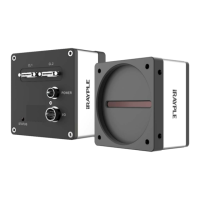

 To Next Page