English English
Step 3: Save and share the scanned documents
Before you save the scanned documents, make sure to select the correct recognition
language. The default recognition language is set to English. Thanks to I.R.I.S.'
powerful text recognition technology you can recognize documents in 130 languages.
1. Save documents in default applications.
1. Double-click the required output format.
2. The document opens in your default application for that format.
3. Save the document from within your default application.
2. Save documents as output files.
1. Click Save.
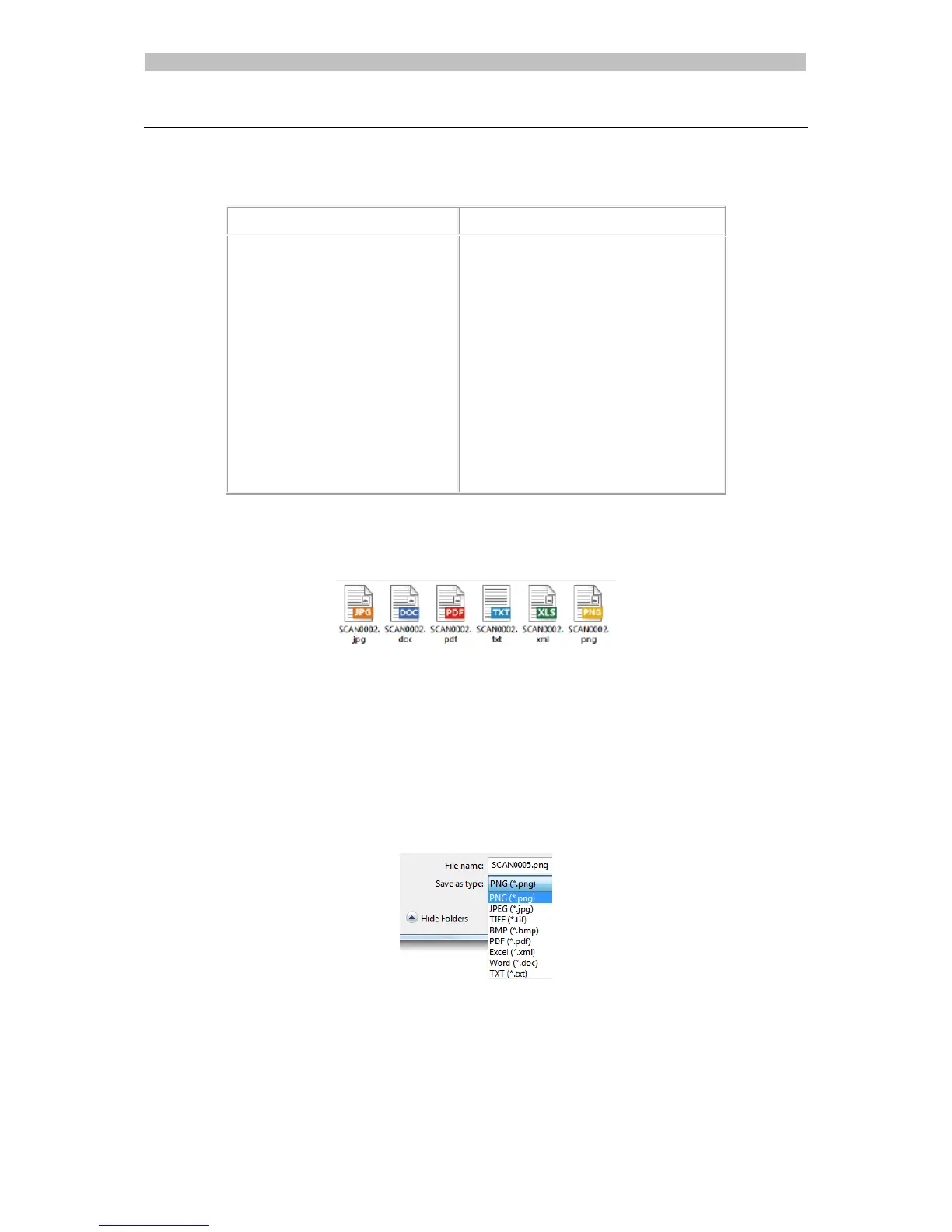
2. Enter the file name and select a file type.
The supported file types are: png, jpeg, tiff, bmp, pdf, xml, txt and doc.
3. Then click Save.
Notes:
The image and pdf files you save can be hyper-compressed with the included
IRISCompressor
TM
.
When scanning tables, it is recommended to save them as .xml files.



 To Next Page