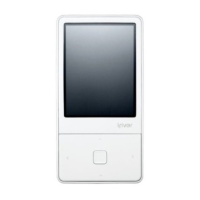
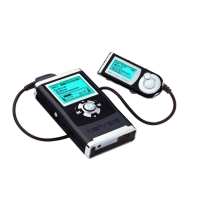
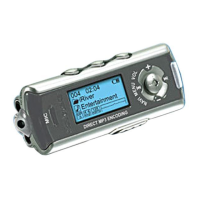
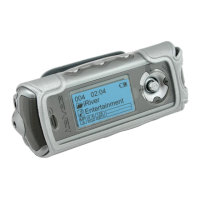
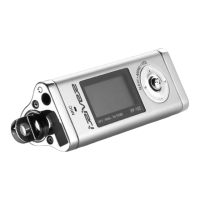
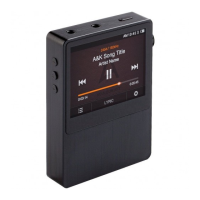
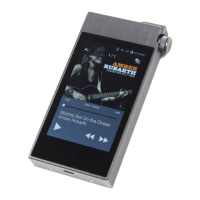
This document is the user's guide for the iriver E10, a portable digital media player. The E10 is designed for everyday use, allowing users to enjoy music, pictures, videos, and other content "everywhere" with ease.
Function Description
The iriver E10 is a versatile portable media player capable of:
- Music Playback: Playing various audio formats.
- Picture Viewing: Displaying images.
- Video Playback: Playing video files.
- FM Radio: Tuning into FM radio stations and recording broadcasts.
- Voice Recording: Recording audio using a built-in microphone.
- Alarm Clock: Setting alarms.
- Flash Games: Playing Macromedia Flash Lite 2.0 games.
- Text Viewing: Displaying text files.
- Universal Remote Control: Functioning as a simple universal remote for some TVs.
- Device Browsing: Managing files stored on the device.
Important Technical Specifications
Media Requirements:
- Music: MP3, WMA, ASF, OGG (8 - 320kbps for MP3, WMA, ASF; Q1 - Q10 for OGG).
- Pictures: JPG (Progressive JPG is not supported).
- Video: MPEG4 SP / QVGA (128x128) / 15fps / 384kbps (Audio: MP3 128kbps / 44.1KHz CBR).
- Text: TXT (Unicode / local code text file).
- Flash Games: SWF (Type: Macromedia Flash Lite 2.0 / 30fps; Audio: ADPCM / MP3 128kbps / 44.1KHz).
System Requirements (for computer connection):
- A computer with 500MHz or higher processor speed.
- Microsoft Windows 98SE, Windows ME, Windows 2000, Windows XP operating system.
- iriver plus 2 (included in the Installation CD).
- USB 2.0 or USB 1.1 connection.
Battery:
- Built-in battery, fully charged in about 2.5 hours via USB cable.
Usage Features
Controls:
The E10 features a four-directional navigation pad, a Smart Key, Power button, Volume buttons, Hold/Universal Remote Control slide, Reset hole, USB connector, Earphone jack, Strap hole, and Microphone.
- Navigation Keys:
- Scrolls up/down to select items.
- Returns to the previous menu (Left).
- Enters selected menu or plays item (Right).
- Smart Key: Configurable to various functions like Home, Play/Pause, Shuffle All, A-B Repeat, or Start/Stop Recording.
- Power Button: Turns the device on/off.
- Volume Buttons: Adjusts playback volume.
- Hold/Universal Remote Control Slide: Enables/disables controls and activates the universal remote function.
Quick Start Guide:
- Install iriver plus 2: Insert the CD, follow on-screen instructions.
- Turn on E10: Press the Power button.
- Connect E10 to computer: Use the included USB cable.
- Execute iriver plus 2: Double-click the shortcut.
- Add music to iriver plus 2 library: Use "File > Add to 'All Music'" menu.
- Add music to E10: Select music in library and drag to E10.
- Disconnect E10: Use "Safely Remove Hardware" icon on taskbar.
- Play music: In E10's main menu, select [Music], scroll to browse, click [Right] to play.
Adding Contents:
- Ripping songs from a CD (iriver plus 2): Insert CD, select tracks, click [R] button to add to library. Encoded songs are automatically added to [All Music] folder.
- Adding contents in your computer (iriver plus 2): Select [File - Add to 'All Music'] or [File - Add to 'All Pictures'] in top menu, then [Add File...] or [Add Folder...].
- Adding contents (Windows Explorer): Drag and drop songs or pictures to the iriver plus 2 Media Library, or to [All Music], [All Pictures] or any other playlist.
- Adding contents to E10 (iriver plus 2):
- Auto Sync: Automatically transfers selected music and playlists when connected. "All Music" & Playlists transfers all music in library and selected playlists. "Only the playlists" transfers only selected playlists.
- Manual Transfer: Drag selected songs, pictures, and playlists to the E10 icon in the bottom-right corner.
- Adding contents (Windows Explorer): Transfer video, text, and Macromedia Flash files by dragging them to the corresponding folders in E10 (E10:/Video, E10:/Text, E10:/Flash Games). Other data files can be stored as portable storage.
Creating Playlists:
- Execute iriver plus 2.
- Right-click on [All Music] or [All Pictures] in Media Library, select [New Playlist...].
- Enter playlist name.
- Drag desired media contents to the new playlist.
Deleting Contents:
- iriver plus 2: Connect E10, execute iriver plus 2, select files in [All Music], [All Pictures] or playlist, right-click and select [Delete].
- Windows Explorer: Connect E10, execute My Computer/Windows Explorer, browse E10 folders, select files (videos, recorded files, texts, Flash files), right-click and select [Delete]. (Deleting songs/pictures this way may damage the database).
Music Features:
- Searching: Scroll [Up]/[Down] to select by artist, album, genre, song title, playlist. Click [Left] to return, [Right] to select.
- Playing: Select song/playlist, click [Right] to play. Click [Right] during playback to pause/play. Click [Up]/[Down] to play previous/next. Click and hold [Up]/[Down] for fast-forward/rewind.
- Advanced Features (During Navigation): Click and hold [Right] to open sub-menu: Add to Queue, Add to Quick List, Quick Shuffle.
- Advanced Features (During Playback): Click and hold [Right] to open sub-menu: Play Mode, Add to Quick List, Select EQ, Rate, Scan Speed, Playback Speed, Lyric Display.
- Now Playing Screen: Displays current song information. Select [Now Playing] in main menu or click and hold [Right] elsewhere to return.
- Quick List: Create and listen to favorite songs. Created on computer using iriver plus 2. Transferred to E10 in [Music - Playlists] menu. To create: Select [Music] in main menu, click [Right], select [Add to Quick List] to add selected item. Found in [Music - Playlists - Quick List].
Pictures Features:
- Searching: Scroll [Up]/[Down] to select previous/next thumbnail. Click [Right] to display full screen.
- Viewing: Click [Up]/[Down] for previous/next image. Click [Right] to begin/pause slideshow.
- Advanced Features (During Navigation): Click and hold [Right] to return to Now Playing screen.
- Advanced Features (While Viewing): Click and hold [Right] to open sub-menu: Image Delay, Slide Transitions, Set As Wallpaper.
Videos Features:
- Searching: Scroll [Up]/[Down] to select previous/next video file. Click [Right] to play.
- Playing: Click and hold [Up]/[Down] to rewind/fast-forward. Click [Right] to pause/play. Click [Left] to exit. E10 remembers last played position of 10 recent video files.
- Advanced Features (During Navigation): Click and hold [Right] to return to Now Playing screen.
- Advanced Features (While Viewing): Click and hold [Right] to open sub-menu: Scan Speed, Resume, Sequence Play (plays next similarly named file).
FM Radio Features:
- Using Preset: Click [Right] to enable/disable Preset.
- Scanning channels manually: Click [Up]/[Down] to increase/decrease frequency. Click and hold [Up]/[Down] to scan for previous/next available channel.
- Scanning channels automatically: Click [Up]/[Down] to move to previous/next Preset channel.
- Advanced Features: Click and hold [Right] to open sub-menu: Record, Saved FM Recordings, FM Recording Quality, Save Preset, Delete Preset, Stereo/Mono, Auto Preset, Tuner Region.
Extras | Recording Features:
- Basic: Select [Extras - Recordings] in main menu. Click [Right] to begin recording, click again to stop.
- Advanced: Click and hold [Right] to open sub-menu: Saved Recordings, Voice Recording Quality, Voice Detector.
- Note: Recording stops automatically if memory or battery is low. Volume cannot be adjusted during recording. Approximate size of recorded file: 256KB (500KB), 500KB (1MB), 1MB (2MB).
Extras | Alarm Clock Features:
- Basic: Select [Extras - Alarm Clock] in main menu. Click [Right] to set alarm ON/OFF.
- Advanced: Click and hold [Right] to open sub-menu: Set Alarm Time, Set Quick Alarm, Select Alarm Type, Alarm Volume, Alarm Duration.
Extras | Flash Games Features:
- Basic: Select [Extras - Flash Games] in main menu. Scroll [Up]/[Down] to select a Flash file, click [Right] to play. Click [Smart Key] to end.
- Note: Refer to Macromedia Flash Lite 2.0 CDK on www.iriver.com for creating Flash content.
Extras | Text Features:
- Basic: Select [Extras - Text] in main menu. Scroll [Up]/[Down] to select text file, click [Right] to display.
- While Displaying: Click [Right] to begin/pause Auto Scroll.
- Advanced: Click and hold [Right] to open sub-menu: Auto Scroll Speed, Text View Type, Font Size, Text Language.
Extras | Universal Remote Control Features:
- Basic: Slide Hold/Universal Remote Control slide to enable. LED on top lights when signal transmitted.
- Configuration: Select [Settings - Remote Control] in main menu to configure for your TV.
- Controls: Click [Up]/[Down] for next/previous channel. Click [Left]/[Right] for volume down/up (also side buttons). Click [Smart Key] to mute. Click [Power] to turn TV on/off.
- Note: Supports Samsung, LG, Sony, Panasonic, Philips, Daewoo, Anam, Sharp TVs. May not work with older TVs. Only included TV models are supported.
Extras | Browse Device Features:
- Basic: Select [Extras - Browse Device] in main menu. Scroll [Up]/[Down] to select file, click [Right] to open. Click and hold [Right] to delete.
- Note: Only recorded files (voice or FM) can be deleted here.
Customizing E10 (Settings Menu):
- Date & Time: Sets current time and date.
- Sounds: Custom EQ, SRS Setting (SRS 3D sound effects), Fade-In (gradually increases volume).
- Display: Wallpaper, Theme.
- Smart Key: Assigns favorite function (Home, Play/Pause, Shuffle All, A-B Repeat, Start/Stop Recording).
- Timer: Auto Power-Off, Sleep, Backlight.
- Advanced: Language, Sort, Scroll Speed, System Information, Reset All Settings.
- Remote Control: Configures universal remote for TV.
- About: Displays copyrights.
Maintenance Features
Charging the Battery:
- Connect E10 to computer via USB cable.
- Fully charged in about 2.5 hours.
- Use only the USB cable included.
- Check for high-power USB 2.0 port; low-power ports may not provide enough charge.
- If connected to low-power USB ports or without AC power, device may not connect.
- If connected to USB hub, media files may be damaged during transfer.
- E10 may not be charged if computer is in sleep mode.
Troubleshooting:
- Player not powering on: Check battery, charge. Insert sharp object into reset hole.
- Noise/distortion: Check earphone plug, music file corruption.
- Corrupted LCD characters: Check language setting ([Settings-Extra-Language]).
- Poor radio reception: Check earphone connection (antenna), adjust player/earphone position, turn off nearby electronics.
- Failed download: Check USB cable connection.
- Downloaded music files not visible: Audio titles downloaded via Windows Explorer are not listed under [Music] menu; use [Browse Device] to play.
- Error message/device not booting: Initialize device (all data will be erased).
Firmware Upgrade:
- Connect E10 to computer via USB.
- Execute iriver plus 2.
- Select [Option - Firmware Upgrade] in top menu.
- Do not disconnect during upgrade. Internet connection required.
Initializing E10:
- Connect E10 to computer, execute iriver plus 2.
- Select [Option - Initialize Portable Device] in top menu.
- All data on E10 will be deleted.
Precautions and Safety:
- Electricity: Do not overload power circuit, firmly plug adapter, unplug when not in use, do not kink/crease power cable, immediately power off/unplug if water/liquids present, immediately power off/unplug if smoke/odors emit, unplug during electrical storms.
- Product: Keep away from strong magnets, do not drop/subject to impact (hard disk drive is vulnerable), take extra care. Data can be damaged by physical impact, lightening, power failure. Do not disconnect USB cable while transferring data. Do not disassemble/modify. Avoid contact with water/liquids. Do not place heavy objects on player. Keep away from harsh environments (humid, dusty, smoky areas). Do not use excessive force on buttons. Keep out of direct sunlight, extreme heat, cold. Do not clean with chemical/detergent. Keep device away from kids/pets.
- Others: Do not use headphones/earphones while cycling, driving, operating motorized vehicle. Reduce volume while walking, especially at crosswalk. Do not use at high volume. Reduce volume or stop if ringing in ears. Keep headphone/earphone cords controlled to avoid getting caught.
Copyrights/Trademarks/Limited Liability:
- iriver Limited holds all rights to the manual. Unauthorized copying/reproduction is prohibited.
- Software, audio, video are protected by copyright. Users are responsible for observing copyrights.
- Companies, institutions, products, people, events in examples are not real data.
- Microsoft, Windows, Windows Media are registered trademarks of Microsoft Corporation.
- Macromedia Flash is registered trademark of Macromedia, Inc.
- SRS WOW is registered trademark of SRS Labs, Inc.
- Manufacturer, importers, dealers are not responsible for accidental damage, bodily injury, or damage from misuse.
- Information in manual is based on current player specifications. Manufacturer may add new features and change standards without notice.
Certification:
- CE, FCC, MIC, CCC certified.
- Federal Communications Commission (FCC): Changes/modifications not expressly approved by party responsible for compliance could void user's authority to operate equipment. Device complies with Part 15 of FCC Rules. Operation subject to two conditions: (1) device may not cause harmful interference, and (2) device must accept any interference received.
- Note: Equipment tested and found to comply with Class B digital device limits. Generates, uses, and can radiate radio frequency energy. If not installed/used per instructions, may cause harmful interference to radio communications. No guarantee that interference will not occur in a particular installation. If interference occurs, reorient/relocate receiving antenna, increase separation, connect equipment to different outlet, consult dealer/experienced radio/TV technician.

 Need help?
 General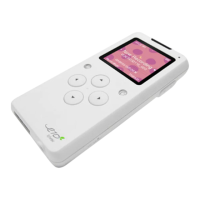

 To Next Page