Need help?
Do you have a question about the IROAD V9 and is the answer not in the manual?
Details product warranty, support channels, and website for downloads like firmware and viewers.
Legal notices regarding manual copyrights, intellectual property rights, and trademark usage.
Covers voltage issues, power cable safety, and potential hazards to the vehicle and product.
Instructions for mounting, cable connections, and general safe usage to prevent accidents or damage.
Advises on avoiding heat, flammable materials, and proper handling to prevent malfunction or overheating.
Guidelines for managing the device, including turning off, checking operation, and firmware update procedures.
Instructions on memory card lifetime, error prevention, proper usage, and recommended formatting frequency.
Highlights key features like HD resolution, Wi-Fi support, safety safeguards, and automatic recovery functions.
Details additional features such as security LED, voice guidance, external GPS, and viewer/app integration.
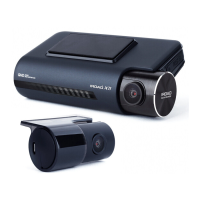
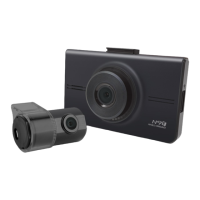
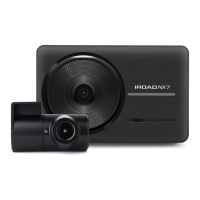
Lists essential items provided in the product package, such as cameras, cables, and user manual.
Lists optional accessories that can enhance the product's functionality, like Wi-Fi dongles or GPS antennas.
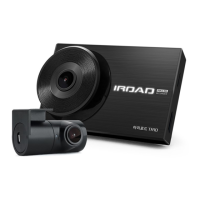
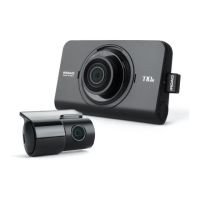
Diagram and labels identifying each part of the front camera unit for easy recognition.
Diagram and labels identifying each part of the rear camera unit for easy recognition.
Detailed technical data including model, image sensor, CPU, resolution, connectivity, storage, and operating conditions.
Instructions for attaching the front camera cradle and positioning the device for optimal viewing.
Step-by-step guide for attaching the main unit, connecting the rear camera, and ensuring proper fit.
Instructions for connecting the power cable to the DC-IN slot and managing wiring with cable holders.
Guide on connecting the external GPS module and properly inserting the SD memory card.
Explains the function of preventing battery discharge during parking mode and battery protection.
Step-by-step instructions for safely installing the uninterrupted fuse cable by connecting to vehicle fuses.
Describes the LED indicators and operational status when the device is powered ON or OFF.
Explains the status indicators for the external GPS connection and Wi-Fi user registration mode.
Details how Normal recording starts and Event recording is triggered by impacts, with LED indicators.
Describes Parking mode activation based on inactivity and Motion Detection triggered by movement.
Explains the purpose of various folders (Config, Data, Event, Update, Viewer) on the SD memory card.
Step-by-step guide for updating the device firmware using the PC viewer software with internet.
Instructions for updating firmware wirelessly using a smartphone or tablet connected via Wi-Fi.
Guide for updating the firmware manually by copying files to the SD card and restarting the device.
Steps to install the dedicated PC viewer software required for playback and configuration.
Instructions on how to launch the PC viewer, browse for files, and access recorded data.
Details the main video playback screen, playback controls, and image-related options.
Explains the display of GPS information, speed, G-sensor data, volume control, and other status indicators.
Information on accessing the integrated Google Map and navigating the list of recorded video files.
How to display only the front or rear camera view on the playback screen.
Instructions on how to display both front and rear camera views simultaneously in a split screen.
Guide on how to view one camera feed as a smaller inset window within the other camera's view.
Method to expand the video display to full screen using mouse actions.
How to use a magnifier tool to zoom in on specific areas of the video playback.
Instructions for setting start and end points to repeatedly play specific event segments.
Explanation of the OSD elements, including speed, date, and time displayed on the video.
How to access and navigate a screen displaying multiple recording frames (thumbnails) simultaneously.
Instructions on activating, using, and deactivating the lane drawing feature for driver assistance.
Details various backup formats (JPEG, AVI, JDR) and the step-by-step process for saving recordings.
Adjusts resolution, frame rate, brightness, and audio recording for optimal video capture.
Configures standard time zone, auto-reboot, buzzer alerts, and distance unit preferences.
Enables or disables Impact, Parking, and Motion detection modes for event recording.
Adjusts sensitivity for impact and parking detection, and allocates storage for event and normal recordings.
Saves vehicle details, driver information, and product serial numbers within the user settings.
Sets up a user ID and password to secure access to personal information and settings.
Configures battery protection voltage and adjusts the device's time if not connected to GPS.
Provides functions to format the memory card or recover data in case of errors or problems.
Displays current versions of the device's kernel, RAMDISK, software, and viewer.
Instructions on how to check for and confirm the availability of the latest firmware and viewer updates.
Information about the mobile application for Android and iOS used to connect via Wi-Fi.
Guidelines and tips for ensuring stable Wi-Fi connectivity and safe operation while connected.
Steps for launching the app, registering the device, and searching for available DVRs.
Instructions for completing the registration process, handling connection failures, and retrying.
Navigating the app's main menu and viewing the live camera feed from the DVR.
How to navigate the list of recorded videos and save clips to the smartphone.
Adjusting camera resolution, frame rate, brightness, and device time settings through the mobile app.
Configuring system parameters like audio recording and event settings such as impact sensitivity.
Steps for enabling Wi-Fi on the smart device, selecting the network, and entering the password.
Viewing the live camera feed and navigating the main menu of the iOS application.
Accessing the list of recorded videos and playing them back on the iOS device.
Instructions on how to save recorded video clips from the app to the iOS device's storage.
Configuring camera settings like frame rate and event settings such as impact detection sensitivity.
Adjusting battery protection voltage and configuring automatic device reboot timers via the app.
Troubleshooting steps for when the device is not working, fails to power on, or exhibits operational errors.
Solutions for playback errors, inability to play rear camera footage, and no video recording.
Addressing problems with PC not recognizing the memory card or issues with USB port compatibility.
Tips for improving video quality affected by lens dirt or tint, and power loss during parking mode.
 General
| Wi-Fi | Yes |
|---|---|
| GPS | Yes |
| G-Sensor | Yes |
| Parking Mode | Yes |
| Frame Rate | 30fps |
| Night Vision | Yes |
| Resolution | 1920x1080 (Full HD) |
| Image Sensor | Sony Exmor CMOS |
| Storage | MicroSD card |
| Operating Temperature | -20°C ~ 70°C |
| Power Supply | 12V |

 To Next Page