●
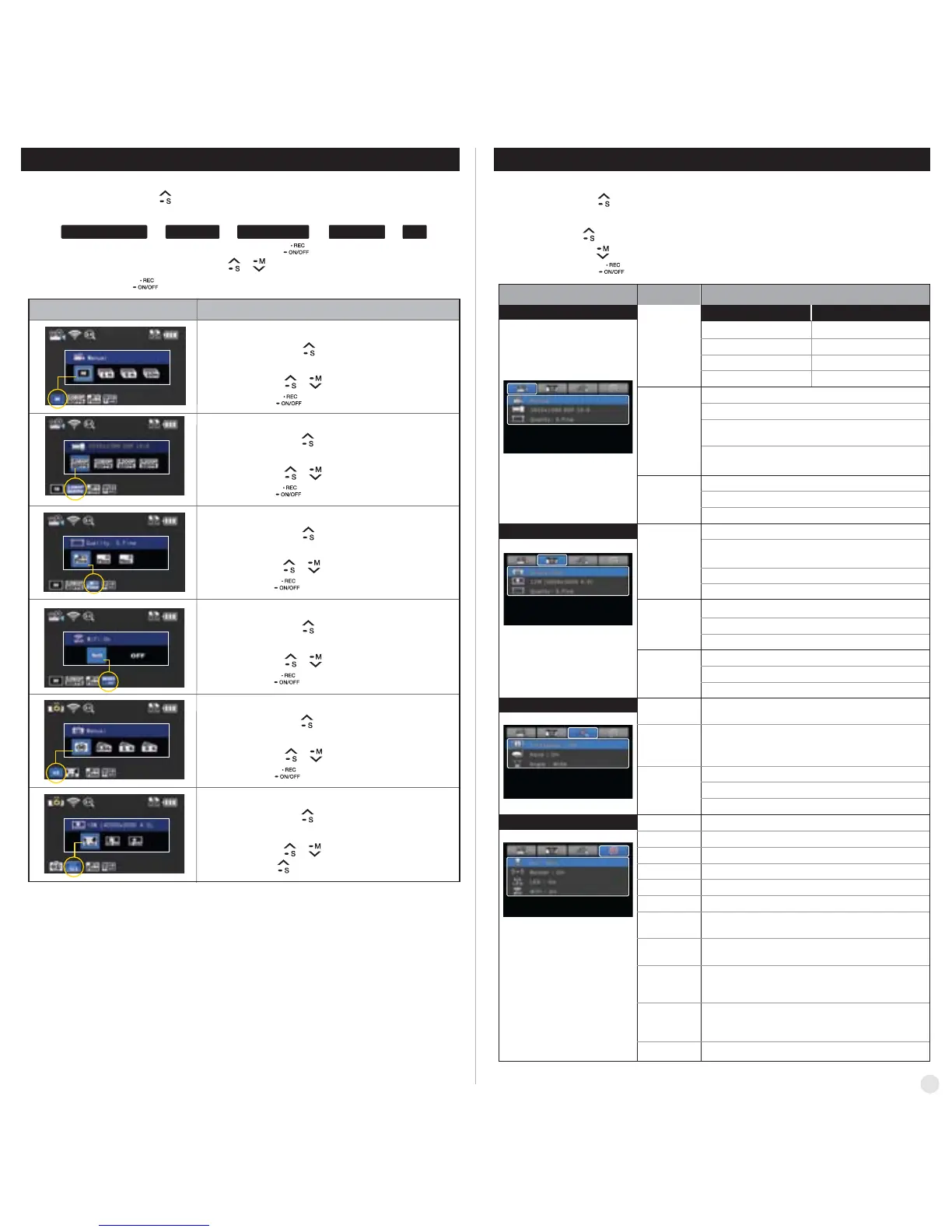
Video quick setup screen
●
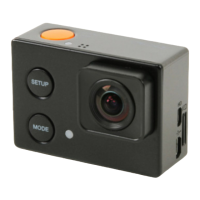
Press QUICK SETUP button to go to quick setup
●
Select recording options
●
Use UP / DOWN button to choose option
●
Press SELECT to confirm setting option
●
Video quick setup screen
●
Press QUICK SETUP button to go to quick setup
●
Select video resolution and recording speed
●
Use UP / DOWN button to choose option
●
Press SELECT to confirm setting option
●
Video quick setup screen
●
Press QUICK SETUP button to go to quick setup
●
Select image quality
●
Use UP / DOWN button to choose option
●
Press SELECT to confirm setting option
●
Video quick setup screen
●
Press QUICK SETUP button to go to quick setup
●
Select WiFi connectivity
●
Use UP / DOWN button to choose option
●
Press SELECT to confirm setting option
8. Quick setup
1. Press QUICK SETUP button to select quick setup options on bottom of the screen.
2. Quick setup mode changes as
recording option → resolution → image quality → wifi on/off → exit in turn.
3. Select the quick setup option and press SELECT button to adjust setting option.
4. In setting option, press UP / DOWN button to choose setting option.
5. Press SELECT button to confirm setting option.
Quick setup screen Operation
●
Photo quick setup screen
●
Press QUICK SETUP button to go to quick setup
●
Select photo shooting option
●
Use UP / DOWN button to choose option
●
Press SELECT to confirm setting option
●
Photo quick setup screen
●
Press QUICK SETUP button to go to quick setup
●
Select image size
●
Use UP / DOWN button to choose option
●
Press SELECT to confirm setting option
●
Without entering user setting menu, user can adjust various quick setups in live screen.
( )
( )
( )
( )
( )
( )
( )
( )
( )
( )
( )
( )
( )
( )
( )
( , )
( , )
( , )
( , )
( , )
( , )
( , )
●
User can select basic settings and detailed setting options through user setup menu.
9. User setup menu
Resolution
Recording
option
Image
quality
1080p 60fps, 30fps
1200p 60fps, 30fps
720p 120fps, 60fps, 30fps
480p 240fps
Manual
Super Fine (
*Use CLASS10 memory card only)
Fine
Normal
Timer 1min, 5min, 10min, 30min
Multi file REC. 1min, 5min, 10min, 30min
(record consecutive video files of setup time)
Time lapse 1sec, 3sec, 5sec, 10sec, 30sec
(captures each image of setup time and save as video file)
1080p 50fps, 25fps
1200p 50fps, 25fps
720p 100fps, 50fps, 25fps
480p 200fps
Function Sub menu Description
Recording
option
Manual
Burst 11 photo images per second
Timer 5sec, 10sec
Time lapse 0.5sec, 1sec, 3sec, 5sec, 10sec, 30sec
(captures each image of setup time and save as photo)
On / Off . Shows current time in recorded file
On / Off .
When the camera is shooting underwater, select
'aqua scene on' to give more vivid color images in the scene
Resolution
12M (4000 x 3000) 4:3
8.5M (3648 x 2432) 3:2
7.2M (3648 x 2052) 16:9
FOV
Mic. Volume
Buzzer
LED
WiFi
TV Out
Time
Format
Default Setting
Auto LCD Off
Auto Power Off
Info
Aqua scene
Time stamp
Wide lens angle
Medium lens angle
Narrow lens angle
Image
quality
Super Fine (*Use CLASS10 memory card only)
Normal
Fine
Video
Photo
Effect
Settings
Off, 30%, 60%, 100%
Buzzer On / Off
Shows current firmware version
LED On / Off
WiFi On / Off
NTSC / PAL
Set current time (YYMMDD:HHMM)
Yes / No.
Memory card format
Yes / No
Turn back all settings to default
Yes / No
LCD will automatically turn off in 30sec when there is
no operation
Yes / No
The camera will automatically turn off in 3min when there
is no operation.
1. Press SETUP button and hold for 2 seconds to enter user setup menu.
2. User setup menu is divided into four categories (video, photo, effect, settings)
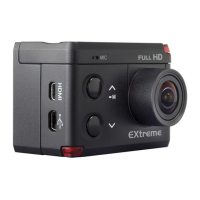
3. Press UP button to move category.
4. Press DOWN button to enter the sub-menu.
5. Press SELECT button to select and confirm setting option within sub-menu.
NTSC PAL
( )
( )
( )
( )
1
3


 To Next Page