Browse Function Example: Browsing by Folder
Press
► on the screen
to enter the browse menu.
”FOLDER” will appear on your display.
Press ► on the screen to select browse by Artist.
The list of Folders on your device will be displayed one at a time in the order
they are loaded.
Turn the rotary TUNE KNOB to cycle through the Folders.
When the desired Folder is displayed on the radio,
Press ► on the screen to select the Folder and display the Files in that folder.
The Files from the selected Folder will be displayed one at a time in
alphabetical order.
Turn the rotary TUNE KNOB to cycle through the Files.
Once the desired File is displayed,
Press ► on the screen to play the desired File.
The display will automatically update to display and scroll the title of the
chosen song.
7. Selecting AUX Input
Entering Mode Select Menu
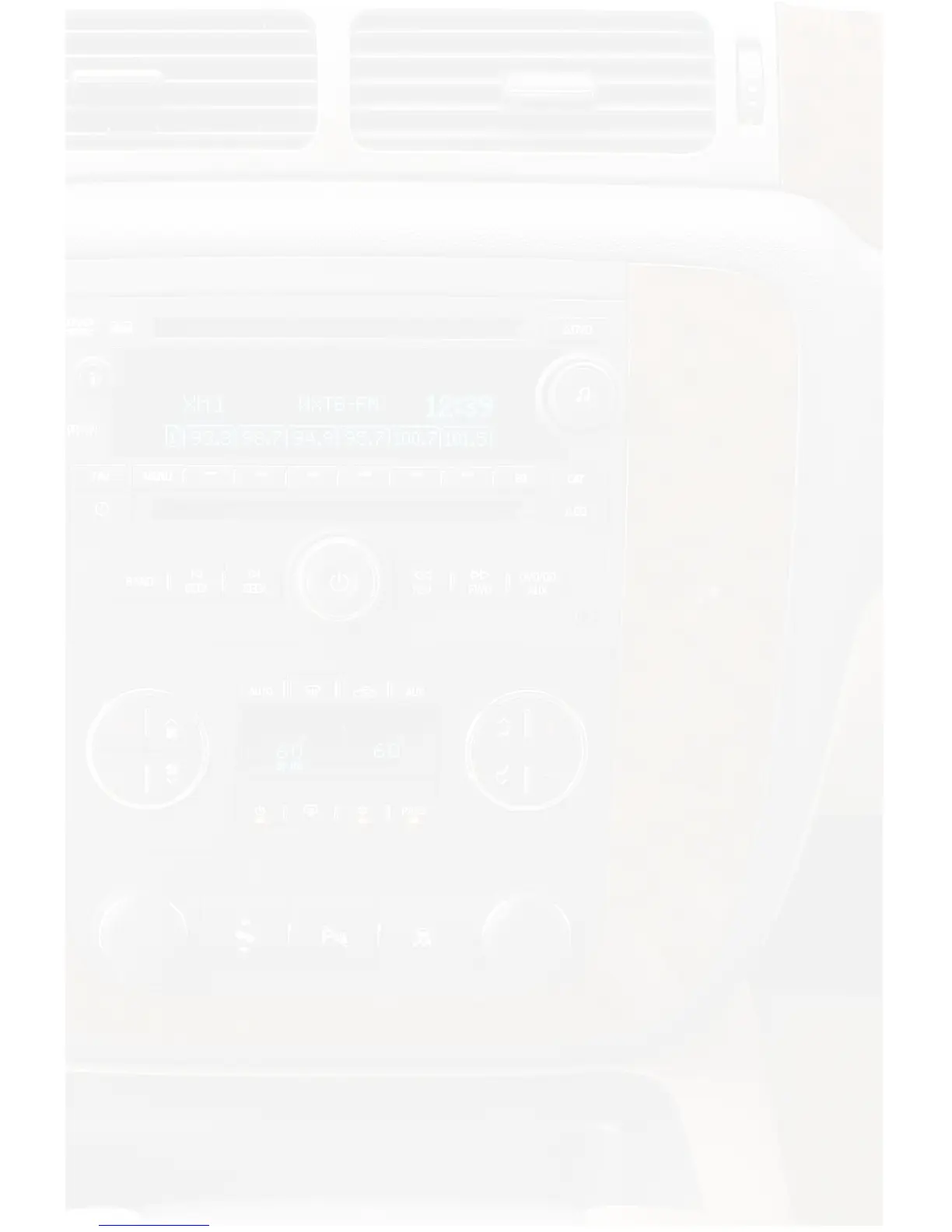
Press the XM icon on the navigation screen. Immediately turn the rotary
TUNE KNOB to scroll through available sources. Once “AUX 1” or “AUX 2” is
displayed, press the ► icon on the screen to select the displayed mode.
8. Selecting Factory Installed Sat
(if equipped)
Entering Mode Select Menu
Press the XM icon on the navigation screen. Immediately turn the rotary TUNE
KNOB in the top right hand corner to scroll through available sources. Once
“SAT” is displayed, press the “►” icon on the screen to select the displayed
mode.
Factory Sat Operation
Refer to the owners’ manual that came with your vehicle.


 To Next Page