4. Before first time use
Read this user guide carefully to avoid damages or injuries due to improper use. Pay special attention to the safety
instructions. Keep the instructions for future reference and include them when transferring the device to third
persons. Carefully remove all packaging materials and check the device for completeness and integrity. Do not use
a damaged product.
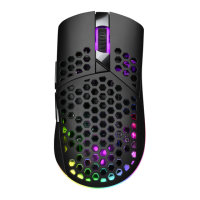
Note: Be sure that there are no obstacles between the USB receiver and the wireless gaming mouse to ensure a
stable and uninterrupted connection.
5. Installation
Read this user guide carefully to avoid damages or injuries due to improper use. Pay special attention to the safety
instructions. Keep the instructions for future reference and include them when transferring the device to third
persons. Carefully remove all packaging materials and check the device for completeness and integrity. Do not use a
damaged product.
Note: Be sure that there are no obstacles between the USB receiver and the wireless gaming mouse to ensure a
stable and uninterrupted connection.
5. Installation
1. This gaming mouse can be used either wirelessly or wired, only with compatible system requirements. The
process is as follows:
• Wired mode: Connect the USB-C plug of the USB cable to the USB-C port of the mouse and the USB-A plug
into an available USB-A port of your PC to establish a connection.
• Wireless mode: Plug the USB-A receiver into an available USB-A port of your PC that meets the system
requirements and connect the mouse through the 2.4G wireless antenna.
2. After successfully connecting the mouse, you may need to install the ocial drivers. To do this, follow the steps
below:
• Go to the ocial website: https://www.isy-online.eu/downloads, or scan the QR code.
• Select the "IGM 5000" software in the download center and proceed to download the
file.
• Follow the instructions for installing the software as displayed on screen.
3. The resolution can be directly set at the mouse. For adjustment use DPI button.
The following preset resolutions are available: 400, 800, 1600, 3200, 6400, and 10000 DPI.
Note: 1600 DPI is the default setting.
6. Adjusting the LED settings
The workings of the mouse can be customized by making use of the compatible software, which can be
downloaded through the following link: https://www.isy-online.eu/downloads
The LED functions of the gaming mouse can be adjusted by making use of the compatible software. The gaming
mouse has two zones in which the LEDs can be customized, namely the backside of the mouse and the scroll wheel.
1. To adjust the LED lights at the backside of the gaming mouse you can cycle trough the following options,
allowing you to keep the LEDs on permanently, intermittently, breathing, or having it cycle through. The software
oers the following options:
• Colorful streaming
• Steady
• Breathing
• Colorful tail
• Neon
• Colorful steady
• Flicker
• Stars twinkle
• Wave
• LED o
Additionally, the color of the LED lights can be adjusted by using the RGB sliders or color wheel freely. You can also
choose to use the numerical input instead of the sliders.
2. To adjust the LED lights on both sides of the scrolling wheel/middle mouse button you can cycle through the 6
dierent modes, corresponding to the 6 DPI settings as follows:
EN
• 400 DPI
• 800 DPI
• 1600 DPI
• 3200 DPI
• 6400 DPI
• 10000 DPI
7. Charging the internal battery
The gaming mouse has an internal battery which makes it possible to use the mouse wirelessly by connecting
to the USB-A receiver plugged into a compatible PC. The internal battery can be charged by connecting the
gaming mouse to the PC by making use of the supplied USB cable.
Note: in case the gaming mouse has not been used for a long time, the internal battery may be depleted.
Always be sure to charge the battery to full capacity before making use of it to ensure optimal working of the
mouse.
Caution:
• Risk of explosion if the battery is replaced by a type other than the specified type.
• Disposal of a battery into a fire source or a hot oven, or mechanically crushing or cutting of a battery may
cause injuries or damages and will result in forfeiture of the warranty.
• Leaving a battery exposed to extremely high temperatures or a heated environment can result in an
explosion of the battery, or cause leakage of flammable liquid or gas coming from the battery.
• A battery subjected to extremely low air pressure may result in an explosion of the battery, or cause
leakage of flammable liquid or gas coming from the battery.
8. Cleaning and care
• Clean the product with a soft, damp cloth and a mild cleaning agent. Finish by wiping it with a dry cloth. Do
not use alcohol, acetone, enzene, scouring cleansers etc. to clean the product. Do not use hard brushes or
metal objects.
• Never immerse electric parts of the product in water or other liquids while cleaning or using it. Never place
the product under running water.
9. Technical data
Wired input : 5 V 200 mA
Battery : 3.7 V 600 mAH, Li-ion Battery DX (Model: 702535)
Socket : USB-C
Resolution : 400/800/1600/3200/
6400/10000 DPI
System requirements : Windows® XP/Vista/7/8/8.1/10
Dimensions (L X W X H) : approx. 120 x 62 x 41 mm
Weight : approx. 68 g
Operating environment temperature : 0ºC – +35ºC
10. Declaration Of Conformity
Hereby, Imtron GmbH declares that the radio equipment type IGM 5000-BK/ IGM 5000-WT is in compliance
with Directive 2014/53/EU. The full text of the EU declaration of conformity is available at the following
internet address: https://www.isy-online.eu/downloads
Please keep this information for later reference
6


 To Next Page
 Loading...