EasyManua.ls Logo

Itek SLIMLINE I67001 - User Manual

Itek SLIMLINE I67001
12 pages
Print Icon
To Next Page IconTo Next Page
Loading...
www.itek-products.co.uk
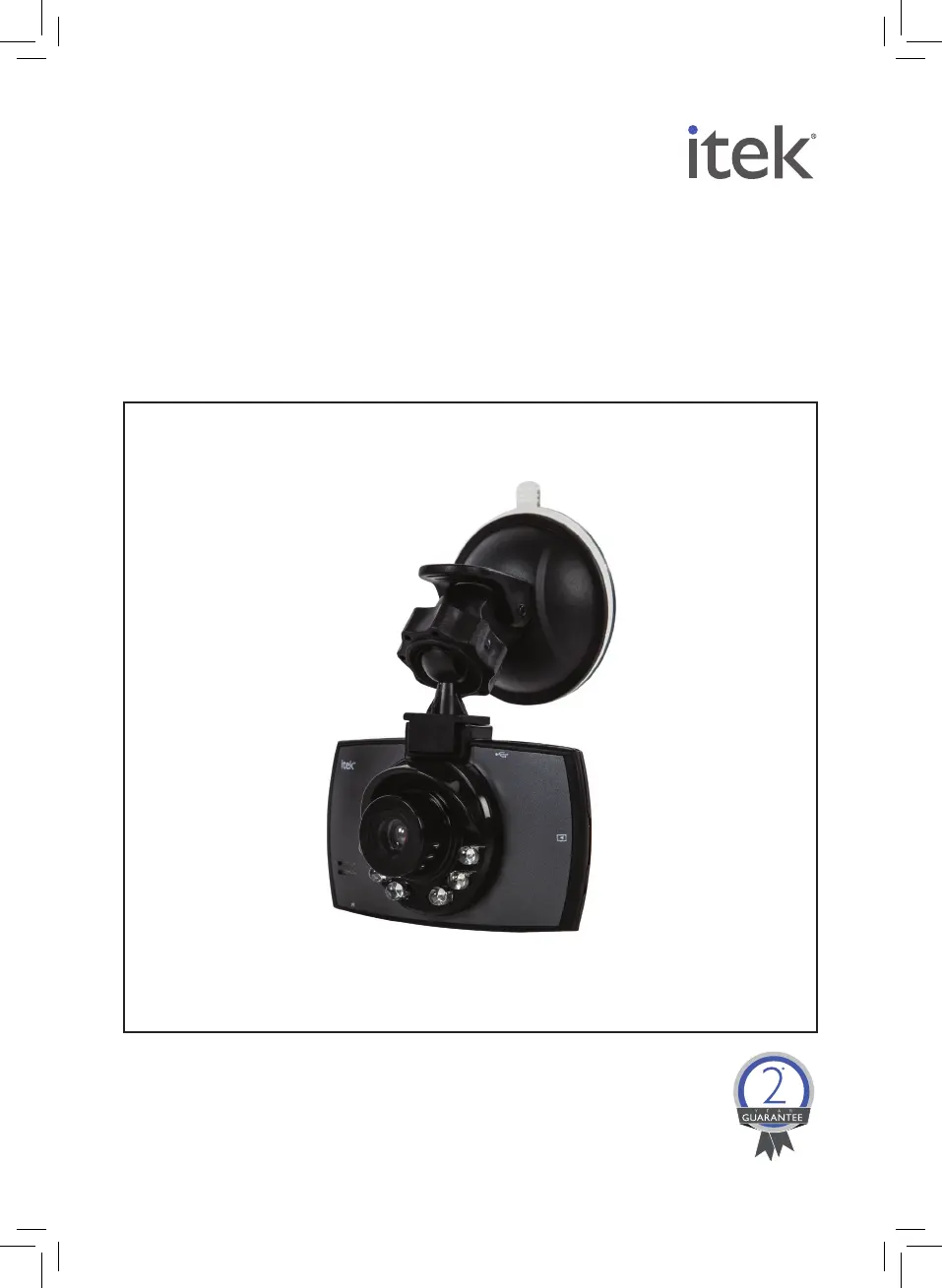
SLIMLINE
DASH CAM
MODEL I67001
YOUR SAFETY &
INSTRUCTION MANUAL
PLEASE READ CAREFULLY

Questions and Answers

  • D
    Dawn MurphyAug 5, 2025
    Why does my Itek Dash Camera show the wrong screen when used in the car?
    • C
      Carolyn DavisAug 5, 2025
      If your Itek Dash Camera displays the wrong screen when used in your car, it's likely because the USB cable is plugged into a USB port in the car. This makes the camera think it's connected to a PC. To resolve this, use the supplied charging adapter for in-car use. When powered with the adapter, the dash-cam will automatically turn on and start recording.
  • H
    hhessAug 11, 2025
    What to do if my Itek Dash Camera image is blurred?
    • L
      Lori WallsAug 11, 2025
      If the image from your Itek Dash Camera appears blurred, clean the camera lens and the windshield of your car. Any dust, fingerprints, or dirt can obscure the lens, affecting image clarity.
  • H
    hcarlsonAug 17, 2025
    Why Itek Dash Camera image has cross strip interference?
    • W
      wileymadisonAug 17, 2025
      If your Itek Dash Camera image shows cross strip interference, the light frequency might be incorrect. Try switching between 50Hz and 60Hz to match your local power supply values.
  • B
    Brian PhillipsAug 25, 2025
    How to fix Itek Dash Cameras that won't record video?
    • E
      Elizabeth MorenoAug 25, 2025
      If your Itek Dash Camera isn't recording video, check that the SD card is correctly inserted and has enough free space. Also, ensure the dash-cam has sufficient battery power to record.
  • S
    sreynoldsAug 29, 2025
    Why does my Itek Dash Camera keep switching itself off?
    • R
      rgonzalezAug 29, 2025
      If your Itek Dash Camera keeps turning off, access the dash-cam menu and verify that auto shut-off or a screen saver is not enabled. If either option is active, set them to ‘OFF’.

Summary

Technical Data and Warranty

Technical Specifications

Details on the dash-cam's model, power, and battery specifications.

Warranty Information

Details the product's 12-month guarantee and its conditions of validity.

Product Safety Guidelines

General Safety Precautions

Essential safety measures for operating electrical appliances, focusing on safe usage and handling.

Specific Safety Warnings

Additional safety advice including avoiding water, heat, and improper use.

Getting Started

Whats Included in the Box

Lists all the components provided with the dash-cam package.

First Use Preparations

Instructions for unpacking and preparing the dash-cam before initial use.

Operating the Dash-Cam

Powering On and Off

Instructions for turning the dash-cam on and off using the power switch.

Power Options and Charging

Details on operating with battery/in-car connection and charging methods.

Micro SD Card Usage

Inserting and Ejecting SD Card

Step-by-step guide for inserting and removing the Micro SD card.

SD Card Troubleshooting

Common issues and solutions related to Micro SD card compatibility and usage.

Dash-Cam Modes and Menu

Selecting Operating Modes

How to switch between Video, Night Recording, Camera, Sound Recording, and Playback modes.

Menu Navigation and Options

Guide to accessing and using the dash-cam's menu settings for customization.

Playback and Advanced Settings

Playback Menu Options

Functions available in playback mode: Delete, Lock/Unlock, Thumbnail view.

Advanced Configuration Settings

Settings for motion detection, video time, voice recording, and camera resolution.

Setup Menu and Computer Access

System Setup Options

Customizing volume, format, language, screen saver, auto-off, and system reset.

Accessing Files on Computer

Instructions for connecting the dash-cam to a computer via USB to transfer files.

Installation and Care

In-Car Installation Guide

Steps for attaching the dash-cam to the car mount and powering it.

Cleaning and Maintenance

Guidelines for cleaning the camera lens and casing safely.

Troubleshooting and Disposal

Common Troubleshooting Issues

Solutions for problems like file access, switching off, recording, and image clarity.

Product Disposal Instructions

Information on how to dispose of the appliance responsibly according to WEEE directives.

Itek SLIMLINE I67001 Specifications

General IconGeneral
Viewing Angle120°
Night VisionYes
Display Size2.4 inches
Video Resolution1080p
Memory Card SupportMicroSD Card
FeaturesMotion Detection
Screen Size2.4 inches
StorageUp to 32GB MicroSD card