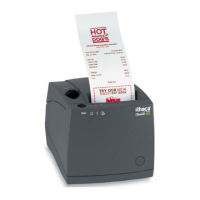
RecTrac Ithaca iTherm 280 Configuration
6 10/04/2016 Vermont Systems, Inc.
3 Click Login As… from the menu
4 Enter the User name from above
5 Enter the Password from above
6 Look in CSI folder for USB Installer.
7 Download the TVS installer
Once the installer is downloaded, extract it to a folder then run the executable. Out of the list of options
choose "Uninstall NEW driver" let it finish - it runs silent - then reboot when prompted. Launch the installer
again, choose "Install New Driver" and reboot again when prompted.
Installing an Itherm 280 on Windows 7 64-Bit Workstations
1 Plug in the printer. Windows will NOT recognize it, and you will most-likely receive a message stating
the printer was not installed successfully.
2 Go to Devices and Printers. You will see an Unspecified device named Ithaca USB Printer.
3 Right-click on the Ithaca USB Printer and go to Properties. Click on the Hardware tab and then click
Properties.
4 Go to the Driver tab and click Uninstall. Click OK.
5 Go to the VSI FTP Site and copy the ITherm280_W7-64bit_Drivers folder to the local workstation.
• Contact VSI Customer Support for the current login credentials.
• From the FTP site, browse to:
File Updates and Drivers\Ithaca_610_280_usb\Itherm280_W7-64bit_Drivers
• Copy the entire directory to your local workstation.
6 Go to Devices and Printers. Right-click and Add a Printer
7 Select the option to Add a Local Printer.
8 Use an existing port (i.e. USB001).
9 On the Install the Printer Driver screen, click Have Disk.
10 Browse to your local copy of the ITherm280_W7-64bit_Drivers directory. Drill down to the ITherm280-
576 sub-directory and double-click to open it.
11 Click OK.
12 Select the ITherm280 printer from the list and click Next.
13 At the Printer Sharing prompt, give the printer a Share name.
14 Print a test page (test page will NOT cut).
15 On the Receipt/POS device in RecTrac set the Print Option to S (spooled) and use the share path in
the Printer Dev field (ie.
\\supt-bryancg\ITherm280).
16 Test Page from RecTrac should print and cut.
17 Go to
RecTrac Ithaca 610 and Itherm 280 Configuration above, and complete the set up instructions.


 To Previous Page