2.3 camera installation
Please connect the adapter with power line,then plug the adapter into the socket,to supply the camera power.
Check the LED indicator light status:
*Yellow: indicate system start up’
*Flash green fast(3 times/second): indicate connecting WiFi
*Flash green slowly (1time/second): indicate binding mode
When the indicator light flash slowly,you can start to bind the camera with APP.
2.4Bind the camera with APP
2.4.1 Connect to WiFi
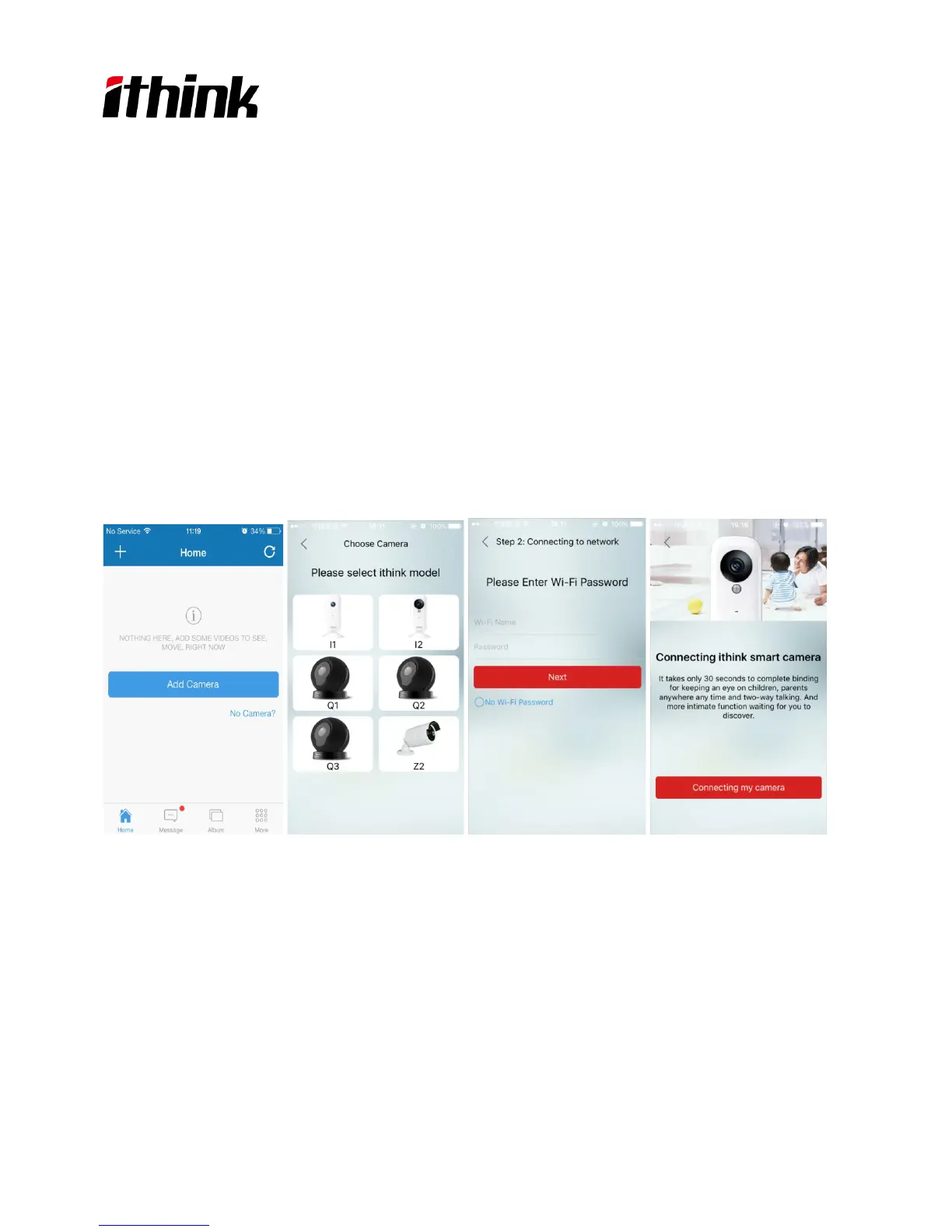
Use the account registered to login app,Step1:"Add camera",then click “connecting my camera” to choose the camera
model:Z2; Step2:Connectiong to network. Choose the WiFi internet connection, input the password, and complete the
binding.
2.4.2 One key binding
When you choose the WiFi and input the password,then click "next", camera start "one key binding".
When the indicator light became steady Green,binding successfully,APP will return to camera page automatically.
Note: Due to different mobile brand, if the APP did not skip to camera page automatically ,please pull-down the
camera page to refresh.
4



 To Next Page