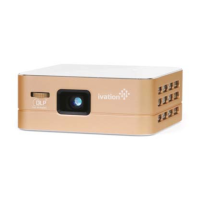
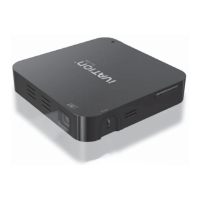
Portable Smart
DLP Projector
User Guide
This User Guide is intended to provide you with guidelines
to ensure that operation of this product is safe and does not
pose risk to the user. Any use that does not conform to the
guidelines described in this User Guide may void the
limited warranty.
Please read all directions before using the product and
retain this guide for reference.
Overview
This compact, wireless DLP projector lets you share
everything from blockbuster movies to presentations
quickly and easily. Lightweight, portable, and easy to use,
it’s the perfect companion for laptops and notebooks, and
ideal for business travel.
Stream and project content on demand from multiple
sources and devices via HDMI/MHL and USB connections,
Wi-Fi, Bluetooth, and with DLNA, Miracast, and Airplay
wireless mirroring for IOS and Android. The projector
features a built-in speaker as well as AUX audio output.
Features
• Built-in Android 4.4 operating system with 4GB high-
speed storage supports apps for added functionality
• Built-in dual-band Wi-Fi, 2.4GHz/5GHz Wi-Fi
signal reception
• Bluetooth 4.0 connectivity
• Wireless protocols DNLA, Airplay, Miracast, WiPico
• HDMI/MHL, USB, USB OTG, audio output
• 2600mAh Li-ion battery
Safety Precautions
1. Do not position the projector so that its light shines
into people’s or animals’ eyes.
2. Make sure the unit is placed on a flat, even surface in a
well-ventilated area. Do not block the air vents.
3. Do not expose the unit to direct sunlight, high humidity,
or temperature extremes.
4. Do not place the unit close to heat sources or
open flames.
5. Do not use or store the unit in warm locations or near
any heat source.
6. Store in a cool, dry environment.
7. Do not let children operate this unit or come into
contact with the battery.
8. Do not attempt to repair or disassemble the unit.
9. Use this product only for its intended purpose.
10. If the product becomes damaged, disconnect the
power and contact a qualified repair technician.
11. Do not place the projector on a sofa, carpet or bed
during operation, and do not use the projector in an
enclosed place, such as a bookcase or cabinet.
12. Do not attempt to force any objects into openings
or vents.
13. Do not connect the projector with any cables or
connectors that are not compatible.
14. Do not spill any liquid onto the projector.
Li-ion Rechargeable Battery Precautions
1. Use only the adaptor designed specifically for this unit
and supplied by the manufacturer.
2. Do not attempt to disassemble or repair the
battery yourself.
3. If the battery has not been in use for an extended
period of time, charge it to at least 70% capacity.
Monthly charges will help prolong its life.
4. Never immerse the battery in any liquid.
5. Do not place the battery near a heat source or
open flame.
6. When not in use, store in cool and dry environment.
7. Do not touch wire or metal objects to the terminals.
Contents:
Portable projector
HDMI cable
AC power adapter
Remote control
Leather carrying case/easel
Tripod
Cleaning cloth
User guide
Specifications:
Projection technology: Ti DLP technology
Light source: LED (RGB)
LED lifetime: 10,000 hrs.
Brightness: 100 Lumens
Resolution: 854*480
Screen ratio: 16:9
Projection distance: 0.5m-∞
Throw ratio: 1.5±0.02
Speaker: 2W
Battery: Rechargeable Li-ion 3.7V, 2600mAh
Dimensions: 3.4 x 1.3 x 3.4 inches
Weight: 7.4 ounces
Operating System: Android 4.4
Processor: Quad Cortex-A7
CPU: 1.2G
System memory: 1GB
Memory capacity: 4GB
Wi-Fi: Dual-band
Bluetooth: Bluetooth 4.0
Inputs: DC 5V, HDMI/MHL, USB, USB OTG
Output: 3.5mm audio jack
Video formats: AVI, MP4, MOV, WMV, RM, RMVB
Picture formats: JPG, BMP, PNG
Audio formats: MP3, WMA, WAV
Mirroring:
Miracast: Android 4.2 and later
AirPlay (DLNA): IOS 4.3 and later
AirPlay (Mirroring): IOS 5.1.1 and later
Parts/Controls
Power ON/OFF/SLEEP
POWER ON: press and hold the button for 3 seconds.
POWER OFF/SLEEP/CANCEL: Press and hold the
button for 2 seconds. A pop-window will appear on the
screen. Choose option for Power Off, Sleep, or Cancel.
WAKE UP: When the product is in sleep mode, press the
button or control by a connected mouse. Product will
resume operation.
MANDATORY POWER OFF: Press and hold the button
for 6 seconds.
Focus Adjustment
After powering up the product, slowly adjust the focus by
turning the wheel until you achieve the clearest picture.
Optimal screen distance: 0.5m – 3m.
Data Transmission
PC Connection
1. Turn the unit on. Connect to a PC using a USB cable.
2. Click on “Turn on USB storage.”
3. Select “My computer – Pico”
Front View
Focus
Lens
Menu
Power
Indicator
Up/Down/
Left/Right
Return
OK
Home
Top View
Speaker
Recovery
Rear View
USB
Audio Out
USB OTG
Power
On/Off
DC-In
HDMI/
MHL-In
Right View
Ventila tion
Holes
Left View
Connection
(Using Android as an example)
1. Connect your phone and projector via your Wi-Fi router.
2. To set up “WiPico” on your phone, select the icon.
A popup will advise you of available terminal devices.
[Image 1]
3. Choose your projection device. Press “Confirm” to
connect. [Image 2]
Using WiPico
1. Press the icon [Image 2] to access the
selection screen [Image 3]. You can choose functions
such as mouse steering, touchscreen or remote control.
2. Select content (movie, music, etc.) [Image 2]
3. Press “Control.” The control interface will appear.
4. Select “Setting.” [Image 3] Set functions such as
“Connected devices, Sounds, Vibration.” [Image 4]
Image 1 Image 2
Distributed by
C & A Marketing
2 Bergen Turnpike
Ridgefield Park, NJ 07660
info@myivation.com
Made in China
ivation is a trademark of
C&A IP Holdings, LLC
©2015 All right reserved
Image 3 Image 4
Wi-Fi Connection
1. Turn on the projector. On your device, choose “Settings”,
“Wireless & Networks.”
2. Click ON. Choose your network from the available
hotspots. Enter router password.
Mobile Phone Mirroring
Miracast (Android)
(Using Samsung Galaxy Note II as an example)
1. Choose the “App” in the projector UI. Click on “Miracast
Receiver.” You should see the name of your projector.
WiPico
WiPico is a mobile phone app with multi-mode control,
mouse steering, remote controller and touchscreen. It
can play video, music, images and office software in
mobile phones.
WiPico
Installation
To install WiPico
on your iOS or
Android phone,
scan the code:
iOS Android
AirPlay (IOS)
(Using iPhone 5 as an example)
1. Connect your iPhone and projector via your Wi-Fi router.
2. Choose the “App” in the projector UI. Choose
“IOS Game.”
3. Find your projector ID by selecting: “IOS Game”,
“Assi s t ant”, “Abou t .”
4. Slide the screen up [Image 1] and choose “AirPlay.”
[Image 2]
5. Choose your projector ID. Open “Screen mirroring.”
The projector will display the content on your iPhone.
[Image 3]
2. On your phone, open “Settings” and click on “Connection
interface” and “Screen mirroring.” [Image 1] (Different
phones may have different locations and function
names.) Screen will say “Searching matching device.”
[Image 2]
3. Select your projector through its IP. The projector will
display the content on your Smartphone. [Image 3]
NOTE: This function applies to Android 4.2 and later.
Image 1 Image 2 Image 3
Image 1 Image 2 Image 3


 Need help?
 General