3.5.3 Smart Phone, Tablet or PC configuration - Using your App
Using your iZone App in your local WiFi area
• Press the iZone button on your phone or tablet.
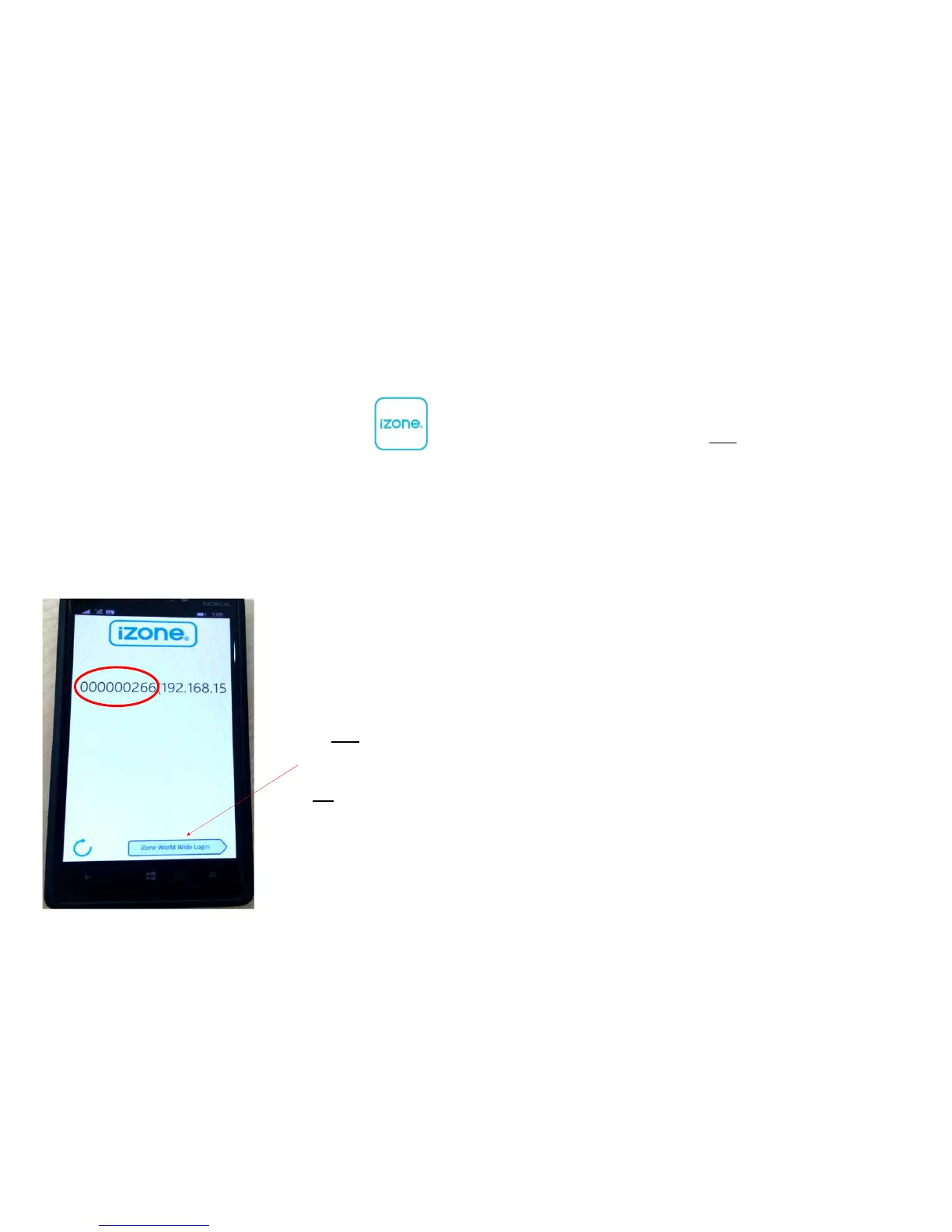
• A nine digit number will appear on at the top of the screen. This is
you system ID number. Write it down as you will need it to register on
iZone World Wide for control of your system away from home. Press
on the nine digit number and you will go into the App. Now you can
name your system using the “Rename” button.
B##3>
>&.
*3%%
>6
iZone World Wide Service
• You can only have access to the system from outside
your local WiFi range after you have subscribed to
iZone World Wide.
• To register on iZone World Wide Go to:
https://worldwide.izone.com.au/signup
• Follow the prompts to subscribe. You will need the
system ID number . This is a nine digit number.
• You will also be asked for an email address and
password which you should remember as you will
need these to access your system when you are trying
to use the App from outside the WiFi range.
• When you login to iZone World Wide there is an
option to save your username and password (Login
and Remember Me). We recommend you select this
option to make it faster and easier to login to your
system remotely.
• To reduce the data usage there may be a slight delay
between changing a setting on your phone, and the
system updating, when using iZone World Wide.
• Do not use iZone World Wide when you are in your
WiFi zone unless you have turned off the WiFi on your
smart phone or tablet.



 To Next Page