6
English
EN
USER MANUALWORMHOLE SWITCH
Mac installation
Please follow the instructions below to install the wormhole switch driver.
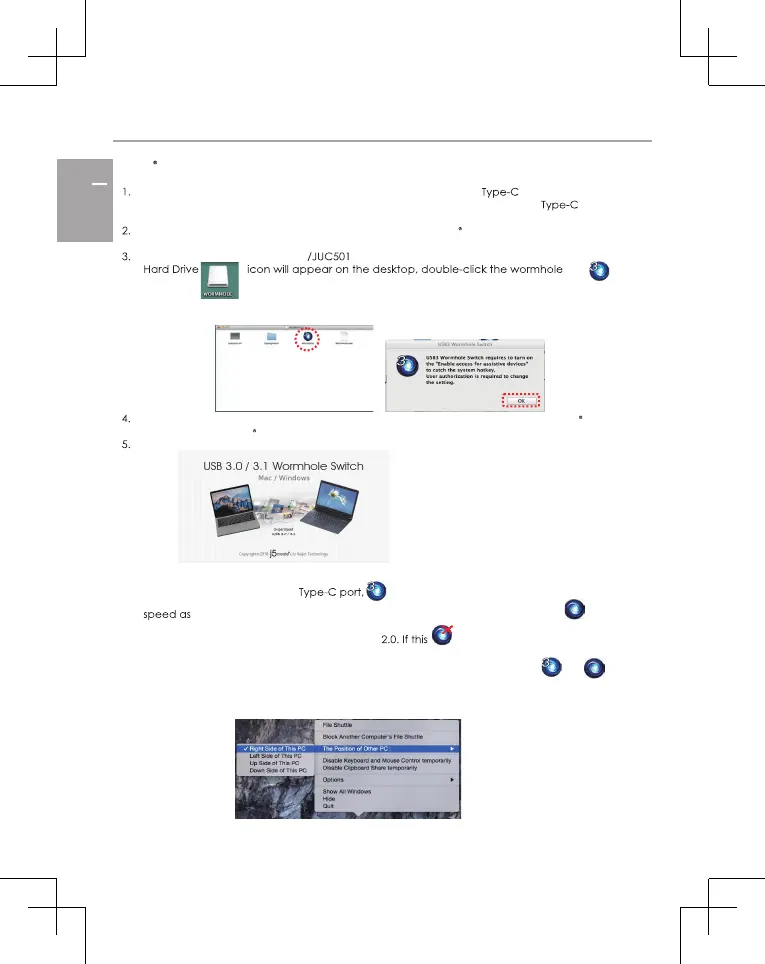
Connect one end of the wormhole switch to a standard
or
port on one of the
two computers. Connect the other end of the wormhole switch to a or
port on
the second computer.
When you initially connect the wormhole switch to the Mac computer the Keyboard
Setup Assistant window will pop up, follow the steps to select the keyboard type.
When both ends of the JUC500 are plugged into the computers’ ports, the
icon
to start the software. If the Enable access for assistive devices window appears on the
screen, click Yes to continue.
Please run the steps above on both computers. If the other computer is a Windows , please
refer to the Windows installation guide.
When the wormhole switch is connected properly the wormhole launch page will be shown.
The wormhole switch icon will appear in the lower right-hand corner. If the two units are
connected to the 3.0 or
this icon will appear, indicating the transmission
3.0; however, if a 2.0 port is connected to one end, then this icon will appear
,
icon appears it means the other
indicating that the transmission speed is
computer is not connected.
6. Please set the position of the other PC. Please click on the wormhole switch or icon
to open the wormhole switch toolbar. Then click on The Position of Other PC and select
the screen location according to where you want your mouse to flow from one screen
to the other.
USB
TM
USB
TM
USB
TM
USB
TM
USB
TM
USB
TM
USB
TM


 To Next Page
 Loading...