!
of an iOS device. When the app is running in the background, your data will sync
every
20 minutes. Once the sync is complete, you can immediately review your
progress in
the activity log. You can review your activity log later by pulling down on
the
homescreen. Swipe up to close.
!
!
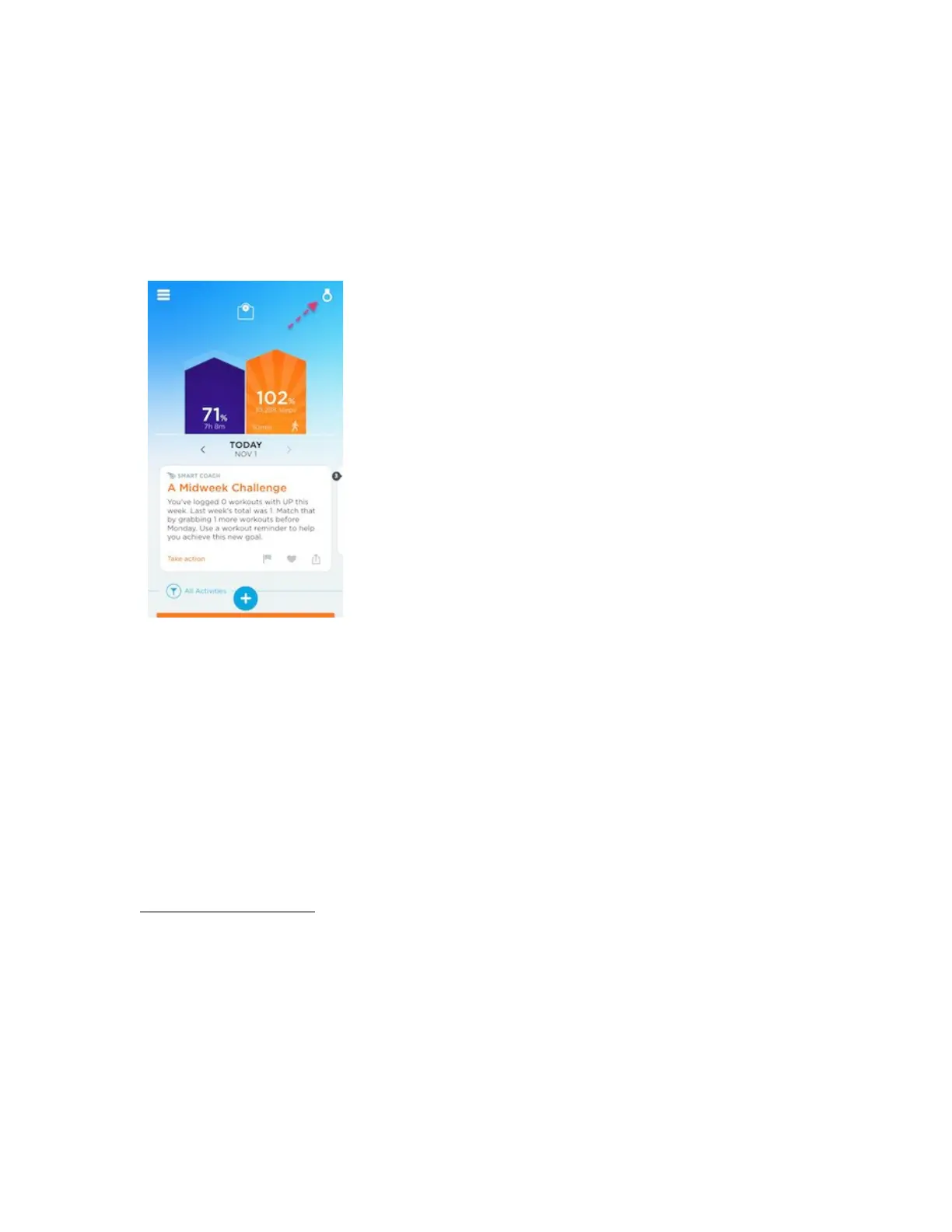
Check if device is synced: To check your tracker’s connectivity, open the UP app
and
check the status badge in the upper right corner. If a tracker icon appears, your
tracker is connected.
AddIng a new device: If you’d like to connect a new tracker, please see Add Another
Tracker.
!
Troubleshooting
If your tracker is disconnected, you’ll see a red Bluetooth symbol in the upper right
corner of your homescreen. To reconnect, try the following steps:
•
Close the app, then relaunch.
•
Turn off your device’s Bluetooth. Wait 1 minute, then turn it on again. Finally,
relaunch the app.
•
Check your internet connection. The UP app needs the internet to sync.
•
Restart your device.
•
Perform a soft reset on your tracker.
!
BAND NOTIFICATIONS
!
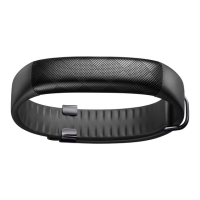
You can receive notifications directly on your UP2.
!
Step Goal
When you reach your step goal for the day, your band will vibrate and the notification
icon and runner icon will flash.
!
Smart Alarm
Use Smart Alarm to wake you up during a period of Light sleep. To learn more about
Smart Alarm, go here.
!
If you use Smart Alarm, your band will wake you up with gentle vibrations. The


 To Next Page
 Loading...