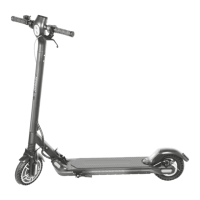
33
BLUETOOTH
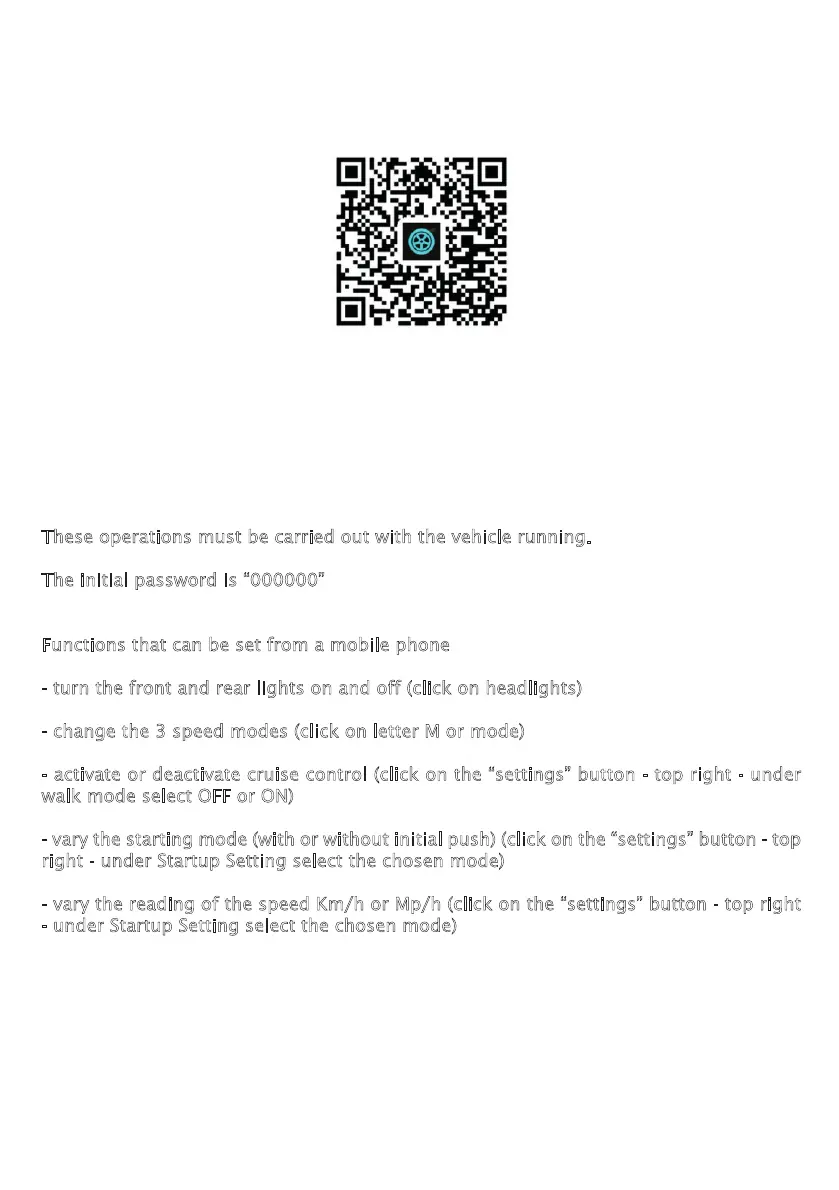
To use the “app” download “cxinwalk” from the “app store” (I-phone) or “google play”
(Android), or scan the QR code to install the “app”.
Activate the “bluetooth” and “position” function on the mobile phone.
After opening the “cxinwalk” “app” you will be asked for the “login” (optional option),
if you do not want to register click on the word “skip” found at the bottom right. From
the new screen press the “bluetooth” symbol (top left), the search for the device starts
automatically. Once the device is detected, click on the message that appears. The pas-
sword is requested, after confirming it, press “OK” when the operation is complete, you
can manage the various functions via your mobile phone.
These operations must be carried out with the vehicle running.
The initial password is “000000”
Functions that can be set from a mobile phone
- turn the front and rear lights on and off (click on headlights)
- change the 3 speed modes (click on letter M or mode)
- activate or deactivate cruise control (click on the “settings” button - top right - under
walk mode select OFF or ON)
- vary the starting mode (with or without initial push) (click on the “settings” button - top
right - under Startup Setting select the chosen mode)
- vary the reading of the speed Km/h or Mp/h (click on the “settings” button - top right
- under Startup Setting select the chosen mode)
N.B. since the CXINWALK “app” uses 4.0BLE “bluetooth” communication technology, the
“android” mobile phone must support 4.0BLE bluetooth and the system version 4.3 and
later. The “apple” mobile phone requires the 4S version or later versions.


 To Next Page
 Loading...