EN USER GUIDE
7
BACK TO INDEX
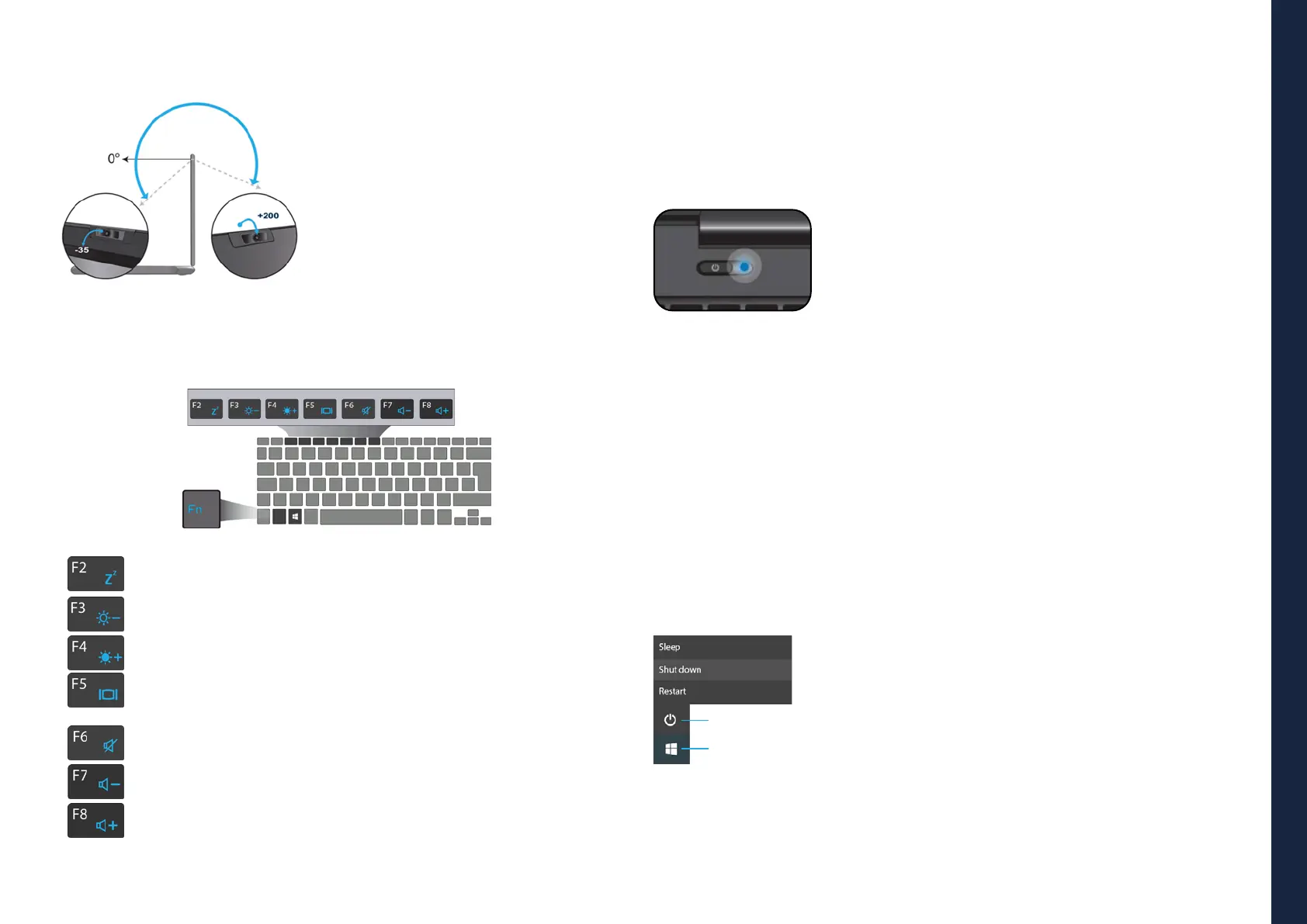
4.1 Rotatable camera
From the angle at which the camera faces
forward, you can adjust the camera angle
downward to face it down at an angle of
35 degree.
Or, you can turn it over a full 200 degree
to use it like a rear-facing camera.
4.2 Function keys
Press on of the following keys to perform the desired function.
Puts your computer into sleep mode
Decreases the display brightness
Increases the display brightness
Switches display output between your display, external monitor
(if connected) and both
Mutes/unmutes the audio output
Decreases the volume level
Increases the volume level
Note:
If your software uses some of the function keys to perform dedicated functions,
you can perform the function by pressing “Fn” plus the desired function key.
5. TURN ON/OFF YOUR DEVICE
If this is the rst time you turn this computer on,
connect the AC adapter and fully charge the battery.
Press the power button (normally 1 to 2 seconds) until
you see the power indicator light up in blue.
5.1 Turn ON for the rst time
The laptop will require you to do the initial setup, which includes:
• Activate your Windows 10;
• Sign in to or create your Microsoft account;
• Setup a wireless connection and more.
Please follow the instructions to complete the initial setup.
5.2 Turn OFF your device
Before turning o your device save all your data. To turn o your device, follow
the next steps:
1 click here
2 click here
3 click here
• Click the Windows icon in the low-left corner of the Desktop.
Or, press on the Windows key in the keyboard;
• In the start menu click on the Power icon and select Shut
Down from the power option menu as shown in the image.



 To Next Page