EN USER GUIDE
9
BACK TO INDEX
6.2 Saving battery power
The battery is an expendable supply, so when using it over a long time, the
capacity/battery life is shortened. If the battery life is reduced to under half of
its initial time, we recommend purchasing a new battery.
When not using the battery for a long time, store the battery after charging it
to 30-40% of its capacity. This extends the battery life time.
By customizing some options, you can use the device during longer periods of
time between charges:
• Close unnecessary applications;
• Deactivate the Bluetooth if not needed;
• Deactivate the Wi-Fi option if you are not using internet;
• Deactivate auto-syncing of applications;
• Decrease the backlight time;
• Decrease the brightness of your display.
7. TOUCH OPERATIONS
7.1 Basic touchpad operations
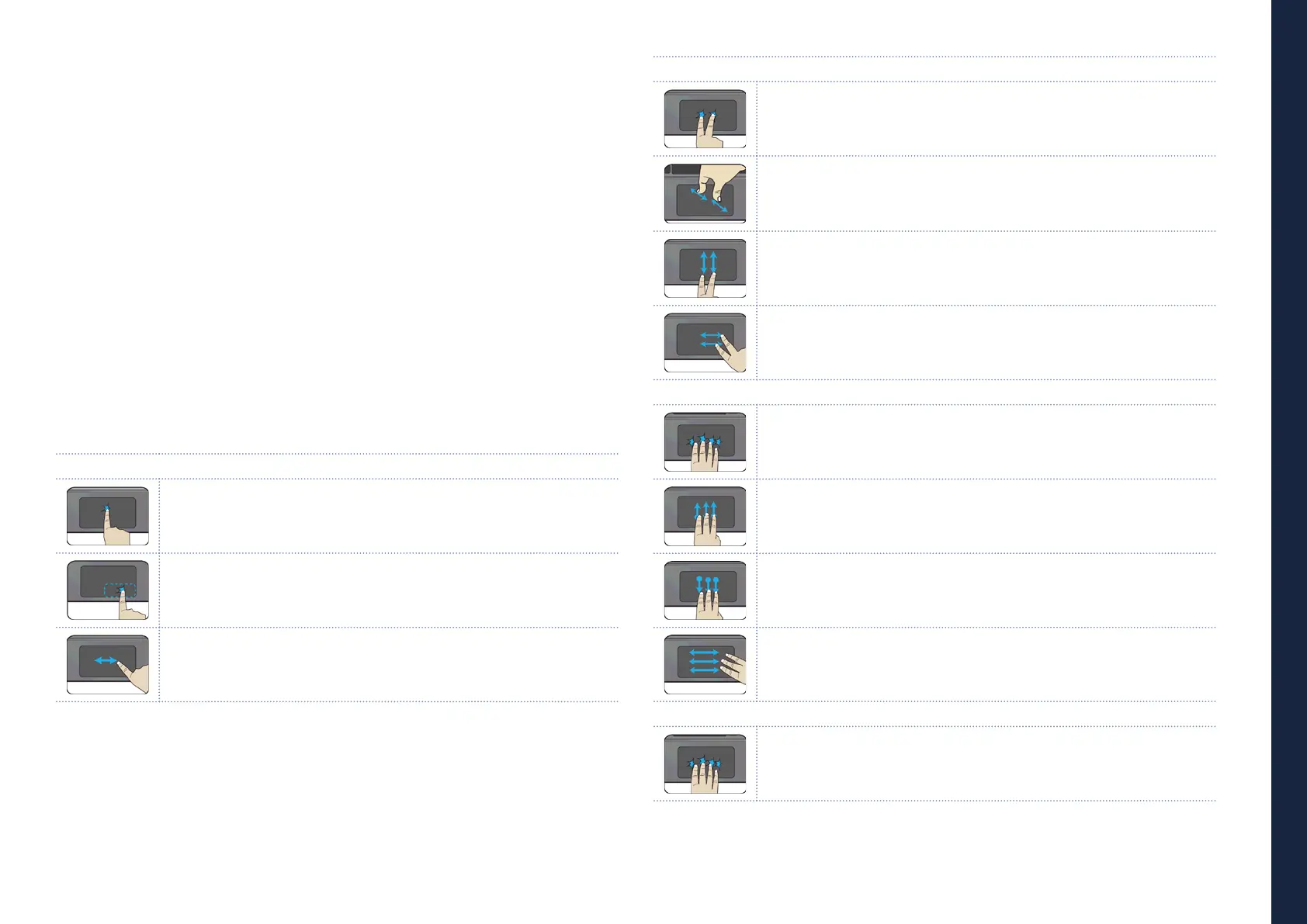
ONE FINGER ACTION
Tap once on the touchpad surface or press once on the low-left corner of the
touchpad to get the eect just like left clicking a mouse.
Press once on the low-right corner of the touchpad to get the eect just like
right clicking a mouse.
Press and continue to hold down the left corner and then move (drag) your
nger across the touchpad surface to drag an item on the desktop.
TWO FINGER ACTION
Tap once on the touchpad surface to get the eect just like right clicking a mouse
Move two ngers together or apart while touching the screen. This is to zoom
in and out on visual apps, such as pictures and maps.
Drag two ngers vertically the touchpad to scroll vertically.
Drag two ngers horizontally on the touchpad to scroll horizontally.
THREE FINGER ACTION
Clicking with three ngers can open the Cortana app.
Press and drag upward with three ngers to bring existing active windows
out on the desktop.
Press and drag downward with three ngers to hide all existing active windows
and bring out the desktop.
Press and drag to left or right with three ngers to switch between existing
active windows.
FOUR FINGER ACTION
Clicking with four ngers can open the Action Center.



 To Next Page