Smart Control 5
06.12.20192 / 30024020101
4 Information for electrically skilled persons
Installation and electrical connection
DANGER
Electric shock from touching live parts in the installation environment.
An electric shock can be fatal.
Before working on the device, disconnect the power and cover live parts in the area.
2
6
1
2
3
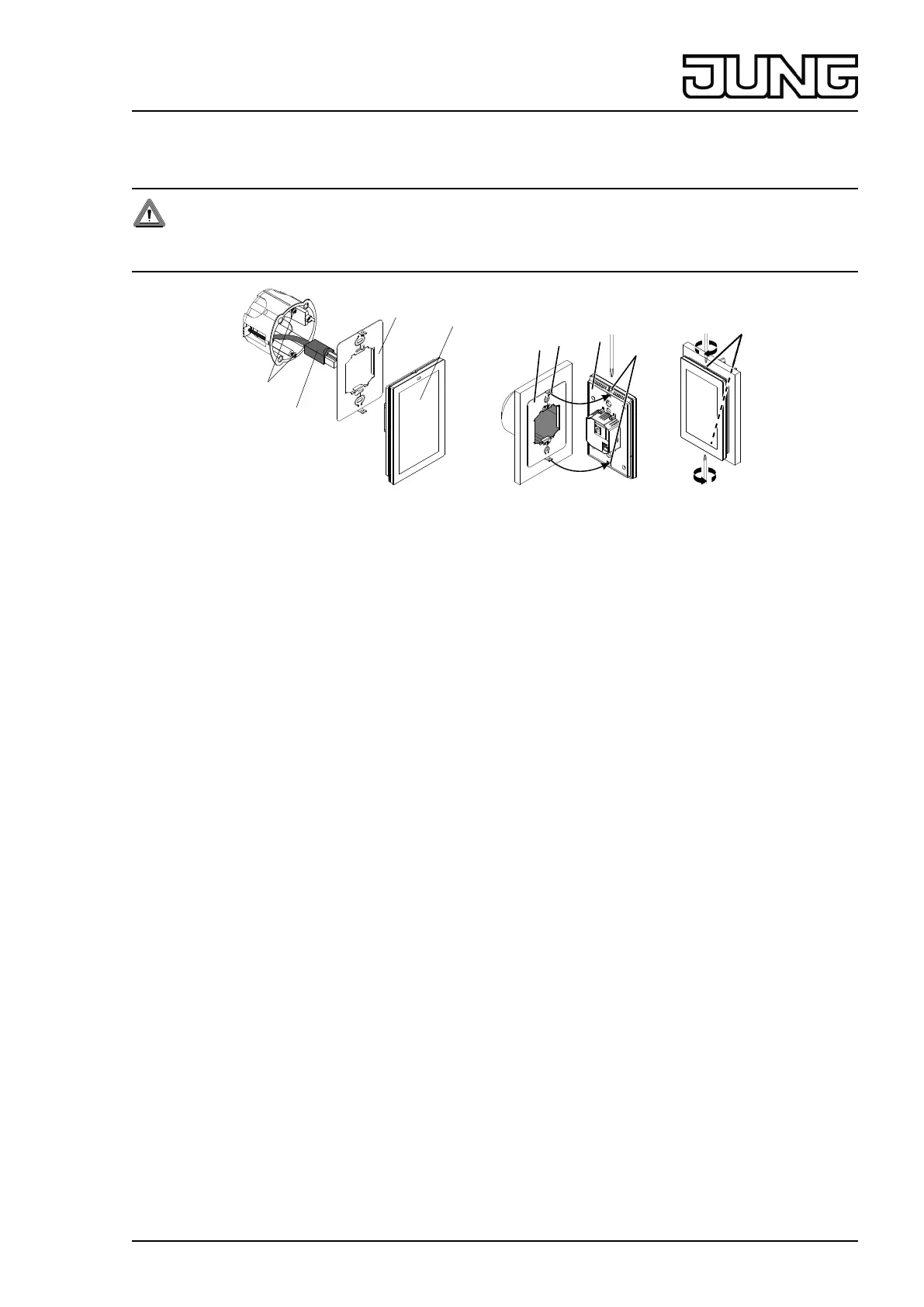
Figures 1 to 3: Installation and electrical connection
Ensure correct orientation when installing the appliance box. Mounting screws (1) must be in vertical alignment.
• Mount supporting frame (2) in vertical orientation on the appliance box, mounting hooks (3) in front.
• Release locking screws (5).
• Connect LAN (PoE).
• Connect optional power supply.
• Place Smart Control (4) ush on supporting frame.
Adapt mounting hooks carefully in the provided notches in Smart Control.
• Tighten locking screws (g. 3).
5 Operation
Sidebar – Menu overview
- Door Communication (app)
- eNet Smart Home (app)
- JUNG Visu Pro Server (app)
- JUNG Smart Visu Server (app)
- Settings
- Network Conguration
- General Settings
- Password Protection
- Application Menu
- System Update
Selecting the default application
After connecting the device an app overview for selecting the default application is shown.
• Select default application and conrm with “Save”.
Application will start automatically after interruption of power supply, rmware updates or Siedle door call function.
Opening the sidebar
• Swipe from the right side of the touchscreen to the middle of it.
Sidebar opens.
Starting an app manually
Requirement: App visible in the sidebar
• Select app in the sidebar.
App starts.


 To Next Page