This document is a user manual for the JVC AV-11NT510, an 11.6-inch 4G + WiFi Pro Tablet with a Keyboard Case.
Function Description
The JVC AV-11NT510 is a versatile tablet designed for mobile computing and communication. It operates on the Android™ 10.0 operating system and supports both 4G and Wi-Fi connectivity, allowing for internet access and mobile calls. The tablet comes with pre-installed Google applications and allows users to download additional apps from Google Play™. Its dual SIM card capability enables the use of two mobile networks simultaneously. The included keyboard case transforms the tablet into a more laptop-like device, enhancing productivity for tasks requiring typing.
Important Technical Specifications
- Operating System: Android™ 10.0
- CPU: Octa Core Spreadtrum SC9863, 1.6GHz
- Display: 11.6 inches, 1920 x 1080 FHD
- RAM Memory: 2GB DDR
- Internal Memory: 64 GB (Total built-in)
- Expandable Memory: Supports microSD cards up to 128GB (FAT32 format)
- Web Camera: Front: 8MP; Back: 13MP
- Ports: Type-C USB (OTG supports up to 32GB), Headphone Jack, SIM Card Slot (1 dedicated, 1 shared with microSD)
- Connectivity: Wi-Fi (802.11 b/g/n), 4G Calling (FDD B1/B3/B5/B7/B8/B20, TDD B28A/B40), Bluetooth, GPS, FM
- Battery: 6000mAh
- Adaptor: DC 5V, 2A
- Speaker: 1W
Usage Features
Getting Started:
Before first use, the battery should be charged using the provided Type-C USB charging cable and adapter. SIM cards and a microSD memory card can be inserted by first turning off the tablet, using a needle to eject the tray, placing the cards in the slots, and then pushing the tray back in.
Buttons and Touch Screen:
The tablet features a multifunction On/Off button for locking/unlocking the screen, powering on/off, restarting, taking screenshots, making emergency calls, and resetting the device. Volume Increase and Decrease buttons control audio levels for calls, ringtones, alarms, and media playback. The touch screen supports various gestures:
- Touch: To select items, apps, or menus.
- Swipe: To scroll through lists or screens.
- Triple Click: To zoom in/out (if enabled).
- Hold and Swipe: To delete or uninstall elements.
- Slide In and Out (Pinch-to-Zoom): To zoom in/out of photos or maps.
The screen automatically turns off after inactivity, with the duration adjustable in settings.
Keyboard Case:
The tablet connects to the keyboard case via aligning pins and a socket. Once connected, the keyboard and touchpad can be used for input.
Computer Connection:
To connect to a PC (Windows XP/Vista/7/8/10), plug the Type-C USB cable into the tablet and computer. On the tablet, select "Always allow from this computer" and "OK". Then, in Settings > Connected devices > USB, choose "MTP" for file transfer.
Applications:
Installed applications are accessed via the [Application menu] icon on the desktop. Shortcuts can be created by holding an app icon and dragging it to the desired desktop location. The tablet comes with Google apps and allows downloads from Google Play.
SIM Card Management:
Upon inserting SIM cards and powering on, the tablet automatically identifies them. SIM card settings, including preferred SIM for mobile data, calls, and messages, can be configured in Settings > Network & Internet > Mobile network.
Communication:
- Adding Contacts: Use the [Phone] application, type a number, press "Contact," fill in details, and save.
- Making Calls: Use the "Phone" icon or keyboard icon in the Applications menu, dial the number, and select the desired SIM card.
- SMS - Messages: Manage messages via the [Messaging] application. Touch the "+" icon to compose a new message, enter the contact, type the message, and select SIM 1 or SIM 2 to send. Multimedia messages can be created by pressing the "+" symbol and adding files.
Settings:
The tablet offers comprehensive settings:
- Network & Internet: Configure Wi-Fi, mobile network, data usage, hotspot, VPN, and airplane mode.
- Connected Devices: Manage Bluetooth, printing, and USB connections.
- Apps & Notifications: View app information, notifications, permissions, and advanced settings.
- Battery: Monitor battery usage, manage battery manager, display percentage, and optimize power saving.
- Display: Adjust brightness, wallpaper, screen rotation, sleep settings, and font size.
- Storage: Check storage details and free up space.
- Security: Set device security, privacy, Google Play Protect, Find My Device, and security updates.
- Accounts: Add or remove Google, Outlook, Hotmail, Yahoo, and other accounts.
- Accessibility: Adjust settings for users with poor vision, including volume key shortcuts, Select to Speak, TalkBack, text-to-speech output, font size, and display size.
- Google: Configure Android Auto App, Cast Media Controls, Nearby Location, Restore Contacts, Security, and work profile.
- System:
- Languages & Input: Set language, spelling correction, keyboard, and voice settings.
- Gestures: Configure gestures like "Jump to camera," "Lift to check tablet," and "Prevent ringing."
- Date & Time: Set date, time, and time zone.
- Backup: Manage data backup to Google Drive.
- Reset Options: Reset Wi-Fi, mobile & Bluetooth, app preferences, or perform a factory reset (which deletes all apps and data).
About Tablet:
Displays model number (AV-11NT510), local software update information, wireless update status, device name, MDN (SIM slot 1 and 2), and emergency information.
Maintenance Features
Safe Use of the Battery:
- Charge the battery using the provided adapter or a compatible one.
- Avoid charging via USB port of a computer/laptop for optimal charging speed; if doing so, turn off the device.
- To prolong battery life, discharge to below 20% and then charge to 100%.
- Unplug the adapter when not in use to prevent excessive charging.
- Avoid exposing the battery to extreme temperatures (below 0°C or over 40°C).
- Do not charge a damaged battery.
- Do not destroy, impair, or throw the battery into flames. Dispose of worn-out batteries in dedicated containers.
Maintenance of the Device:
- Keep the device and accessories out of reach of children.
- Avoid contact with liquids to prevent damage to electronic components.
- Avoid very high temperatures to prevent shortening the tablet's life, damaging components, melting plastic parts, and destroying the battery.
- Do not attempt to disassemble the device, as this can cause serious damage and void the warranty.
- Clean the device with a dry cloth only; avoid cleaning agents with high concentrations of acids or alkalis.
- Use only original accessories to maintain warranty validity.
- Recycle packaging according to local regulations.
Surroundings Security:
- Turn off the device in areas where its use is forbidden or may cause interference or danger (e.g., airplanes, hospitals, petrol stations).
- Be aware that radio waves may interfere with medical devices (e.g., cardiac pacemakers) if not properly secured. Consult a doctor or medical device manufacturer if in doubt.
Manual Usage:
- The manual's content is copyrighted; no part may be reproduced without prior written consent.
- Device appearance and screenshots in the manual may differ from the actual product or accessories.
- Android system descriptions may vary based on OS version and installed applications.
- Trademarks: Android is a trademark of Google LLC. Wi-Fi® and the Wi-Fi logo are registered trademarks of the Wi-Fi Alliance association. Other trademarks and copyrights belong to their respective owners. The Android robot is reproduced or modified from work created and shared by Google and used according to the Creative Commons 3.0 Attribution License.
- The manufacturer is not responsible for damages or consequences caused by improper use of the tablet.
- The software version can be upgraded without earlier notice.

 Need help?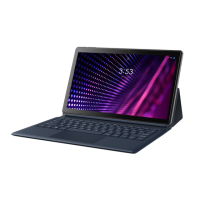

 To Next Page
 General