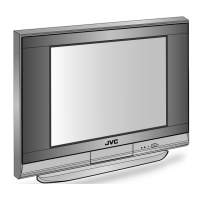
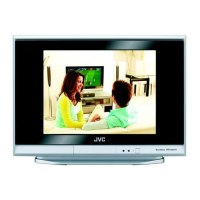
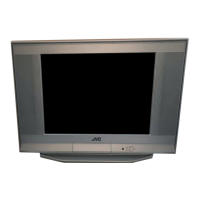
This document describes the JVC Colour Television, covering its functions, usage features, and maintenance. The manual illustrates the AV-29SX77 model for explanation purposes, noting that the actual TV may vary in appearance.
General Functions and Features
The JVC Colour Television offers a range of functions designed to enhance the viewing and listening experience. Users can select various picture and sound modes, customize settings, and manage channels.
Picture Modes:
The TV provides several picture modes, including:
- USER: Allows for personalized adjustments of contrast, brightness, sharpness, colour, and tint.
- SHARP: Enhances picture sharpness.
- VIVID: Heightens contrast and sharpness for a more vibrant image.
- SOFT: Softens contrast and sharpness.
- CLEAR: Softens the overall picture.
Picture Settings:
Beyond predefined modes, users can fine-tune individual picture attributes:
- CONTRAST: Adjusts the difference between light and dark areas.
- BRIGHTNESS: Controls the overall luminance of the picture.
- SHARPNESS: Modifies the clarity of edges.
- COLOUR: Adjusts the intensity of colours.
- TINT: Allows for fine-tuning of colour hue, especially useful for PAL colour systems.
White Balance:
The TV offers white balance adjustments to match the video type:
- NORMAL: Standard white balance.
- COOL: Provides a bluish-white picture.
- WARM: Provides a reddish-white picture.
Compress (16:9):
This feature allows conversion of a standard 4:3 aspect ratio picture to a wider 16:9 aspect ratio, suitable for widescreen content.
Blue Back:
The TV can be set to automatically display a blue screen and mute the sound if the signal is weak, absent, or if there is no input from the antenna. This function is available only in RF mode.
VNR (Video Noise Reduction):
This function helps reduce picture noise with options:
- OFF: VNR is turned off.
- AUTO: VNR effect is automatically controlled.
- MIN: Minimum VNR effect.
- MAX: Maximum VNR effect, which may soften sharp pictures.
AI ECO SENSOR / ECO MODE:
The TV can automatically adjust screen contrast based on room brightness for better eye care. Options include:
- OFF: Cancels the function.
- MODE-1/ECO-1: Mild contrast adjustment.
- MODE-2/ECO-2: Even contrast adjustment.
- DISPLAY: Displays the graph of the function.
Picture in Picture (PIP) Operation:
This feature allows viewing of two screens simultaneously (main and sub-picture).
- SUB-P: Selects the desired TV channel for the sub-picture.
- INPUT: Selects the input source for the sub-picture.
- SWAP: Swaps the main and sub-pictures.
- POSITION: Changes the sub-picture's position on the screen.
- FREEZE: Freezes the sub-picture.
Sound Settings:
The TV provides various sound adjustments:
- MaxxBass: Enhances bass sound, with options for OFF, HIGH, or LOW effect.
- CINEMA SURROUND: Creates an enhanced sound for a wider audience, with ON/OFF options.
- EQUALIZER: Allows adjustment of sound levels for specific frequencies (100, 300, 1K, 3K, 8K Hz) when in USER sound mode.
- AI VOLUME: Automatically adjusts volume across channels and video inputs to a consistent level.
Sound Modes:
- USER: Customizable sound settings.
- MUSIC: Emphasizes music.
- CINEMA: Emphasizes movie sound.
- NEWS: Emphasizes vocal sound.
- DRAMA: Emphasizes drama sound.
STEREO / I-II (A2/NICAM):
Enables listening to stereo or bilingual broadcasts, with options for stereo, monaural, bilingual I (sub I), and bilingual II (sub II). This function is only available in RF mode.
BALANCE:
Adjusts the volume balance between left and right speakers.
Usage Features
Remote Control:
The remote control is the primary interface for operating the TV. It includes buttons for power, menu navigation, channel selection, volume control, TV/Video input switching, and specific function buttons like RETURN PLUS, DVD MENU, and colour buttons for favourite channels.
TV Buttons:
On-device buttons include power, TV/Video input, menu/exit, channel selection, and volume adjustment.
Operating the Menus:
The TV uses an on-screen menu system for settings. Users navigate through Top, 2nd, and 3rd menus using directional buttons and an OK/Select button. The DISPLAY button returns to previous pages, and MENU exits the menu.
Initial Setup (Setup Tour):
Upon first power-on or after a reset, the TV guides the user through an initial setup process:
- Language Selection: Choose the desired on-screen display language.
- Teletext Language Group Selection: Select the appropriate teletext language group.
- Auto Program: Automatically searches and registers available TV channels.
- Edit Channel List: Allows users to modify the channel list after auto-programming.
Channel Presetting:
- Auto Program: Automatically registers TV channels.
- Manual Program: Allows manual registration of channels, including fine-tuning for poor reception and selecting sound systems for noisy signals.
- Edit Channel List (MOVE, DELETE, INSERT): Users can move channels to new PR numbers, delete unwanted channels, or insert new channels into the list.
Teletext Operation:
The TV supports teletext broadcasts, allowing users to view text-based information.
- TEXT Mode: Switches between TV mode and teletext modes.
- Page Navigation: Selects different teletext pages.
- Hold: Holds a teletext page.
- Reveal: Displays hidden text.
- Size: Enlarges the teletext display.
- Index: Returns to the index page.
- Cancel: Watches TV while waiting for a teletext page.
- Sub-page: Navigates through sub-pages.
Customized Settings:
- ON TIMER: Sets the TV to turn on automatically at a specified channel and time.
- OFF TIMER: Sets the TV to turn off automatically after a specified period.
- CHILD LOCK: Disables front control buttons to prevent unauthorized use.
- BEEP: Activates an audible alert for various operations (AUTO SIGNAL DETECT, AI ECO SENSOR Detect, Stereo Detect, ON TIMER/OFF TIMER) and button presses.
- VIDEO-2 SETTING: Configures the VIDEO-2 input for either normal video (composite) or component video signals.
Maintenance Features
Safety Precautions:
The manual emphasizes several safety rules:
- Power Source: Operate only from the indicated power source.
- Power Cord: Avoid damaging the power cord; grasp the mains plug when unplugging.
- Ventilation: Ensure good ventilation by not blocking openings and maintaining minimum distances from walls.
- Moisture: Do not expose the appliance to rain or moisture.
- Liquid/Objects: Prevent liquids or objects from entering cabinet openings.
- Screen Care: The TV screen is easily damaged; wipe with a soft, dry cloth and avoid forceful rubbing or harsh cleaners.
Troubleshooting:
The manual provides a troubleshooting guide for common issues:
- No picture, no sound: Check BLUE BACK function, sound system, aerial cable, and TV connections.
- Snowy picture/Stripes/Double-pictures: Adjust aerial, check for interference from other devices, or adjust aerial direction.
- Poor picture/White and bright image: Adjust colour system, contrast, or brightness.
- Distorted image/Poor sound: Check video signal quality, adjust sound frequency, or change stereo/bilingual mode to mono.
- Remote control issues: Check/replace batteries, ensure operation within range.
- Menu operation issues: Press TV/VIDEO button to return to TV mode.
- Front control buttons disabled: Deactivate CHILD LOCK.
- Colour patches on screen: Move magnetized devices away from TV or use PICTURE TILT.
- Image display delay/Crackling sound: These are normal phenomena due to stabilization or temperature changes.
- Electric shock: Due to static electricity, not harmful.
- AUTO SIGNAL DETECT not working: Ensure function is ON, check VCR/DVD player power, and video cable connections.
- TV input changes to VIDEO-2 unexpectedly: Check AUTO SIGNAL DETECT function.
- "PLEASE DISCONNECT VIDEO-1 CABLE!" message: Disconnect S-VIDEO or video input cable from VIDEO-1.
Repair:
In case of a fault, unplug the unit and call a service technician. Do not attempt to repair it yourself or remove the rear cover.


 To Next Page
 General