EasyManua.ls Logo

JVC CA-UXG68 - User Manual

JVC CA-UXG68
48 pages
Print Icon
To Next Page IconTo Next Page
Loading...
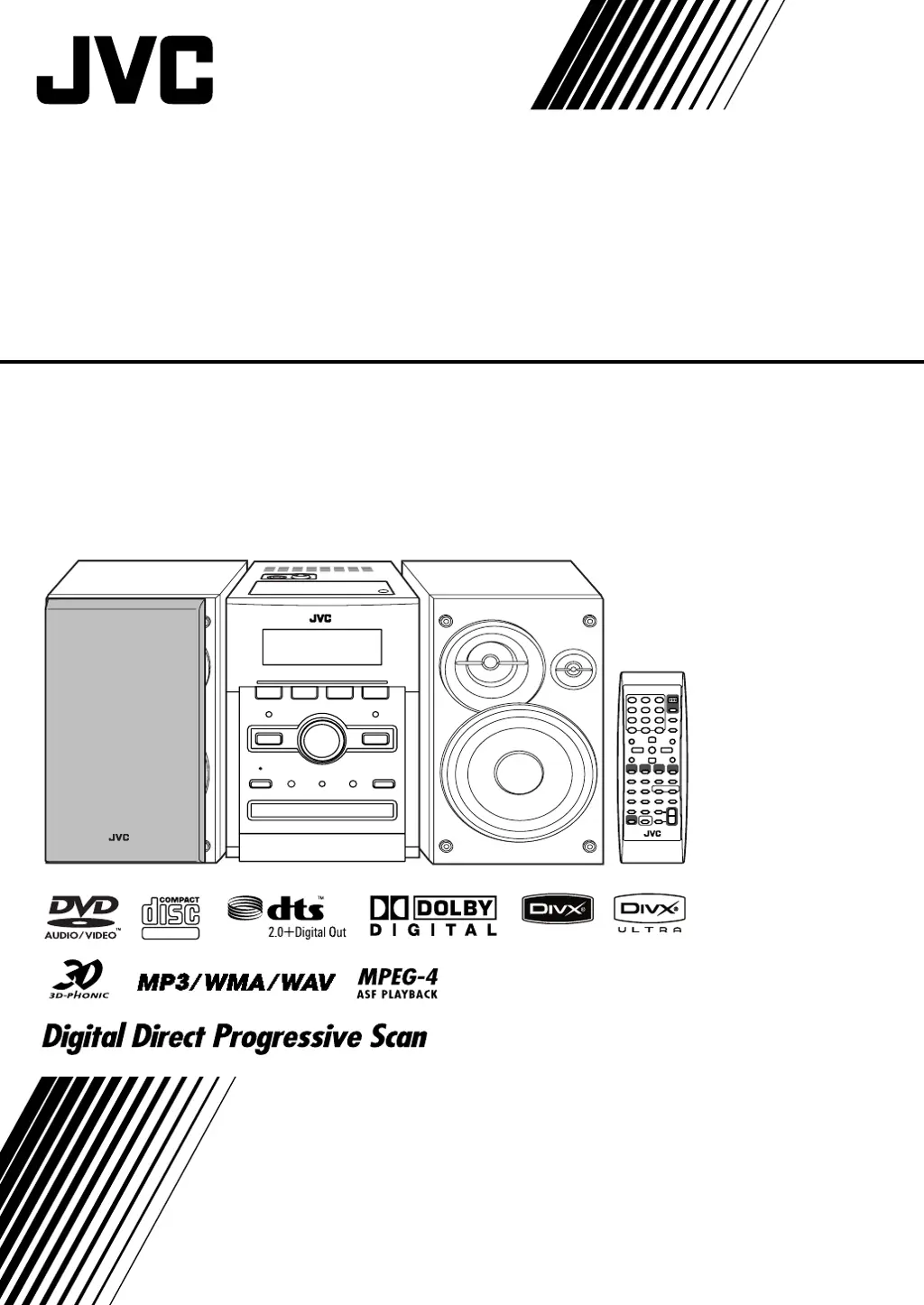
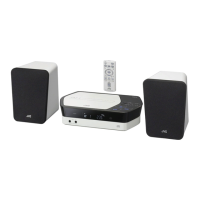
MICRO COMPONENT SYSTEM
UX-G68—Consists of CA-UXG68 and SP-UXG68
INSTRUCTIONS
SUPER VIDEO
GVT0203-006A
[US,UN,UG,UX,A,UW]
Cover[U].fm Page 1 Friday, December 15, 2006 6:28 PM

Table of Contents

Questions and Answers

  • L
    Louis WebbSep 8, 2025
    Why no picture is displayed on the TV screen, the picture is blurred, or the picture is divided into two parts on JVC CA-UXG68?
    • J
      Jacob MoranSep 8, 2025
      If no picture is displayed on the TV screen, the picture is blurred, or the picture is divided into two parts when using your JVC Stereo System, it means that the system is connected to a TV which does not support progressive video input.
  • V
    veronica93Aug 23, 2025
    Why the disc does not play on JVC Stereo System?
    • R
      Ronald BowersAug 23, 2025
      If the disc does not play on your JVC Stereo System, it could be due to an incorrect Region Code (resulting in a “RG ERROR” message) or because the disc is placed upside down. Ensure the disc's Region Code is correct for your system. If the Region Code is corect, place the disc with the label side up.
  • E
    Eric BrownAug 25, 2025
    Why is it hard to hear broadcasts because of noise on JVC Stereo System?
    • J
      jessicacolemanAug 26, 2025
      If you're having trouble hearing broadcasts clearly on your JVC Stereo System due to noise, check the antenna connections to ensure they are correctly connected and not loose. Also, make sure the AM loop antenna is not too close to the system and that the FM antenna is properly extended and positioned.
  • S
    shirleyhartAug 27, 2025
    What to do if no sound is heard from JVC Stereo System?
    • J
      Jeremy ByrdAug 27, 2025
      If no sound is heard from your JVC Stereo System, check the speaker connections to ensure they are correct and secure. Also, verify that headphones are not connected to the system, as this may mute the speakers.
  • C
    Christopher PruittAug 28, 2025
    Why the cassette holder cannot be opened on JVC Stereo System?
    • S
      stephaniecaldwellAug 28, 2025
      If the cassette holder on your JVC Stereo System cannot be opened, it might be because the power supply from the AC power cord was cut off while the tape was running. Turn on the system to resolve this issue.
  • D
    Danielle CortezSep 22, 2025
    Why ID3 Tag on an MP3/WMA/WAV file cannot be shown, groups and tracks are not played back as I expect on JVC CA-UXG68?
    • R
      Ricky DorseySep 22, 2025
      If ID3 Tag on an MP3/WMA/WAV file cannot be shown, and groups and tracks are not played back as you expect on your JVC Stereo System, it is because the playing order is determined when the groups and tracks were recorded, depending on the writing application.
  • M
    Monique ThomasSep 16, 2025
    Why no subtitle appears on the display though I have selected the initial subtitle language on JVC Stereo System?
    • S
      Scott GarciaSep 16, 2025
      If no subtitle appears on the display of your JVC Stereo System, even after selecting the initial subtitle language, it may be because some DVDs are programmed to always display no subtitle initially. If this happens, press SUBTITLE after starting playback.
  • J
    Jamie Zimmerman Jr.Sep 18, 2025
    Why audio language is different from the one I have selected as the initial audio language on JVC CA-UXG68?
    • R
      Raymond AndersonSep 18, 2025
      If the audio language is different from the one you selected as the initial audio language on your JVC Stereo System, it may be because some DVDs are programmed to always use the original language initially. If this happens, press AUDIO/MPX after starting playback.
  • K
    Kim RiddleSep 7, 2025
    Why adjustments or settings are suddenly canceled before I finish on JVC CA-UXG68?
    • B
      Bill CalhounSep 7, 2025
      If adjustments or settings on your JVC Stereo System are suddenly canceled before you finish, it is because there is a time limit. Repeat the procedure again.
  • J
    John ArnoldSep 4, 2025
    Why MP3, WMA, WAV, JPEG, MPEG-1, MPEG-2, ASF or DivX files are not played back on JVC CA-UXG68 Stereo System?
    • T
      tyrone97Sep 4, 2025
      If MP3, WMA, WAV, JPEG, MPEG-1, MPEG-2, ASF, or DivX files are not playing back on your JVC Stereo System, it could be because the disc or USB mass storage device contains different types of files (e.g., MP3/WMA/WAV and JPEG). In this case, you can only play back the files selected by the “FILE TYPE” setting. Alternatively, if you changed the “FILE TYPE” setting after the system read the disc or USB device, reload the disc or disconnect and reconnect the USB device.

Summary

Safety Warnings and Precautions

General Safety and Laser Precautions

Safety warnings for power button, electrical shock, fire, and laser products.

Ventilation and Safe Placement

Precautions regarding proper ventilation and apparatus placement.

System Introduction and Precautions

Key Operational Precautions

Key precautions for installation, power, moisture, internal heat, and general handling.

Media Compatibility Guide

Supported Disc and File Formats

Lists of playable disc and file types, including audio and video formats.

Manual Symbol Guide

Explanation of symbols used in the manual to indicate operations.

Connecting Your System

Connecting Audio and Video Devices

Guide to connecting speakers, subwoofer, TV, digital audio, and portable devices.

Included Accessories

List of items included with the system for setup and operation.

Setting Up Audio Components

Antenna and Speaker Setup

Instructions for setting up antennas and connecting speakers correctly.

Powered Subwoofer Connection

Steps for connecting the powered subwoofer to the main unit.

Connecting Video and Audio Sources

TV and Monitor Connections

Connecting the system to TVs using COMPONENT, S-VIDEO, or VIDEO jacks.

Digital Audio and USB Device Setup

Connecting digital audio equipment and USB mass storage devices.

Remote Control Setup

Instructions for preparing and using the remote control.

Understanding Display Indicators

System Display Icon Guide

Detailed explanation of all indicators on the system's display panel.

Basic Playback and Power

System Power On;Off

Steps to turn the system on, select a source, and put it in standby.

Private Listening with Headphones

How to connect headphones for private listening and adjust volume.

Radio Operation

Tuning and Preserving Stations

How to select bands, tune stations, and store presets.

Tape Playback

Inserting and Playing Tapes

Instructions for inserting a cassette and playing it back.

Tape Rewind;Fast-Forward

How to use controls for tape rewinding and fast-forwarding.

Playback: Discs and Files

Disc Insertion and USB Playback

How to insert discs, use USB devices, and control playback.

Playback Controls and On-Screen Guides

Overview of playback controls, resume function, and on-screen guides.

Advanced Disc Playback

Direct Item Selection and Disc Menus

Selecting titles, chapters, tracks directly, and using disc menus.

QP Link for Portable Audio Devices

Activating and using QP Link for seamless playback from portable devices.

Adjusting Sound and Tone

Volume and Sound Enhancement Features

Adjusting volume and using Sound Turbo II/Active Hyper Bass Pro.

Audio, Display, and Sound Settings

Tone, 3 D Sound, and Display Brightness

Adjusting tone, 3D Phonic, Headphone Surround, and display brightness.

DVD Video Sound Level Adjustment

Setting automatic sound increase level for DVD Video discs.

Picture and Audio Input Adjustments

Video Scanning and Picture Tone Settings

Selecting video scanning modes and adjusting picture tone parameters.

Audio Input Level Adjustment

Adjusting the audio input level for the AUX source.

System Timers and Power Management

Clock Setting and Auto Standby

How to set the system clock and manage auto standby.

Sleep Timer Function

Setting a timer to automatically turn off the system.

Unique DVD;VCD Operations

Audio Track and Language Selection

Choosing different audio tracks or languages on DVD/VCD discs.

Disc Content Navigation

Subtitle, View Angle, and B.S.P. Selection

Selecting subtitles, viewing angles, and navigating still pictures.

Bonus Group Content Access

Accessing special bonus content on DVD Audio discs.

Special Playback Effects

Dialogue Enhancement and Visual Effects

Enhancing dialogue clarity and using slow-motion or zoom playback.

Advanced Playback Controls

Program Play and Random Play

Arranging playback order and playing tracks randomly.

Random Playback Mode

Activating Random Play

Playing tracks or chapters in a random order.

Repeat Playback Options

Repeat Modes and A-B Repeat

Using repeat functions for tracks, titles, and specific segments.

Child Lock Functionality

Locking the disc tray to prevent accidental ejection.

On-Screen Display Guide

On-Screen Bar Element Guide

Interpreting information and icons displayed on the on-screen bar.

On-Screen Bar Menu Usage

On-Screen Navigation and Time Display

Navigating menus and customizing time display via the on-screen bar.

Disc Search Functions

Time and Chapter;Track Search

Searching for specific playback points by time or chapter/track number.

Browsable Still Picture Display

Navigating Still Pictures

Displaying and selecting still pictures linked to DVD Audio tracks.

Audio;Video File Playback

File Control Screen Navigation

Using the control screen to manage and play audio/video files.

File Playback Features

Playback Modes and JPEG Zoom

Starting file playback, using repeat options, and zooming JPEG images.

Tape Recording Operations

Recording Cassette Tapes

Instructions for inserting tape and initiating recording.

Synchronized Recording

Automated Tape Recording

Recording tracks from discs/USB automatically onto tape.

Karaoke Playback

Karaoke Disc Setup

How to set up and use the system for karaoke playback.

Karaoke Vocal Adjustments

Key Control, Vocal Masking, Mic Mixing

Adjusting vocal key, applying vocal masking, and mixing microphone sound.

Karaoke Program Play

Programming Karaoke Song Order

Setting the playback order for karaoke songs.

System Timer Operations

Setting Daily and Recording Timers

Configuring daily timers for playback and recording timers.

Managing Timer Operations

Timer Activation and Cancellation

Instructions for turning timers on, off, or cancelling them.

System Setup Menu

Language, Picture, and Other Settings

Configuring language, monitor type, picture source, and screen saver.

Audio Output and System Settings

Digital Audio Output and Resume Settings

Setting digital audio output and managing resume playback.

Additional System Information

Key Operation Summaries

Summaries of key operations like connections, playback, and timers.

Detailed File Format Support

File Format Specs and Limitations

Specific playback requirements and limitations for various file formats.

Operation Summaries and Notes

System Operation Recap

Recap of key operations for sound, DVD/VCD, playback, files, tape, karaoke, and timers.

System Maintenance and Cleaning

Cleaning and Care Instructions

Guidelines for cleaning the system, discs, tapes, and speaker grilles.

Troubleshooting Guide

General Troubleshooting

Solutions for common problems like canceled settings, no sound, or remote control issues.

Specific Issue Troubleshooting

Addressing issues with disc playback, file compatibility, radio, tape, and timers.

Digital Audio Output Signals

Output Signal Format Specs

Table detailing digital audio output signals for various disc/file types.

TV Operation with System Remote

Remote Control for JVC TV Functions

How to use the system's remote control to operate JVC TVs.

System Specifications

Technical Specifications Overview

Technical details for amplifier, speaker, tuner, and media compatibility.

JVC CA-UXG68 Specifications

General IconGeneral
TypeMicro Component System
CD PlayerYes
BluetoothYes
USB PortYes
TunerFM/AM
Remote ControlYes
Weight3.5 kg
Output Power2 x 20W
Speaker Configuration2.0
Playable MediaCD, CD-R/RW, MP3
Audio InputYes (3.5mm)

Related product manuals