EasyManua.ls Logo

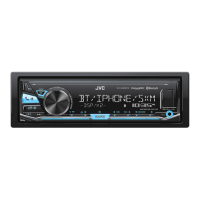
JVC Kd_X340BTS - User Manual

JVC Kd_X340BTS
45 pages
Print Icon
To Next Page IconTo Next Page
Loading...
ENGLISH
FRANÇAIS
ESPAÑOL
B5A-1359-00 [K]
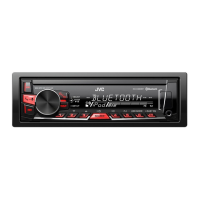
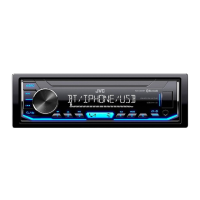
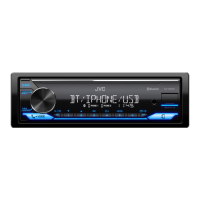
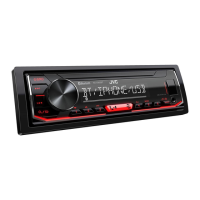
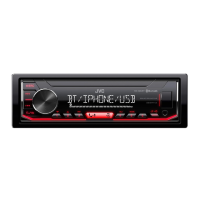
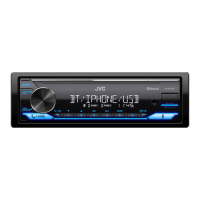
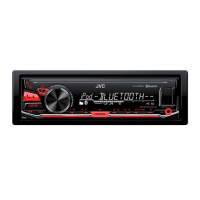
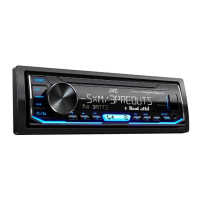
KD-X340BTS / KD-X240BT
DIGITAL MEDIA RECEIVER
INSTRUCTION MANUAL
RÉCEPTEUR MULTIMÉDIA NUMÉRIQUE
MANUEL D’INSTRUCTIONS
RECEPTOR DE MEDIOS DIGITALES
MANUAL DE INSTRUCCIONES
For customer Use:
Enter below the Model No. and Serial No. which are
located on the top or bottom of the cabinet. Retain this
information for future reference.
Model No.
Serial No.
JS_JVC_KD_X340BTS_K_C.indd 1 8/22/2016 3:22:16 PM

Questions and Answers

  • C
    Christopher GonzalezSep 6, 2025
    How to fix 'CANNOT PLAYBACK' at [AUTO MODE] on JVC Kd_X340BTS Receiver?
    • X
      xryanSep 6, 2025
      If you cannot playback at [AUTO MODE] on your JVC Receiver, make sure the JVC MUSIC PLAY APP is installed on the Android device. Also, reconnect the Android device and select the appropriate control mode. If the problem persists, the connected Android device may not support [AUTO MODE].
  • J
    Jerry VaughnAug 22, 2025
    What to do if radio reception is poor on JVC Kd_X340BTS Receiver?
    • C
      Christina RhodesAug 22, 2025
      If you are experiencing poor radio reception with your JVC Receiver, ensure that the antenna is firmly connected.
  • B
    bradley89Sep 3, 2025
    What does 'LOADING' mean on JVC Kd_X340BTS when searching?
    • H
      heather31Sep 3, 2025
      If “LOADING” appears when you enter search mode on your JVC Receiver, the unit is still preparing the iPod/iPhone music list. It may take some time to load, so try again later.
  • M
    mendezlindsaySep 2, 2025
    How to fix iPod/iPhone not working with JVC Kd_X340BTS?
    • T
      Tammy SinghSep 2, 2025
      If your iPod/iPhone does not turn on or does not work with the JVC Receiver, check the connection between the unit and the iPod/iPhone. Alternatively, detach and reset the iPod/iPhone using a hard reset.
  • D
    David WalterSep 1, 2025
    What does 'NOT SUPPORT' mean on JVC Kd_X340BTS?
    • M
      Michael BradySep 1, 2025
      If “NOT SUPPORT” appears on your JVC Receiver, check whether the connected device is compatible with the unit and ensure the file systems are in supported formats. You can also try reattaching the device.
  • A
    Andrew ScottAug 30, 2025
    How to fix 'NO DEVICE' or 'READING' flashing on JVC Kd_X340BTS Receiver?
    • A
      Annette LeAug 30, 2025
      If you see “NO DEVICE” or “READING” keeps flashing on your JVC Receiver, try switching off the developer options on the Android device. If that doesn't work, reconnect the Android device. If the problem persists, the connected Android device may not support [AUTO MODE].
  • R
    Ruth JacobsAug 29, 2025
    What does 'UNRESPONSIVE DEVICE' mean on JVC Kd_X340BTS Receiver?
    • J
      Jennifer HawkinsAug 29, 2025
      If “UNRESPONSIVE DEVICE” appears on your JVC Receiver, make sure the device is not malfunctioning and reattach it.
  • M
    Mary LawsonAug 27, 2025
    Why is my Bluetooth audio player not controlled by JVC Kd_X340BTS Receiver?
    • S
      Stephanie KellyAug 27, 2025
      If the connected Bluetooth audio player cannot be controlled by your JVC Receiver, check whether the connected Bluetooth audio player supports Audio/Video Remote Control Profile (AVRCP). If it does, try disconnecting and reconnecting the Bluetooth player again.
  • K
    Katie KaneAug 27, 2025
    How to fix 'CANNOT PLAY' error on JVC Kd_X340BTS with Android?
    • K
      Kenneth GarciaAug 27, 2025
      If you see a “CANNOT PLAY” message on your JVC Receiver when using an Android device, ensure that the Android device contains playable audio files. If it does, try reconnecting the Android device or restarting it.
  • M
    Michael Hatfield DDSAug 25, 2025
    What to do if sound is interrupted during Bluetooth playback on JVC Receiver?
    • C
      Cynthia KramerAug 25, 2025
      If the sound is being interrupted or skipped during playback of a Bluetooth audio player on your JVC Receiver, try the following: - Reduce the distance between the unit and the Bluetooth audio player. - Turn off, then turn on the unit and try to connect again. - Be aware that other Bluetooth devices might be trying to connect to the unit.

Summary

FCC Warnings and Compliance

Industry Canada Notices

Usage Cautions

Software License Agreement

Software Usage Notices

Before Using the Device

Important Usage Guidelines

Advises reading the manual thoroughly for proper use and future reference.

Safety Warnings and Cautions

Alerts users to dangers of operating while distracted, ingesting batteries, and safe volume levels.

Basic Unit Operations

Getting Started Guide

Radio Functions

USB, iPod, and Android Connectivity

Pandora App Integration

iHeartRadio App Integration

SiriusXM Radio Operation

SiriusXM Setup, Listening, and Channel Memory

Connect tuner, activate subscription, listen, and store favorite channels.

SiriusXM Radio Features

Bluetooth Connectivity and Pairing

Device Pairing and Microphone Setup

Steps to pair a Bluetooth device and connect the microphone.

Bluetooth Phone Operations

Auto Pairing and Call Handling

Automatic pairing activation and how the unit handles incoming calls and calls during conversation.

Bluetooth Making Calls

Call Initiation Methods and Voice Recognition

Ways to make calls via history, phonebook, dial, voice, and stored contacts.

Bluetooth Mode and Compatibility Settings

Managing Bluetooth Connections and PIN Codes

Managing connected devices, selecting phone/audio, and editing PIN codes.

Bluetooth Audio Playback Control

JVC Remote Application Integration

Configuring Remote App and Streaming Audio

Selecting and configuring the app, and streaming iPhone/iPod audio via Bluetooth.

Bluetooth Internet Radio Streaming

AUX Input for External Audio Players

Audio Settings and Equalizer

Audio Settings: Crossover Configuration

Speaker Size and Crossover Frequency Setup

Selecting speaker sizes and adjusting crossover frequencies for tweeters, mid-range, and woofers.

Audio Settings: Crossover and Time Alignment

3-Way Crossover Settings Details

Detailed settings for 3-way crossover on tweeters, mid-range, and woofers.

Digital Time Alignment Setup Guide

Adjusting speaker delay and gain for optimal sound staging.

Display Settings

Troubleshooting Guide

General and Radio Troubleshooting

Solutions for common sound, connection, and reception problems.

Troubleshooting Device-Specific Issues

USB, iPod, Android, Pandora, iHeartRadio Troubleshooting

Solutions for app errors, playback issues, and connectivity problems.

Troubleshooting Connectivity and System Issues

SiriusXM and Bluetooth Troubleshooting

Addressing SiriusXM service issues and Bluetooth connectivity problems.

Product Specifications

Tuner, USB, Bluetooth, and Audio Specifications

Technical details for tuner, USB, Bluetooth, and audio output parameters.

Product Specifications and Installation Overview

Vehicle Installation Procedure

Step-by-step guide for safely installing the unit into a vehicle.

Installation and Connection Guide

In-Dash Mounting and Unit Removal Procedures

Instructions for dashboard installation, including parts and unit removal.

Installation and Connection: Wiring (KD-X340 BTS)

KD-X340 BTS Wiring Diagram and Connections

Detailed diagram showing connections for power, speakers, and accessories.

Installation and Connection: Wiring (KD-X240 BT)

KD-X240 BT Wiring Diagram and Connections

Detailed diagram showing connections for power, speakers, and accessories.

Limited Warranty (USA)

Warranty Information (Canada)

JVC Kd_X340BTS Specifications

General IconGeneral
BrandJVC
ModelKd_X340BTS
CategoryReceiver
LanguageEnglish

Related product manuals