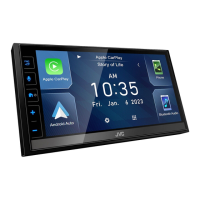
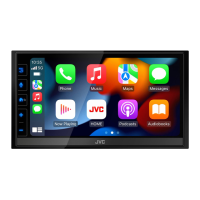
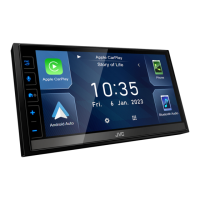
4
B
asics
B
asics
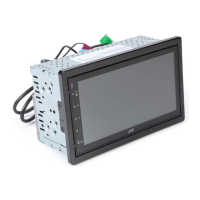
F
unctions of the Buttons on the
Front Panel
1
2
3
4
5
6
1
R
emote Sensor
• R
eceives the remote control signal.
2
(
HOME)
• D
isplays the HOME screen. (P.4)
• P
ress and hold turns the power o.
• W
hen the power o, turns the power on.
3
EQ
• D
isplays the Audio screen.* (P.10)
* Th
e Audio screen is not displayed during SETUP
s
creen or on the list screen etc,
4
+ , – (Volume)
• A
djusts volume. The volume will go up until 15
when you keep pressing [ + ].
5
(
MUTE, Display o)
• M
utes/restores the sound.
• P
ress and hold turns the screen o.
When the screen is o, touch the display to turn
on the screen.
6
Reset
• I
f the unit or the connected unit fails to operate
properly, the unit returns to factory settings
when this button is pressed.
Common operations
Ñ T
urning on the power
1
P
ress the <
> b
utton.
Ñ T
urning o the power
1 P
ress and hold the <
> b
utton.
H
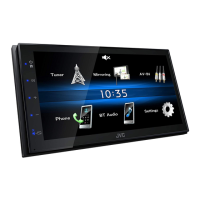
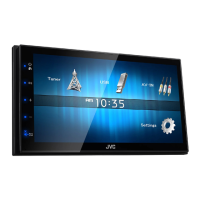
OME screen descriptions
1
P
ress the <
> b
utton.
HOME screen appears.
2
5
3
6
4
7
1
1
Cl
ock display
Touch to displays the Clock screen.
2
Switches to the Tuner broadcast. (P.5)
3
[USB]
P
lays les on a USB device. (P.6)
[iPhone]
P
lays an iPhone. (P.7)
• W
hen iPhone is connected.
4
Switches to an external component connected to
the AV-IN input terminal. (P.8)
5
Displays the Hands Free screen. (P.9)
6
Plays a Bluetooth audio player. (P.10)
7
Displays the SETUP screen. (P.3)
So
urce control screen
1
1
[
] : Returns to previous screen.
[
] : D
isplays the Audio screen. (P.10)
[
Mirroring]
D
isplays the Mirroring screen.
• When android device with “Mirroring OB for
JVC” application installed is connected.


 To Next Page
 Loading...