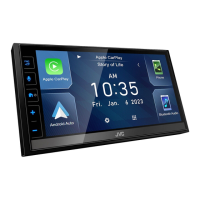
Basic Operations
8
Popup menu
1
Press the [FNC] button.
Popup menu appears.
2
Touch to display the popup menu.
76
41 2 3
5
The contents of the menu are as follows.
1
• Displays the HOME screen. (P.7)
2
• Switches between screens.
The screen to be switched to depends
on the [DISP Key] setting on the User
Interface screen. See User Interface
Setup (P.56) in the Instruction Manual.
• Touch and hold to turns the screen off.
To turn on the screen: Touch the display.
3
• Displays the Screen Adjustment screen.
4
• Function key1 to 3: The current screen
changes to the one you have set. The
function key1 and 2 are set to [Camera]
and [Audio] function as default. For
the function setting, see Customize
popup menu functions (P.57) in the
Instruction Manual.
– [
]: Displays the view camera screen.
– [
]: Displays the Audio screen.
• Touch and hold to display the Customize
FNC Menu screen.
5
• Displays the Android Auto device list. This
icon appears only when Android Auto is
connected and two or more devices can
be used as Android Auto device.
6
• Close the popup menu.
7
• Short-cut source icons.
Ñ Source selection screen
description
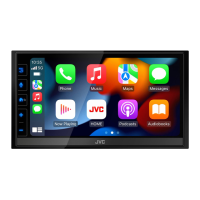
You can display icons of all playback sources
and options on the source selection screen.
To change pages, flick your finger leftward/
rightward on the screen.
1
Press the [FNC] button.
Popup menu appears.
2
Touch [ ].
HOME screen appears.
3
Touch [ ].
From the screen, you can select the
following sources and functions.
2
3 4
1
1
• Changes playback sources.
2
• Page indication
3
• Returns to the previous screen.
4
• Displays the SETUP screen.



 To Next Page
 Loading...