46
SETTINGS
R Changing the aspect ratio
You can change the aspect ratio for video playback.
• You cannot change the aspect ratio while playing
USB device.
1 Display the <Video Menu> screen.
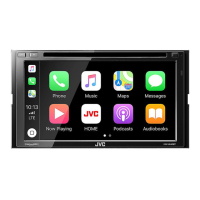
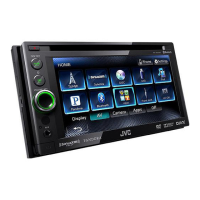
KW-V50BT KW-V30BT
2 Display the adjustment menu.
3 Select the aspect ratio.
<Full>* For 16:9 original pictures
4:3 signal 16:9 signal
<Regular>* For 4:3 original pictures
4:3 signal 16:9 signal
<Panorama> For viewing 4:3 pictures
naturally on the wide screen
4:3 signal 16:9 signal
<Zoom1> −
<Zoom3>
Changes the magnification.
• The aspect ratio is
automatically selected to
match the video source.
* While DivX is played back with <Monitor Type> set to
[16:9] (Page 13), the aspect ratio is not set correctly.
R Zooming the picture
You can zoom the picture (<Full>, <Zoom1> to
<Zoom3>). Zooming is available only when disc is
played back.
• When <Aspect> is set to <Panorama> (see the
left column), the picture is zoomed with the aspect
ratio of the <Full> setting.
1 Display the <Video Menu> screen.
KW-V50BT KW-V30BT
2 Display the adjustment menu.
3 Change the magnification (1), then move
the zooming frame (2).
• [J][K][H][I] are not displayed when <Full> is
selected.
• The zoom function cannot be used for some video
sources.


 To Next Page