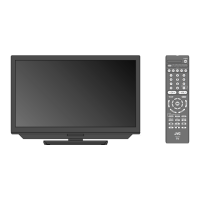
Remote Control 2055BT
5
1
2
4
8
7
15
14
11
9
3
6
10
13
12
RM-C3606
Inserting the Batteries into the Remote
Remove the battery compartment cover to reveal the
battery compartment. Insert two size AAA batteries.
Make sure the (+) and (-) signs match (observing
correct polarity). Do not mix old and new batteries.
Replace only with same or equivalent type. Place the
cover back on.
To pair remote with the TV
When the
for accessories will be performed after the initial setup
starts. You will need to pair your remote control with
your TV at this point.
Press and hold the Source button on the remote until
the LED on the remote starts to blink, then release
the Source button. That means the remote is in
pairing mode.
Select the name of your remote and press OK when
it appears on the TV screen.
When the pairing process is successful, the LED on
remote will enter sleep mode after 30 seconds.
In order to pair your remote later on, you can go to
Settings menu, highlight Remotes & Accessories
option and press OK to start a search for accessories.
1. Standby: Quick Standby / Standby / On
2. Home: Opens the Home Screen
3. Directional buttons: Navigates menus, setting
options, moves the focus or cursor etc. and
displays the subpages in Live TV-Teletext mode
when pressed Right or Left. Follow the on-screen
instructions.
4. OK:
channel list (in Live TV mode)
5. Back/Return: Returns to previous menu screen,
goes one step back, closes open windows, closes
teletext (in Live TV-Teletext mode)
6. Volume +/-
7. Netix:
8. Prime Video: Launches the Amazon Prime Video
application
9. MyButton1 (*): Opens the picture mode setting
menu on available sources
10. YouTube: Launches the YouTube application
11. Programme +/-: Increases/Decreases channel
number in Live TV mode
12. Mute:
13. Exit: Closes and exits from Live TV Settings
menus, closes the Home Screen, exits from any
running application or menu or OSD banner,
switches to last set source
14. Source: Shows all available broadcast and
content sources, is also used in pairing process
of the remote.
15. Microphone: Activates the microphone on the
remote
(*) MyButton1 Customisation
This button can be assigned as a hotkey for an
application. Press and hold the button, available
applications will be displayed on the screen. Highlight
one and press OK. After that, you can launch the
selected application by pressing the MyButton1
button. In the same way, you can change the function
of this button any time later.
Note that if you perform initial setup (Factory reset /
Reset), MyButton1 will return to its default function.



 To Next Page
 Loading...