3. Enter the four-digit code. The device 1. Press and hold a device mode key
key LED turns off briefly after each
(AUDIO, DVD/VCR, or TV) for at
key press. least six seconds. The LED for each
device key lights up, then the key for 1. Press and hold a device mode key
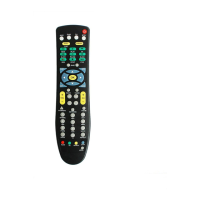
Each of the additional device keys
Note: You have 10 seconds to press
the device you selected remains on.
(AUDIO, DVD/VCR, or TV) for at
controls a particular type of device. each digit. If it takes longer than that, least six seconds. The LEDs for each
For example, the DVD/VCR key the remote "times out" and you must
2. Press a function key (such as Power
device key light up, then the key for
controls your VCR, DVR, or DVD begin again.
or Mute). The following function keys
the device you selected remains on.
player, but not your TV, unless you 4. If the remote recongnizes the code, the are valid for searching
2. Enter 9 9 0 to tell the remote you are
specify otherwise. See device key's LED blinks three times. (Power is recommended): verifying the device code.
"Reassigning Device Keys." You can now test the remote by pressing
- Power
The LED blinks twice.
POWER. If your device responds (turns - Mute 3. Press 1, then count the LED blinks
Control this
off), you have found the right code. If
- Play
and write down the number. If the LED
Type of device
your device does not respond, repeat
- CH + does not blink, the number is 0. This is
TV
TV
steps 2-3 with the next code in the list.
- Stop
the first digit of the device code. Press
DVD/VCR
DVD, VCR, DVR,
If the remote does not recongnize the The device key's LED blinks three
2, 3, and 4 to obtain all four-code digits.
HTIB, TV/VCR,
code, the LED will turn off. Retry the times, then turns off.
TV/VCR/DVD,
code (by repeating steps 2-3 using the
3. Press ▲. The remote will send the IR
and TV/DVD
next code listed for your brand), or command for the function you pressed
CABLE
Cable box only
search for a device code. in Step 2.
AUDIO
Amplifier, Tuner
See "Searching for Codes". 4. If the device performed the function
you pressed, press OK. The remote will
To specify a device now control the device you selected in
1. Look up the device you want to Step 1. If the device did not perform the
control in the device code list on the function you pressed, repeat step 3.
back of this guide. If none of the codes listed under "Device
Press ▼ to retry the previous code.
2. Press and hold a device key (AUDIO,
Codes" on the back of this guide match
Tip: Note the code set that worked,
DVD/VCR, or TV) for at least six
your device, you can search for a set of in case you must re-code your remote:
seconds. The LEDs for each device commands that will work. Your remote
DVD/VCR:
key light up, then the LED for the will sample all the codes in its system
TV:
device you selected remains on. for that device mode to find one that will
AUDIO:
allow you to control your device. See "Checking Codes" for more
information on noting code sets.
(english) 2 of 4
PROGRAMMING DEVICE
CONTROL
Device Key
SEARCHING FOR CODES
CHECKING CODES


 To Next Page
 Loading...