10
11
OLED DISPLAY Overview
Display Color
Press and hold button for three seconds to access
the menu. Press and release the button to scroll.
Choose <<Color>> and select white (default), green, amber,
red, or blue accents for the OLED display.
Display Mode and Alert Options
Press and hold button for three seconds to access
the menu. Press and release to scroll and choose
<<Display>> for speed & compass or speed & voltage or
speed & all-threat (Menu Page 22).
For Alert Display Options, Press and hold button for
three seconds to access the menu. Press and release
to scroll and choose <<Alert Disp>> for 5-Bar (default) or
3-Bar alerts (Menu Page 22).
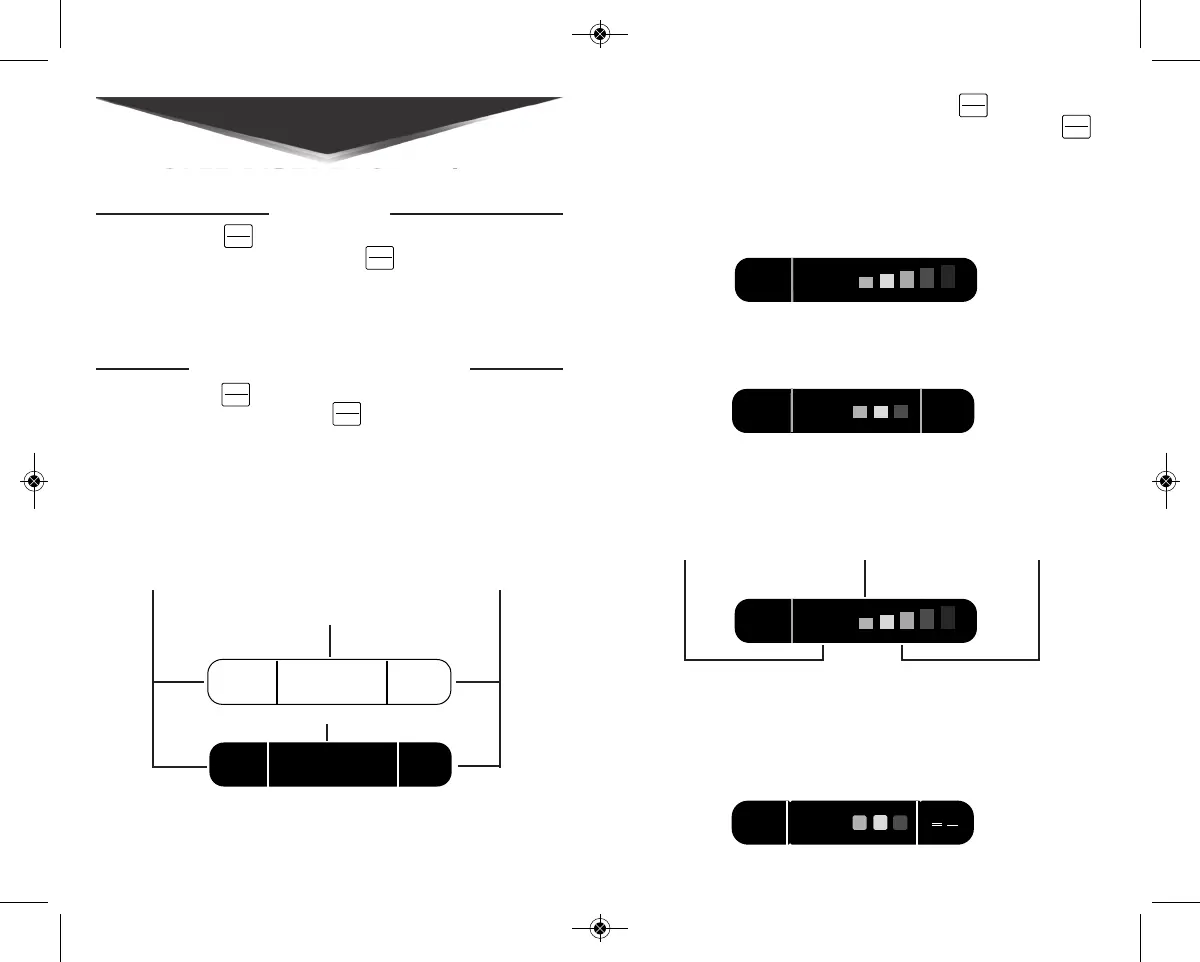
5-Bar Alert (Default) - During an alert, there are five avail-
able strength-of-signal bars that use the center and right
section of the display.
3-Bar Alert - During an alert, there are three available
strength-of-signal bars that use the center section only.
All Threat Mode Displays all alerts and the signal strength
of each alert in the area. The strongest signal will appear in
the center of the display and the other threats will appear
on the right (3-bar alert is default if All Threat Mode is chosen).


 To Next Page