EasyManua.ls Logo

Kaiser Baas R40 - User Manual

Kaiser Baas R40
2 pages
Print Icon
To Next Page IconTo Next Page
Loading...
R40
Quick Start Guide
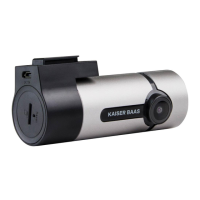
R40 Dash Camera
For card compatibility,
see www.kaiserbaas.com/support
Installation
Clean a small area of your windscreen.
Kaiser Baas recommends that dash
cameras be mounted behind the
Rear-View Mirror, out of the driver’s
field of view, with the power cable
around the outside of the windscreen.
Connect the GPS cable to the camera
and plug it into the USB Car Charger. The
Dash Cam will automatically turn on and
begin recording when the vehicle starts.
Insert MicroSD card.
Micro SD
Card
Suggested
GPS
Getting Started
Connection
Connect to a smartphone:
Open your device’s WiFi settings
and select Dash Cam Network
(KB-RSERIES-XXXXXX).
Use password 12345678 to connect.
Once connected, launch the app to
see live video, track your journey,
change camera settings or download
captured footage and photos.
Live View
Live View, Playback and Download:
Once you’re connected to the dash cam
via WiFi, the camera will appear ‘online’
in the Dash Camera page where you
can click on it to view a live preview
of the current video.
Playback: Click the video icon on
the ‘online’ page and select your
desired videos for playback.
Download the KB
Drive App to get
started.
Question and Answer IconNeed help?

Do you have a question about the Kaiser Baas R40 and is the answer not in the manual?

Summary

Getting Started with R40 Dash Camera

MicroSD Card Installation

Instructions for inserting a MicroSD card into the R40 dash camera. Check compatibility online.

R40 Dash Camera Installation Guide

Windscreen Mounting and Cable Routing

Steps for cleaning the windscreen, mounting the camera behind the rear-view mirror, and routing cables.

Smartphone Connectivity for R40

Connecting to Dash Cam WiFi Network

How to connect your smartphone to the dash cam's WiFi network using the default password.

Live View and Playback Features

Viewing Live Video Feed

How to view a live preview of the dash cam's current video feed on your smartphone.

Playback Recorded Videos

Instructions for selecting and playing back recorded videos from the dash cam via the app.

Hands Free Control Operation

Gesture Photography Setup

How to take photos using hand gestures and configure the feature in the Kaiser Baas Drive App.

GPS Module Functionality

Optimal GPS Positioning

Guidance on mounting the GPS module for accurate location and speed tracking of recorded content.

Settings and Reset Procedures

App Settings Configuration

Modifying dash cam settings like G-Sensor sensitivity and audio via the connected smartphone app.

Device Reset

Instructions on how to reset the dash camera to factory defaults using the reset button.

R40 Specifications and Support

Hardware and Technical Details

Overview of the dash camera's hardware components and technical video/audio parameters.

Customer Support Information

Information on how to get technical support and find the complete user guide.

Summary

Getting Started with R40 Dash Camera

MicroSD Card Installation

Instructions for inserting a MicroSD card into the R40 dash camera. Check compatibility online.

R40 Dash Camera Installation Guide

Windscreen Mounting and Cable Routing

Steps for cleaning the windscreen, mounting the camera behind the rear-view mirror, and routing cables.

Smartphone Connectivity for R40

Connecting to Dash Cam WiFi Network

How to connect your smartphone to the dash cam's WiFi network using the default password.

Live View and Playback Features

Viewing Live Video Feed

How to view a live preview of the dash cam's current video feed on your smartphone.

Playback Recorded Videos

Instructions for selecting and playing back recorded videos from the dash cam via the app.

Hands Free Control Operation

Gesture Photography Setup

How to take photos using hand gestures and configure the feature in the Kaiser Baas Drive App.

GPS Module Functionality

Optimal GPS Positioning

Guidance on mounting the GPS module for accurate location and speed tracking of recorded content.

Settings and Reset Procedures

App Settings Configuration

Modifying dash cam settings like G-Sensor sensitivity and audio via the connected smartphone app.

Device Reset

Instructions on how to reset the dash camera to factory defaults using the reset button.

R40 Specifications and Support

Hardware and Technical Details

Overview of the dash camera's hardware components and technical video/audio parameters.

Customer Support Information

Information on how to get technical support and find the complete user guide.

Kaiser Baas R40 Specifications

General IconGeneral
BrandKaiser Baas
ModelR40
CategoryDash Cameras
LanguageEnglish

Related product manuals