
 Need help?
Do you have a question about the Kaliber Gaming KeyMander 2 3Play and is the answer not in the manual?
Introduces the KeyMander 2 3Play, its purpose, features, benefits, requirements, and components.
Describes how to set up the KeyMander 2 3Play, including mouse settings and hardware setup.
Explains how to use the keyboard, mouse, and game controller with the KeyMander 2 3Play.
Details how to use the KeyMander 2 App for customization, profile creation, and editing.
Guides on downloading and installing firmware upgrades for the KeyMander 2 3Play.
Provides solutions for common issues encountered with the KeyMander 2 3Play.
Offers helpful tips, specifications, and other technical information.
Introduces the KeyMander 2 3Play, its function as a keyboard/mouse sharing switch for consoles and PCs.
Highlights the key features of the KeyMander 2 3Play, including Gamepad Emulation and K2 App functionality.
Details the necessary game console, controller, PC, keyboard, and mouse requirements.
Describes the front view components of the GES1337 KeyMander 2 3Play.
Details the top view components and their functions, including Bluetooth Pairing and LED Indicator.
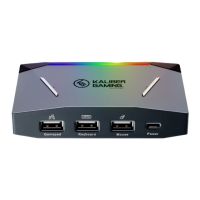
Describes the side view components, specifically the USB Type-A and Micro USB connection ports.
Provides general connection steps for the KeyMander 2 3Play with various devices.
Guides on connecting the KeyMander 2 3Play to a PC, including app installation and initial connections.
Details connection and configuration steps for Xbox One and Xbox 360 consoles.
Details connection and configuration steps for PS4 and PS3 consoles.
Details connection and configuration steps for the Nintendo Switch console.
Explains using keyboard and mouse for gameplay and configuring basic modes.
Maps controller buttons and directional pads to keyboard keys for PS/Xbox consoles.
Details how function keys and Caps Lock enable modes, switch profiles, and map keys without the K2 App.
Explains interchanging controllers between different game systems like Xbox One, PS4, and Nintendo Switch.
Provides three methods to perform a system reset for troubleshooting KeyMander 2 issues.
Guides on downloading, installing, and launching the KeyMander 2 App on a mobile device.
Details account creation, verification, and connecting the K2 App to the KeyMander 2 3Play via Bluetooth.
Explains enabling/disabling features, adjusting sensitivity, and managing firmware updates via the Device tab.
Guides on performing firmware upgrades using the K2 App, including starting and monitoring the process.
Details how to perform a factory reset on the KeyMander 2 using the K2 App's Device Settings.
Explains how to set port configurations for PC and game consoles using the K2 App.
Covers changing, adding, downloading, editing, and sharing game profiles via the K2 App.
Explains customizing profile settings like Sensitivity, Modes, Mapping, Macro, and Turbo via the K2 App.
Introduces the Game Center tab for browsing and downloading games and profiles.
Details the Library tab for profiles and account management for backups and restores.
Details OTA and PC connection methods for firmware updates, and the Windows-based utility.
Lists preparation steps for firmware upgrade, including downloading the .exe file.
Guides on entering Firmware Upgrade Mode by pressing buttons and plugging in USB.
Describes the screens shown when the firmware upgrade completes successfully or fails.
Details conditions and steps for recovering firmware if it becomes corrupted or the upgrade fails.
Provides steps to troubleshoot problems related to the micro USB cable.
Addresses issues with PS4 controller response, profile selection, and USB communication.
Covers common issues with Xbox One setup, profile syncing, and LED status.
Addresses issues with Nintendo Switch responsiveness, profile selection, and controller communication.
Explains the meaning of different LED colors and blinking patterns for status indication.
Discusses factors affecting mouse performance like sensitivity, turn speed, deadzone, and resolution.
Provides contact information for online, telephone, and live chat support.
Provides essential safety guidelines for using the product indoors, handling, and ventilation.
Lists technical specifications including connectors, wireless, emulation, power, environment, and physical properties.
Details the two-year warranty period, exclusions, and conditions for product repair or replacement.
 General
| Connectivity Technology | Wired |
|---|---|
| Input | USB |
| Output | USB |
| Ports | USB Type-A |
| Functionality | Controller emulation, Keyboard and mouse support |
| Features | Macro support |

 To Next Page