
 Need help?
Do you have a question about the KAP HK CARPLAY 10w and is the answer not in the manual?
Lists Hyundai Genesis G80, G380, DH330 models with 9.2" screen compatibility from 2014-2018.
Lists Kia Cadenza K7 model with compatibility from 2016-2019.09.
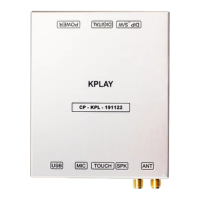
Description of the white interface module and its primary cables (Power, LVDS).
Details the mode switch component for changing operational modes.
Lists the KPLAY unit, power cable, HDMI cable, and AUX cable.
Includes Microphone, Wifi/Bluetooth Antenna, and AUX Cable.
Specifies wireless Apple CarPlay, USB port, AUX mic, and speaker inputs.
Details DIGITAL RGB (HDMI PORT), CVBS VIDEO, and CVBS REAR CAM inputs.
Covers LVDS OPERATION output and VIRTUAL ANALOG/UART DIGITAL touch inputs.
Details power requirements and switchable input modes.
Details ports like LCD OUT/IN, PROGRAM, DIP SWITCH, POWER/CAN, DIGITAL RGB, FRONT, REAR.
Covers LED indicators for error checks and resistive touch connections.
DIP switch configurations for Navigation, Front Cam, Rear Cam, and Rear Detect.
DIP switch settings for NAVI Type (5-7) and CAR Type (8-10).
Detailed pin assignments for the Power/CAN connector.
Detailed pin assignments for the Touch connector.
Overview of KPLAY unit ports: DIP SWITCH, DIGITAL, POWER, USB, MIC, TOUCH, SPK, ANT.
Details connection types for USB, Microphone, Touch, Speaker, and WiFi/Bluetooth.
Pin assignments for KPLAY DIP switches related to resolution.
Pin assignments for KPLAY Power and Touch connectors.
Overview of main screen icons: CarPlay, Android Auto, USB Media, Settings.
Shows example screens for Apple CarPlay and Android Auto at different resolutions.
Details language, auto-connect, wireless CarPlay, volume, and firmware settings.
Illustrates smartphone connection for CarPlay, Android Auto, and USB Media.
Explains the usage of Apple CarPlay, Android Auto, and USB Media functions.
Step-by-step guide for connecting an iPhone wirelessly via CarPlay.
Process for Bluetooth pairing and authorizing contact synchronization.
Final steps to activate and use CarPlay on the car's display.
Steps to delete Bluetooth/CarPlay records and re-enable WiFi/Bluetooth.
Ensuring Siri is active and toggling network connections.
Confirm the presence and status of the Android Auto application.
Advice on checking and replacing the connection cable for Android Auto.
Adding firmware files to the USB root folder for update.
Connecting USB to KPLAY and selecting 'Sys Update' in settings.
Waiting for the device to reboot and complete the firmware update.
Controls mode switching between OEM and interface screens using the Hang Up button.
Defines the sequence for changing screens: OEM > NAVI > OEM.
How the Mode Switch button changes between interface and OEM screens.
The sequence for changing display modes on the Cadenza(K7).
Wiring the interface to the car's monitor and connecting power/CAN lines.
Shows Male and Female 16-pin connectors for installation.
Connecting KPLAY unit and configuring DIP switches for resolution.
Procedure for calibrating the KPLAY touch screen interface.
This document describes the HK CARPLAY 10W video interface, designed to integrate Wireless CarPlay and Wired Android Auto into Hyundai and Kia vehicles.
The HK CARPLAY 10W is a video interface that allows users to integrate Apple CarPlay (wireless) and Android Auto (wired) functionalities into their existing vehicle infotainment system. It acts as an intermediary, converting signals from a smartphone to be displayed and controlled on the car's screen. The system supports touch control and can be switched between the OEM screen and the interface screen using existing car buttons.
The device is compatible with the following vehicle models and screen sizes:
The HK CARPLAY 10W system includes several components:
 General
| Brand | KAP |
|---|---|
| Model | HK CARPLAY 10w |
| Category | Automobile Accessories |
| Language | English |

 To Next Page