28 | EN
• If the radio signal is weak, transmission of RDS information may be disturbed or not shown
properly.
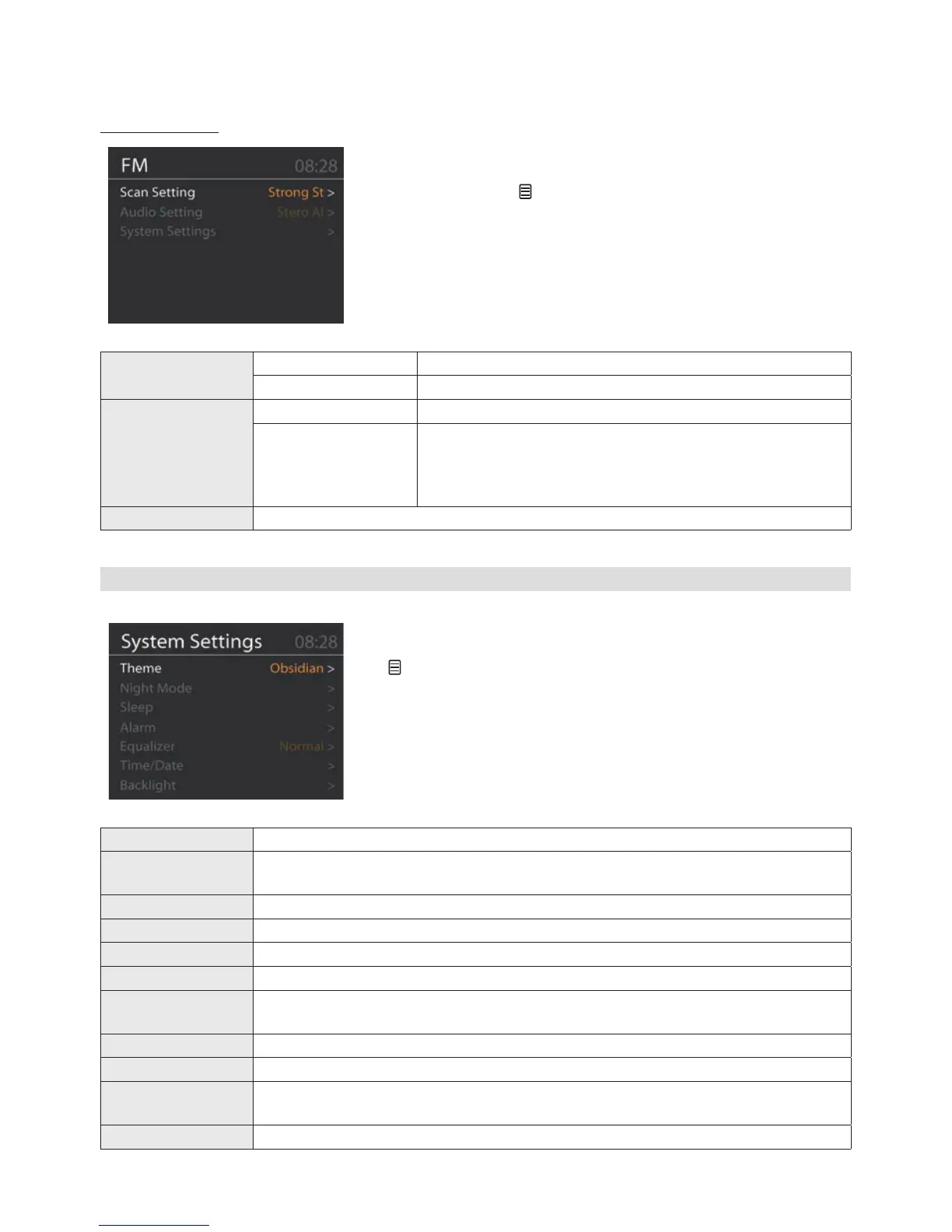
FM Radio Menu
While in FM mode you can enter the FM Radio menu by pressing
the MENU button on the remote control or by pressing and hold-
ing for 2 seconds the /INFO button on the unit.
Navigate through the menu as described in the section “Digital
Radio Menu”.
Scan Setting
Strong Stations Only Only strong stations will be regarded in auto tune.
All Stations All stations will be regarded in auto tune.
Audio Setting
Stereo Allowed Allows stereo stations.
Forced Mono
When the signal in your area is weak (background noise)
you can select to force mono in order to receive radio sta-
tions clearer. In “Mono” background noise is suppressed
to some extent.
System Settings See chapter 10. System Settings Menu
10. System Settings Menu
Enter the System Settings menu by pressing the MENU button
on the remote control or by pressing and holding for 2 seconds
the /INFO button on the unit in any mode and then selecting the
“System Settings” option.
Navigate through the menu as described in the section “Digital
Radio Menu”.
Theme Change the background color and display color theme to your preference.
Night Mode Turn display night mode on or off. Night Mode is a special mode where the
display becomes less bright.
Sleep Set sleep timer (see section “Sleep Timer” in chapter 6. Basic Functions).
Alarm Set alarm(s) (see section “Alarms” in chapter 7. Time/Date & Alarms).
Equalizer Select equalizer presets and set and select your own equalizer.
Time/Date Manually set the time if necessary and do other time/date settings.
Backlight Backlight and timeout settings (see section “Display Backlight & Timeout Func-
tion” in chapter 6. Basic Functions).
Language Change the OSD menu language.
Factory Reset Reset the unit to its factory presets. All user settings will be lost!
Software Update Special tools required! If you select this option but do not have the required
tools, you need to restart the unit by disconnecting it from the power supply.
Software Version View the installed software version.


 To Next Page
 Loading...