EN
Introduction
Thank you for choosing the Keep Out gaming keyboard
F80
Description
The F80 is a professional gaming keyboard that does not
leave anyone indierent as performance and design have
been meticulously cared for the most demanding gamers.
This model uses a kind of membrane with a special design
that provides minimal tired feeling and at the same time a
minimum response time. Comes with additional software
and numerous keys with multimedia features.
F80 keys include LED backlighting in various colors which
can be modied using a special key. With 5 additional
programmable macro keys. All keys are removable which
allows a perfect cleaning of the keyboard.
This model has an internal memory which can store up to
3 proles and each of these can store dierent macros for a
unique gaming experience.
Technical Specications
Retro illuminated keys adjustable lighting in dierent
colors.
Colors: Green, blue, yellow, turquoise, violet, white, red.
109 keys and silent membrane life up to 20,000,000
keystrokes.
3 customizable proles. Additional software
Additional 8 interchangeable keys (WASD and arrow keys).
12 keys for multimedia control
5 programmable macro keys to create
Gaming Mode, which allows the activation / desactivation
of the Windows key
USB 2.0 Cable made of reinforced nylon
anti ghosting system
Compatible with Windows XP / Vista / 7/8
Package Contents
· Gaming Keyboard F80
· Quick Installation Guide in multiple languages
· Keys W, A, S, D and additional cursors. Special tool for
extracting keys
· Software Installation CD
Note: Make sure that your package contains the items
described above. If you nd any items are missing or
damaged, please contact your dealer.
Installation
1. Connection: Connect the Gaming Keyboard in a free USB
port on your pc.
- Insert the included installation CD in your drive.
- Double-click My Computer, select your DVD drive and run
the autorun.exe le.
- Install the drivers for your device.
2. Once installed, restart your pc.
Software
1. Lighting
-To change the keyboard backlight it must be done
manually using the following commands:
- Press the bulb button to set the color you want
- Press Fn+ “Page Down” to reduce lighting
- Press Fn + “Retro Page” to increase lighting
- Press Fn + bulb to set the lighting or intermittently
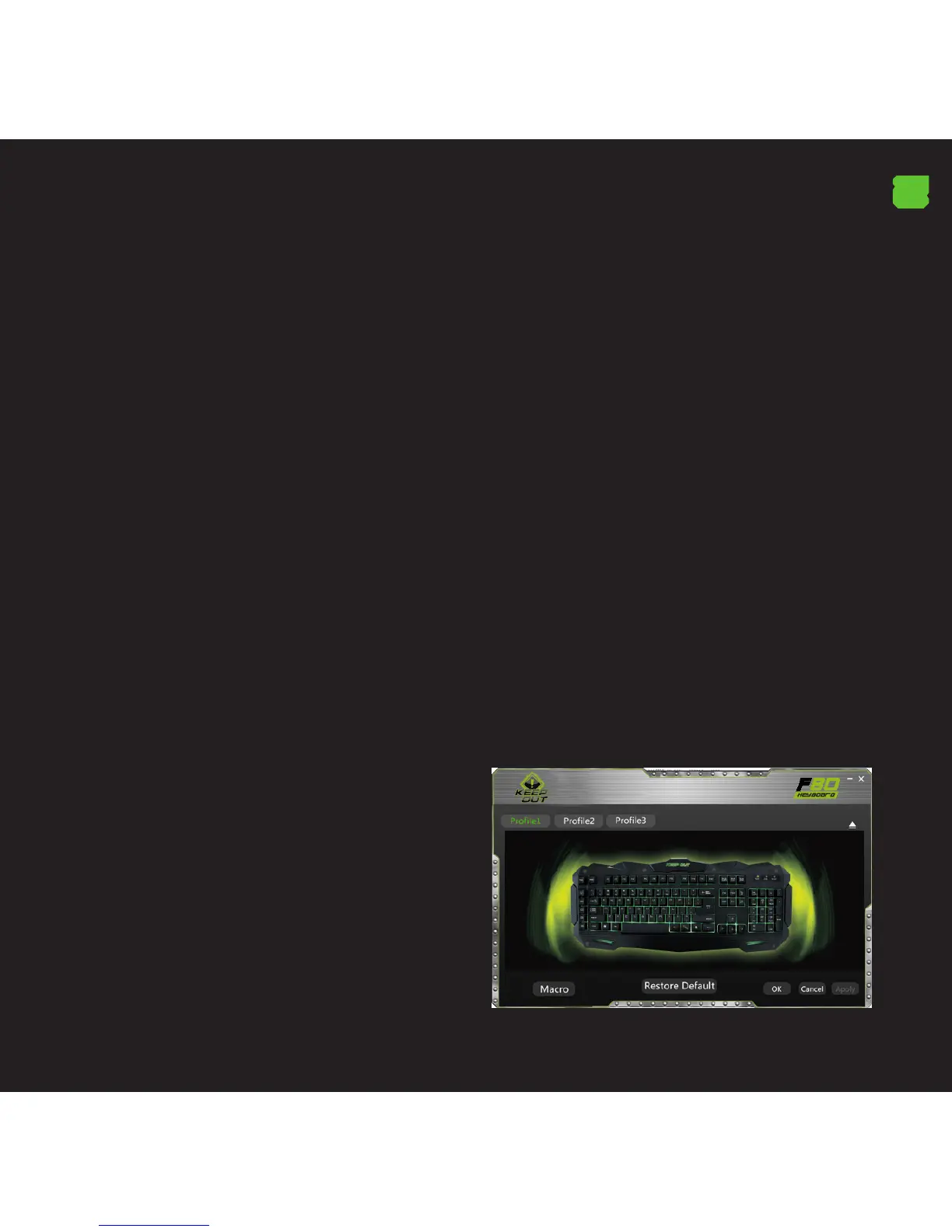
2. Proles
- Open the software from Start / All Programs or icon of the
taskbar in the lower right corner of your desktop.



 To Next Page
 Loading...