EasyManua.ls Logo

KegLand RAPT KL22927 - User Manual

KegLand RAPT KL22927
17 pages
Print Icon
To Next Page IconTo Next Page
Loading...
RAPT Temperature Controller Instruction Manual
Page 1 of 17 www.KegLand.com.au Last Updated 24/05/2022 12:17 PM
RAPT Temperature Controller
KL22927
Instruction Manual
KegLand Distribution PTY LTD
Question and Answer IconNeed help?

Do you have a question about the KegLand RAPT KL22927 and is the answer not in the manual?

Summary

Display Legends

Display Legend - Graph Enabled

Explains the display when the graph feature is active, showing date/time, temp range, set temp, icons, and WiFi.

Display Legend - Graph Disabled

Explains the display when the graph feature is disabled, showing numerical values for current and target temperature, icons, and WiFi.

Registering your Device

Sign up for a RAPT Account

Instructions on creating an account on the RAPT portal to use Wi-Fi features and create profiles.

Connect to Home Wi-Fi Network

Steps to connect the device to a Wi-Fi network via the RAPT Wi-Fi Access Point and captive portal.

Registering Device to RAPT Cloud and Remote Operation

Register Device to RAPT Cloud Account

Steps to register the connected device with your RAPT account using MAC and Validation codes.

Setting Target Temperature Remotely

How to adjust the target temperature using the device or the RAPT portal for automatic heating/cooling control.

Setting Up and Starting Temperature Profiles

Guide to creating and initiating multi-step temperature profiles on the RAPT Portal for automated fermentation.

Saving Temperature Profiles on Controller

Information on how temperature profiles are automatically stored on the controller after starting them.

Operation Instructions

Initial Setup: Account, Wi-Fi, and Registration

Steps for signing up, connecting to Wi-Fi, and registering the device.

Connecting Hardware: Probe and Power

Instructions for inserting the temperature probe and connecting heating/cooling devices.

Setting Target Temperature or Profile

How to set the target temperature manually or start a fermentation profile.

Manual Operation

Manual Target Temperature Setting

How to manually adjust the target temperature using the device's buttons for heating/cooling control.

Starting Saved Temperature Profiles Manually

Instructions on how to manually start a pre-saved temperature profile from the controller's menu.

Mounting your RAPT Temperature Controller into your Brewery

Removing the Mounting Plate

Steps to detach the standard mounting plate from the controller.

Wall Mounting Options

Describes wall mounting using tape or screws.

Alternative Wall Mounting Methods

Details alternative wall mounting techniques using hooks or drilling.

Vertical Bench;Panel Mounting

Instructions for vertical installation on benches/panels, including cable management.

Advanced Settings

Default Settings Overview

Lists default values for various settings like hysteresis, delays, telemetry frequency, and temperature alarms.

Display Icon Legend and Firmware Updates

Display Icon Legend

Explains the meaning and function of different icons displayed on the controller.

Updating Firmware

Instructions for automatically and manually updating the controller's firmware.

Temperature Probe Calibration

Two-Point Calibration Procedure

Steps for calibrating the NTC temperature probe using ice water and hot water for accuracy.

Troubleshooting Registration and Telemetry

No Telemetry Displayed on RAPT Portal

Guidance for when telemetry data is not appearing, focusing on Wi-Fi connection and signal strength.

Re-register your RAPT Temperature Controller

Steps to re-register the controller if telemetry or remote profile start fails despite a good Wi-Fi signal.

Overview

The RAPT Temperature Controller (KL22927) is a Wi-Fi-enabled device designed for precise temperature management, primarily for fermentation processes. It allows users to monitor, track, and control fermentation temperatures remotely through the RAPT Portal, offering significant versatility for home brewers and other applications requiring accurate temperature control.

Function Description:

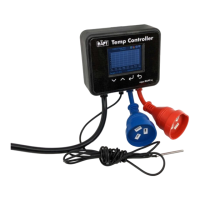
The RAPT Temperature Controller serves as an intelligent thermostat, capable of managing both heating and cooling devices to maintain a target temperature or execute complex temperature profiles. It features two 240V outlets: a red outlet for heating devices (e.g., heat wraps) and a blue outlet for cooling devices (e.g., fermentation chambers). A temperature probe is included to measure the ambient temperature within the fermentation vessel.

The core functionality revolves around its Wi-Fi connectivity, which integrates with the RAPT Portal (https://app.rapt.io). This portal enables users to:

  • Remote Monitoring and Control: View real-time temperature data, track historical temperature trends, and adjust target temperatures from anywhere.
  • Temperature Profile Management: Create and implement multi-step temperature profiles for various fermentation stages (e.g., primary fermentation, diacetyl rest, dry hop, cold crash). These profiles are sent from the RAPT Portal to the controller and can be started manually on the device once stored.
  • Telemetry Logging: Automatically log temperature data and heating/cooling utilization to the RAPT Portal for analysis and record-keeping.
  • Firmware Updates: The device automatically checks for and installs firmware updates when connected to Wi-Fi, ensuring it always runs the latest software.

For users who prefer not to use the Wi-Fi functionality, the controller can also be operated manually using its on-device buttons. In this mode, users can set a target temperature directly on the display, and the controller will manage the connected heating and cooling devices accordingly. Saved temperature profiles (previously sent from the RAPT Portal) can also be started manually from the device's menu.

Important Technical Specifications:

  • Power Outlets: Two 240V outlets (one red for heating, one blue for cooling).
  • Temperature Probe: NTC temperature probe for accurate measurement.
  • Connectivity: Wi-Fi enabled for integration with the RAPT Portal.
  • Display: Features a graphical interface showing temperature vs. time by default, or a numerical display if the graph is disabled. Includes icons for Wi-Fi signal strength, heating/cooling status, and alarms.
  • Temperature Range (Set Temperature): -5.0°C to 60.0°C.
  • Hysteresis Error:
    • Cooling Hysteresis Error: Default 2.0°C (adjustable from 0.1°C to 10.0°C).
    • Heating Hysteresis Error: Default 2.0°C (adjustable from 0.1°C to 10.0°C).
  • Delays:
    • Compressor Delay: Default 5.0 min (adjustable from 2.0 min to 10.0 min).
    • Switch Mode Delay: Default 5.0 min (adjustable from 2.0 min to 10.0 min).
  • Telemetry Frequency: Default 30 min (adjustable from 15 min to 180 min).
  • PID Cycle Time:
    • Heating: Default 120 sec (adjustable from 30 sec to 3600 sec).
    • Cooling: Default 120 sec (adjustable from 30 sec to 3600 sec).
  • Alarms: High Temp Alarm (default 120°C, adjustable -20.0°C to 120.0°C), Low Temp Alarm (default -10°C, adjustable -20.0°C to 120.0°C).

Usage Features:

  • Intuitive Interface: The device features a clear display with "DOWN," "UP," "SELECT," and "RETURN" buttons for navigation and setting adjustments. The default display shows a temperature graph, current date/time, Wi-Fi signal strength, graph temperature range, graph date range, current temperature, and set temperature. A numerical display option is also available.
  • Easy Registration: The process involves signing up for a RAPT Account, connecting the controller to a home Wi-Fi network via a captive portal, and then registering the device on the RAPT Portal using its MAC Address and Validation Code.
  • Flexible Mounting Options:
    • Removable Mounting Plate: The controller comes with a pre-installed mounting plate that can be removed.
    • Wall Mounting (Option 1): Attach the mounting plate to a wall using strong double-sided tape, then slide the controller onto the plate.
    • Wall Mounting (Option 2): Hook the controller onto two screws installed in the wall using mounting points on the back of the controller. A drill mounting template is provided.
    • Wall Mounting (Option 3): Unscrew and rotate the hanging hook 180 degrees, then re-tighten to mount the controller to a wall screw or hook.
    • Wall Mounting (Option 4): Drill through recessed holes below the front face plate (or peel the face plate) and use 8G x 60mm or 10G x 60mm countersunk screws to secure it.
    • Vertical Bench/Panel Mounting: The cable glands can be reoriented to exit from the back of the unit for a neat, flush mounting into a custom cabinet or panel. This involves disassembling the housing, moving the cable glands, and reassembling. The mounting plate can also be used as a stand for upright benchtop placement.
  • Advanced Settings: Users can access and adjust various parameters like hysteresis, compressor/switch delays, telemetry frequency, and PID coefficients for fine-tuned control. Boolean settings allow heating and cooling to be individually enabled/disabled.

Maintenance Features:

  • Firmware Updates: Automatic firmware updates ensure the device benefits from the latest features and bug fixes without manual intervention. Users can also manually check for updates via the settings menu.
  • Temperature Probe Calibration: The NTC temperature probe can be calibrated using a 2-point calibration method. This involves using ice water and hot water, along with a calibrated external thermometer, to ensure accurate temperature readings.
  • Troubleshooting: The manual provides guidance for troubleshooting common issues such as telemetry not appearing on the RAPT Portal. This includes checking Wi-Fi connectivity and signal strength (displayed in dBm with explanations for signal quality) and re-registering the device if necessary. Support is available via email (beer@kegland.com.au) for registration or portal errors.

KegLand RAPT KL22927 Specifications

General IconGeneral
BrandKegLand
ModelRAPT KL22927
CategoryTemperature Controller
LanguageEnglish