4
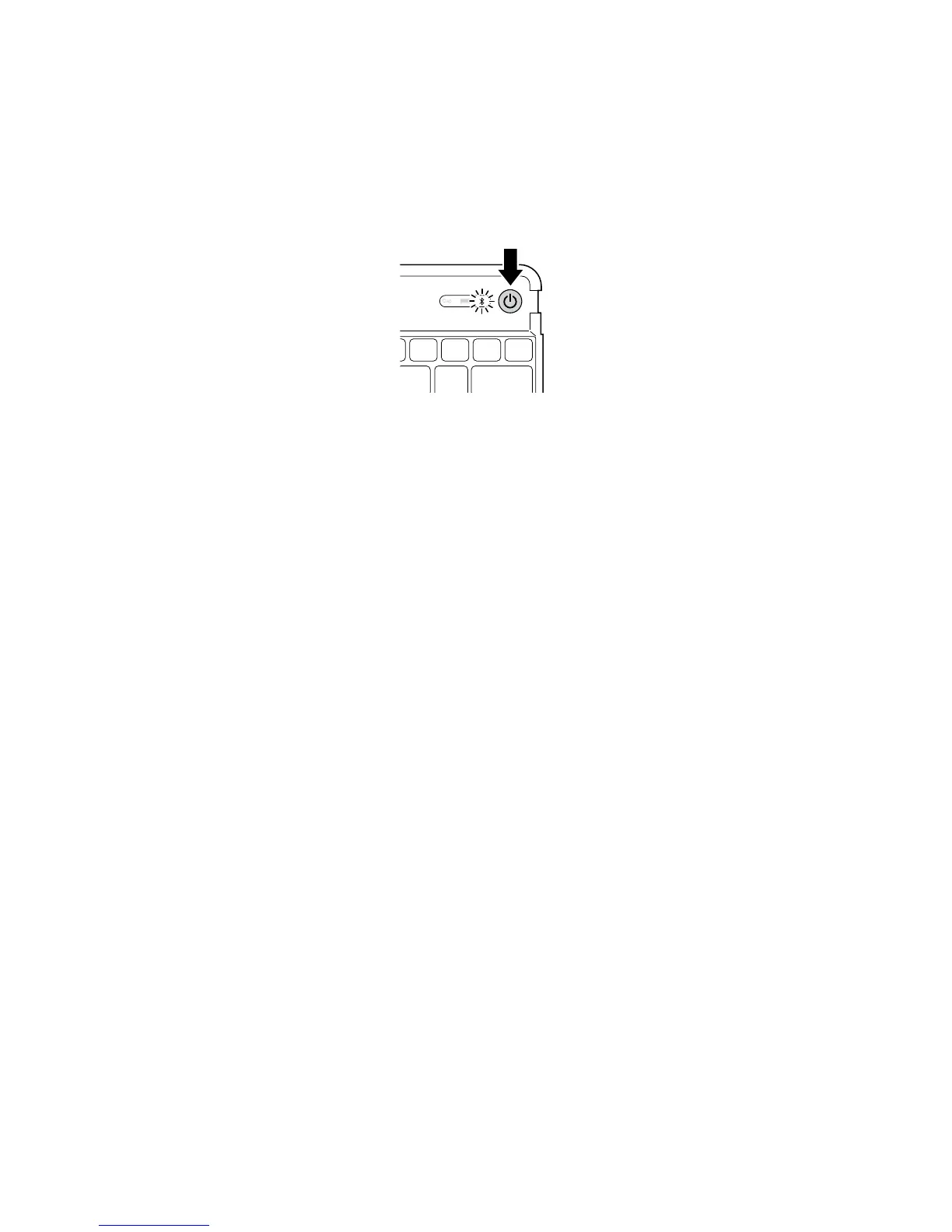
NOTE: When you first turn on the Keyboard, both the Power Indicator Light and the
Bluetooth Status Indicator Light glow for 5 seconds. You cannot connect the Keyboard to
your iPad until only the Power Indicator Light glows.
3 On your iPad, tap Settings.
4 Open Bluetooth and make sure Bluetooth is on.
5 On the Keyboard, press the Bluetooth Connection Button. The Bluetooth Status
Indicator Light starts blinking for 10 minutes or until connected to a device.
6 The Keyboard now appears on your iPad screen. Tap Bluetooth Wireless Keyboard.
7 Your iPad screen displays a passkey. Enter the passkey on the Keyboard, and press Enter.
8 Your iPad screen shows the Keyboard as Connected. On the Keyboard, the Bluetooth
Status Indicator Light turns off.
9 You can now use your Keyboard to type in any app.
NOTE: To insure the K Lock key works correctly please ensure you do the following:
Home page > Settings > General > Passcode key. Verify “Require Passcode” is set to
“Immediately” otherwise a keyboard unlock will not require a passcode. Go back to
previous menu and verify “Passcode Lock” is On.
Note the following about the Bluetooth connection between the keyboard and your iPad:
• KeyboardwillgointopairingmodeiftheOn/Off Switch press for 8 seconds or longer
then release (regardless of on or off state).
• PresstheOn/Off Switch for 3 to 8 seconds then release = toggle keyboard power (on
to off, off to on).
• Firstturn(Factorydefault,nopriorpairedBTdevices)–enterpairingmode
automatically.
• InONstateonly-Hold“CTRL + ALT + FN + F” for 3 seconds or more = reset to factory
default mode (clear all previously paired BT devices in memory), ALL LEDs should flash
on and off 3 times and keyboard should turn to off mode.
• Ifnoactivekeypressfor1minute,theunitshouldgotosleepmode.
• Anytimeakeyispressedinsleepmode,thekeyboardshouldautomaticallyconnectto
last paired iPad if present. If iPad is not found after waking from sleep mode within 30
seconds, the device should go back to sleep.


 To Next Page