Pairing and Connecting your Device—
in Mac OS X (10.2.6 and later) cont’d
7. After a few seconds the computer will have paired up the mouse. Click
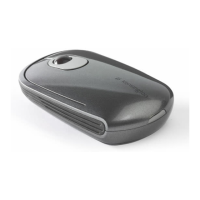
continue to finish the wizard. The PilotMouse Bluetooth® Mini is ready to use.
If the pairing fails repeat steps 1 through 6 and ensure the mouse is in
discover mode.
If the software prompts for a pass key ensure you’re using at least OS10.2.8
with Bluetooth® software version 1.5
The PilotMouse Bluetooth® Mini should begin working immediately.
If not, read the Troubleshooting section on the next page.
PilotMouse Bluetooth® Mini • 13
Pairing and Connecting your Device—
in Mac OS X (10.2.6 and later) cont’d
5. Press the connect button on the bottom of the mouse. Ensure the batteries
are installed correctly. If necessary, remove and re-insert the batteries to
reset the mouse.
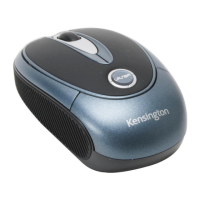
6. Once the computer has discovered the mouse it will be shown as Kensington
PilotMouse for Bluetooth® Mini (it may take a moment for the computer to
resolve the mouse name).
12 • PilotMouse Bluetooth® Mini
72414_PMBlueMini 11/23/04 12:00 PM Page 12


 To Next Page