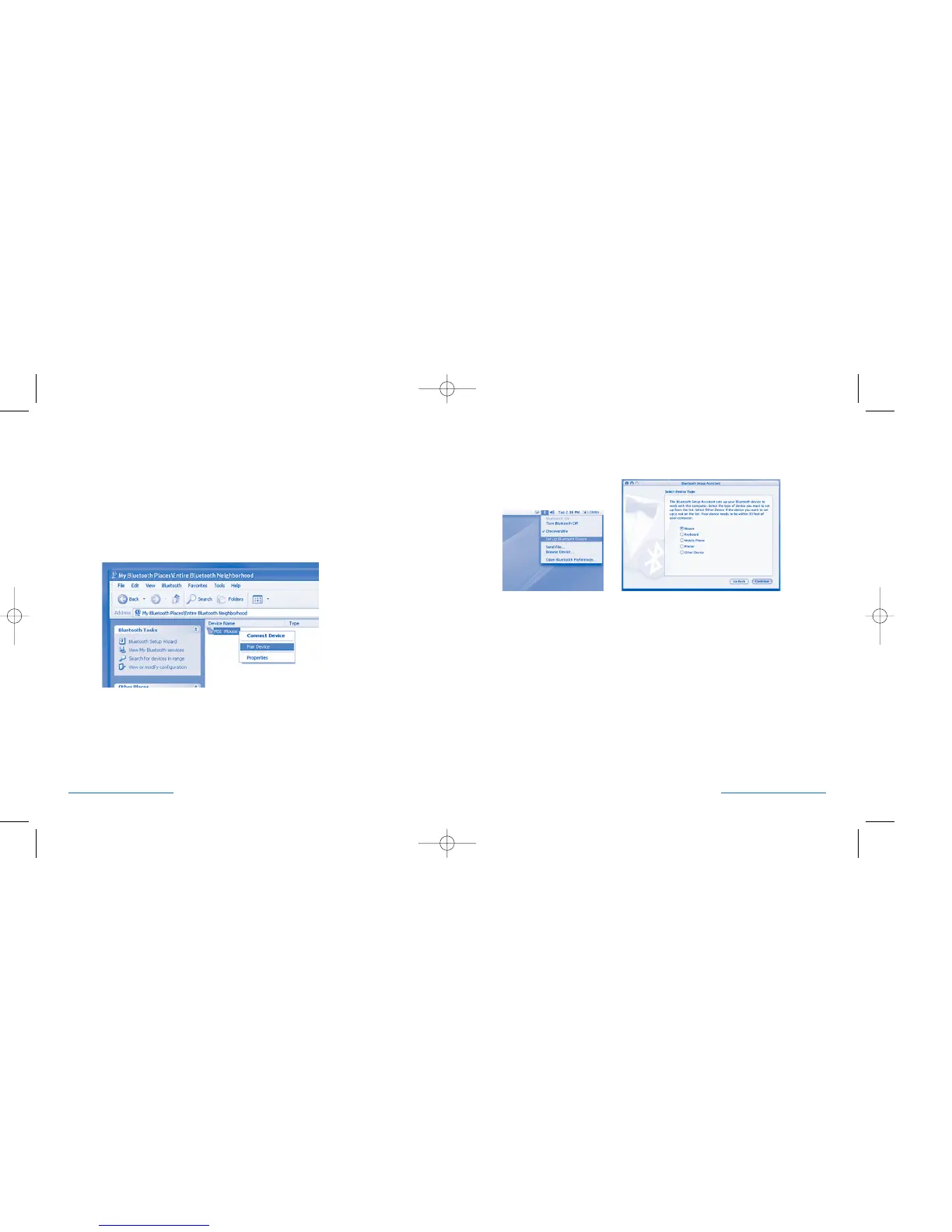
Pairing and Connecting your Device—
in Mac OS X (10.2.6 and later)
1. Find the Bluetooth® icon on the top right of your finder bar near the clock.
If the Bluetooth® icon isn’t there, turn to page 14.
2. Click the Icon and select Setup Bluetooth® Device.
3. A connection wizard will be shown. Click Continue at the welcome screen.
4. Select Mouse from the Select Device Type Screen and click Continue.
PilotMouse Bluetooth® Mini • 11
Troubleshooting
If the mouse still doesn’t function
1. Go to My Bluetooth® Places by double-clicking the desktop icon or the
Bluetooth® icon in the system tray.
2. Click on Search for Devices in Range.
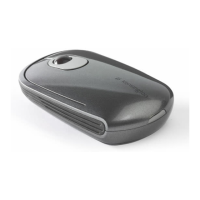
3. If the mouse icon does not appear, click the discover button on the bottom of
the mouse.
4. Right-click on the mouse icon, and select Connect Device.
5. The mouse should begin working.
10 • PilotMouse Bluetooth® Mini
72414_PMBlueMini 11/23/04 12:00 PM Page 10


 To Next Page