EasyManua.ls Logo

Kensington SD5500T - User Manual

Kensington SD5500T
17 pages
Print Icon
To Next Page IconTo Next Page
Loading...
www.kensington.com/register
Register Now!
QUICK START GUIDE
QUICK STA
RT G
UIDE
SD5500T Thunderbolt3 and USB-C Docking Station
Question and Answer IconNeed help?

Do you have a question about the Kensington SD5500T and is the answer not in the manual?

Summary

Initial Setup and Power Connection

Connecting the Power Adapter

Connect the included power adapter to the docking station and a wall outlet for operation.

Connecting Your Computer

Thunderbolt 3 Connection

Connect the dock to a Thunderbolt 3-enabled laptop using the Thunderbolt cable for high-speed data and power.

USB-C Alt Mode Connection

Connect to a USB-C laptop supporting DisplayPort Alternate Mode for video and data transfer.

Thunderbolt 3 Usage Scenarios

Connecting USB Peripherals

Connect USB-A and USB-C devices to the dock for data transfer and charging via Thunderbolt 3.

Connecting Displays

Support for single or dual 4K@60Hz displays through the dock's DisplayPort outputs.

Laptop and Phone Charging

Provides 60W power to the connected laptop and 5V/1.5A charging to a phone via USB-A.

USB-C Alt Mode Usage Scenarios

Connecting USB Peripherals

Connect USB-A and USB-C devices to the dock for data transfer and charging via USB-C.

Connecting Displays

Support for single 4K@30Hz or dual 1920x1080@30Hz displays via DisplayPort.

Laptop and Phone Charging

Provides 60W power to the laptop and 5V/1.5A charging to a phone via USB-A connection.

Windows Thunderbolt 3 Software Management

Approving Thunderbolt Devices

Manage Thunderbolt devices and settings to approve them for use with administrator privileges.

Accessing Thunderbolt Settings

View attached devices, approve devices, and configure Thunderbolt software settings.

Docking Station Mounting and Security

Mounting Bracket Installation

Instructions for attaching the docking station to a monitor mounting bracket.

Security Lock Options

Information on securing the docking station using Kensington MicroSaver or NanoSaver locks.

Summary

Initial Setup and Power Connection

Connecting the Power Adapter

Connect the included power adapter to the docking station and a wall outlet for operation.

Connecting Your Computer

Thunderbolt 3 Connection

Connect the dock to a Thunderbolt 3-enabled laptop using the Thunderbolt cable for high-speed data and power.

USB-C Alt Mode Connection

Connect to a USB-C laptop supporting DisplayPort Alternate Mode for video and data transfer.

Thunderbolt 3 Usage Scenarios

Connecting USB Peripherals

Connect USB-A and USB-C devices to the dock for data transfer and charging via Thunderbolt 3.

Connecting Displays

Support for single or dual 4K@60Hz displays through the dock's DisplayPort outputs.

Laptop and Phone Charging

Provides 60W power to the connected laptop and 5V/1.5A charging to a phone via USB-A.

USB-C Alt Mode Usage Scenarios

Connecting USB Peripherals

Connect USB-A and USB-C devices to the dock for data transfer and charging via USB-C.

Connecting Displays

Support for single 4K@30Hz or dual 1920x1080@30Hz displays via DisplayPort.

Laptop and Phone Charging

Provides 60W power to the laptop and 5V/1.5A charging to a phone via USB-A connection.

Windows Thunderbolt 3 Software Management

Approving Thunderbolt Devices

Manage Thunderbolt devices and settings to approve them for use with administrator privileges.

Accessing Thunderbolt Settings

View attached devices, approve devices, and configure Thunderbolt software settings.

Docking Station Mounting and Security

Mounting Bracket Installation

Instructions for attaching the docking station to a monitor mounting bracket.

Security Lock Options

Information on securing the docking station using Kensington MicroSaver or NanoSaver locks.

Overview

The Kensington SD5500T Thunderbolt™ 3 and USB-C Docking Station is a versatile peripheral designed to expand the connectivity and capabilities of your laptop, whether it's equipped with Thunderbolt 3 or USB-C Alt Mode. This quick start guide outlines the setup and various functionalities of the docking station, emphasizing its role in creating a comprehensive workstation.

At its core, the SD5500T serves as a central hub for connecting multiple devices to your laptop through a single cable. This simplifies cable management and allows for a cleaner, more organized workspace. The docking station is powered by an external adapter, which is connected to the DC 20V port on the rear of the unit. The power adapter itself connects to a standard wall outlet, ensuring a stable power supply for all connected peripherals and for charging your laptop.

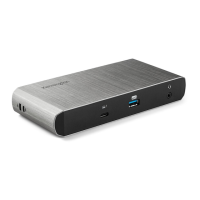
The docking station offers a wide array of ports to accommodate various devices. On the front, you'll find a Thunderbolt 3 port, which is the primary connection point for your laptop. This port supports power delivery up to 60W, allowing the docking station to charge compatible laptops while simultaneously providing data and video connectivity. Additionally, there's a USB-A / USB 3.1 Gen2 port on the front, offering 10 Gbps data transfer speeds and BC 1.2 (5V/1.5A) for fast charging of mobile devices. A headphone/microphone jack is also conveniently located on the front for easy audio access.

The rear of the docking station is where the majority of the expansion ports are located. It includes a Gigabit Ethernet port (10/100/1000Mbps) for reliable wired network connectivity. There are two USB-A / USB 3.1 Gen1 ports, providing 5 Gbps data transfer speeds and 5V/0.9A power for connecting standard USB peripherals like keyboards, mice, printers, and external storage devices. For high-speed data transfer and charging of modern devices, the SD5500T features two USB-C / USB 3.1 Gen2 ports, each delivering 10Gbps data speeds and 5V/1.5A power.

One of the key features of the SD5500T is its ability to support multiple external displays. It comes equipped with two DisplayPort (DP) outputs. When connected to a Thunderbolt 3 laptop, the docking station can support single or dual 4K displays at 60Hz, providing a high-resolution visual experience for demanding tasks like video editing, graphic design, or simply expanding your desktop workspace.

The functionality of the docking station adapts based on the type of USB-C connection your laptop supports.

Thunderbolt 3 Connection (a):

When connected to a Thunderbolt 3 enabled laptop, the SD5500T unleashes its full potential.

  • Laptop Connection: The Thunderbolt 3 cable connects from the laptop to the Thunderbolt 3 port on the front of the docking station. This single connection handles power delivery (up to 60W), data transfer (up to 40Gbps), and video output.
  • Peripheral Connectivity (a.1): All USB-A and USB-C ports on the docking station operate at their maximum specified speeds. This means you can connect a wide range of peripherals, from keyboards and mice to external hard drives and USB-C devices, all benefiting from high-speed data transfer.
  • Display Output (a.2): With Thunderbolt 3, the docking station can drive up to two 4K displays at 60Hz. You can connect a single 4K monitor to one of the DisplayPort outputs, or extend your desktop across two 4K monitors by utilizing both DisplayPort outputs. This setup is ideal for professionals who require extensive screen real estate and high-fidelity visuals.
  • Charging and Data (a.3): The Thunderbolt 3 connection provides 60W of power to charge your laptop. Additionally, the USB-A / USB 3.1 Gen2 port on the front can deliver up to 10Gbps data transfer and 5V/1.5A power, perfect for quickly charging smartphones or transferring large files from compatible devices.

USB-C Alt Mode Connection (b/c):

The SD5500T is also compatible with laptops that support USB-C Alt Mode, though with some differences in performance compared to Thunderbolt 3.

USB-C 3.1 Gen2 Alt Mode Connection (b):

  • Laptop Connection: The USB-C cable connects from the laptop to the Thunderbolt 3 port on the front of the docking station. This connection also provides power delivery (up to 60W), data, and video.
  • Peripheral Connectivity (b.1): USB-A ports operate at USB 3.1 Gen1 speeds (up to 5 Gbps, 5V/0.9A). The USB-C ports on the rear operate at USB 3.1 Gen2 speeds (up to 10Gbps, 5V/1.5A per port). This still offers robust connectivity for most peripherals.
  • Display Output (b.2): When using USB-C 3.1 Gen2 Alt Mode, the docking station can support a single 4K display at 30Hz or dual 1920x1080 (FHD) displays at 30Hz. While not as high-performance as Thunderbolt 3 for displays, this still provides a significant improvement over a laptop's built-in screen.
  • Charging and Data (b.3): The USB-C connection provides 60W of power to charge your laptop. The USB-A / USB 3.1 Gen2 port on the front supports up to 10Gbps data transfer and 5V/1.5A power for charging and data transfer with compatible mobile devices.

USB-C 3.1 Gen1 Alt Mode Connection (c):

  • Laptop Connection: Similar to Gen2 Alt Mode, the USB-C cable connects from the laptop to the Thunderbolt 3 port on the front of the docking station, providing power (up to 60W), data, and video.
  • Peripheral Connectivity (c.1): All USB-A ports operate at USB 3.1 Gen1 speeds (up to 5 Gbps, 5V/0.9A). The USB-C ports on the rear operate at USB 3.1 Gen1 speeds (up to 5Gbps, 5V/1.5A per port). This is suitable for standard peripherals and external storage.
  • Display Output (c.2): With USB-C 3.1 Gen1 Alt Mode, the docking station can support a single 4K display at 30Hz or dual 1920x1080 (FHD) displays at 30Hz, similar to Gen2 Alt Mode.
  • Charging and Data (c.3): The USB-C connection provides 60W of power to charge your laptop. The USB-A / USB 3.1 Gen1 port on the front supports up to 5Gbps data transfer and 5V/1.5A power for charging and data transfer with compatible mobile devices.

Initial Thunderbolt 3 Connection for Windows (6):

For Windows users, the first time a Thunderbolt 3 device is connected, a prompt will appear. This prompt indicates that a new Thunderbolt™ device has been attached and requires administrator privileges to run the Thunderbolt™ software for approval. Clicking "OK" will launch the necessary software. The guide also mentions that you can manage Thunderbolt 3 devices and settings later, providing flexibility for users.

Maintenance Features:

While the manual doesn't explicitly detail maintenance procedures, the design of the docking station suggests a focus on durability and ease of use. The solid construction and clear port labeling contribute to a user-friendly experience.

Optional Accessories (Sold Separately):

Kensington offers additional accessories to enhance the functionality and security of the SD5500T:

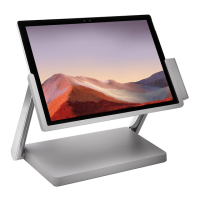
  • Docking Station Mounting Bracket (K34050): This bracket allows you to mount the docking station to the back of a compatible monitor, helping to further declutter your desk and create an integrated workstation. The illustrations show how the bracket attaches to the monitor's VESA mount and then secures the docking station.
  • Kensington MicroSaver® 2.0 Keyed Lock (K65020WW): For physical security, the docking station includes a Kensington security slot. The MicroSaver 2.0 lock provides a robust solution to deter theft, securing the docking station to a desk or other immovable object.
  • Kensington NanoSaver™ Keyed Laptop Lock (K64444WW): Similarly, this lock is designed to secure your laptop, providing an additional layer of protection for your valuable equipment.

In summary, the Kensington SD5500T Thunderbolt™ 3 and USB-C Docking Station is a comprehensive solution for expanding laptop connectivity, offering high-speed data transfer, multi-display support, and power delivery through a single cable. Its adaptable design ensures compatibility with both Thunderbolt 3 and USB-C Alt Mode laptops, making it a versatile tool for various professional and personal computing needs. The inclusion of optional mounting and security accessories further enhances its utility and integration into any workspace.

Kensington SD5500T Specifications

General IconGeneral
Product TypeDocking Station
USB-A Ports2
HDMI Ports2
Ethernet Port1
Audio Jack1
Video InterfacesHDMI
Power DeliveryUp to 85W
CompatibilityWindows, macOS
Maximum Resolution SupportedDual 4K at 60Hz
Display SupportDual Display

Related product manuals