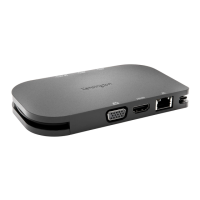
The Kensington Surface Pro CAC Adapter is a versatile accessory designed to enhance the functionality of Microsoft Surface devices, particularly for users requiring Common Access Card (CAC) authentication and expanded connectivity options. This adapter integrates seamlessly with the Surface Pro, providing a secure and efficient way to access secure networks and applications, while also offering additional ports for various peripherals and external displays.
Function Description:
The primary function of the Kensington Surface Pro CAC Adapter is to enable CAC authentication on Surface Pro devices. This is crucial for government employees, military personnel, and contractors who need to access secure systems using their smart cards. The adapter features a dedicated smart card reader that supports various CAC card types, ensuring compliance with security protocols. Beyond CAC functionality, the adapter expands the connectivity of the Surface Pro by adding a USB-C 3.2 Gen 2 port with Power Delivery (PD 60W), a DisplayPort 1.4 Alt-mode, and an HDMI 2.0 port. This combination of features transforms the Surface Pro into a more robust workstation, capable of handling multiple external displays and high-speed data transfers.
Important Technical Specifications:
- CAC Reader: Integrated smart card reader for Common Access Card (CAC) authentication.
- USB-C 3.2 Gen 2 Port:
- Data Transfer Rate: 10Gbps
- Power Delivery (PD): 60W (for charging the Surface Pro)
- Power Output: 5V/1.5A (for powering connected devices)
- DisplayPort 1.4 Alt-mode:
- Video Output: Up to 4K@60Hz (requires host device with DSC enabled for single 4K@60Hz; 4K@30Hz supported without DSC)
- HDMI 2.0 Port:
- Video Output: Up to 4K@60Hz
- Multi-Display Support:
- Single display: Up to 4K@60Hz (via either DisplayPort or HDMI)
- Dual displays: Up to 1440p@60Hz (via USB-C and HDMI simultaneously)
- Compatibility: Specifically designed for Microsoft Surface Pro devices.
- Compliance: Includes a compliance document, indicating adherence to relevant standards.
Usage Features:
The Kensington Surface Pro CAC Adapter is designed for ease of use and integration with the Surface Pro.
- Preparation: Before attaching the adapter, ensure the Surface Pro is clean and free of obstructions. The adapter comes with protective films that need to be removed from the adhesive strips on its underside.
- Attachment:
- Carefully align the adapter with the bottom edge of the Surface Pro.
- Press the adapter firmly onto the Surface Pro, ensuring the connectors are properly engaged. The adhesive strips help secure the adapter in place.
- Once attached, the adapter forms a snug fit with the Surface Pro, maintaining a sleek profile.
- CAC Card Insertion:
- Insert your CAC card into the designated smart card slot on the adapter. The card should be inserted with the chip facing upwards, as indicated by the diagram.
- The adapter features an LED indicator that provides visual feedback on the status of the CAC card and adapter.
- LED Indicator Status:
- Slow Blinking (1x/sec): Indicates that the CAC card is not inserted or not recognized. This could mean the card is inserted incorrectly, or there's an issue with the card reader.
- Fast Blinking (5x/sec): Indicates that the CAC card is inserted and actively being read or authenticated. This is the normal operational state when accessing secure systems.
- Connectivity:
- USB-C Port: Connect USB-C peripherals for high-speed data transfer (10Gbps) or use the Power Delivery feature to charge your Surface Pro (up to 60W). This port also provides 5V/1.5A for powering connected devices.
- DisplayPort 1.4 Alt-mode: Connect an external monitor or projector using a DisplayPort cable. Supports resolutions up to 4K@60Hz.
- HDMI 2.0 Port: Connect an external monitor or TV using an HDMI cable. Supports resolutions up to 4K@60Hz.
- Multi-Display Setup: The adapter supports connecting two external displays simultaneously. When using both the USB-C (DisplayPort Alt-mode) and HDMI ports, the maximum resolution for each display is 1440p@60Hz. For a single display, either port can achieve 4K@60Hz, provided the host Surface Pro supports Display Stream Compression (DSC) for 4K@60Hz via DisplayPort Alt-mode. Without DSC, 4K@30Hz is supported.
- Detachment: To remove the adapter, gently pull it away from the Surface Pro. The adhesive strips are designed to allow for removal without damaging the device.
Maintenance Features:
The Kensington Surface Pro CAC Adapter is designed for durability and minimal maintenance.
- Cleaning: The adapter can be cleaned with a soft, dry cloth. Avoid using harsh chemicals or abrasive materials that could damage the surface or internal components.
- Storage: When not in use, store the adapter in a clean, dry place to protect it from dust and moisture.
- Software/Driver Updates: While the adapter is generally plug-and-play, ensuring your Surface Pro's operating system and relevant drivers are up to date can help maintain optimal performance and compatibility, especially for CAC functionality and display output. Kensington's website (kensington.com/support) is the recommended resource for any potential firmware updates or troubleshooting guides.
- Adhesive Strips: The adhesive strips are designed for secure attachment. If they lose their stickiness over time, it's advisable to consult Kensington's support for guidance on replacement or alternative securing methods to ensure the adapter remains firmly attached.
- Troubleshooting: The LED indicator provides a basic diagnostic tool for CAC card status. If the LED blinks slowly (1x/sec) after inserting a card, re-insert the card, try a different card, or consult the Surface Pro's smart card reader settings. For connectivity issues, ensure cables are securely connected and check display settings on the Surface Pro. The Kensington support website offers comprehensive troubleshooting resources.
The Kensington Surface Pro CAC Adapter is a robust solution for Surface Pro users who require enhanced security features and expanded connectivity, making it an essential tool for professional environments.

 Need help?
 General


 To Next Page