
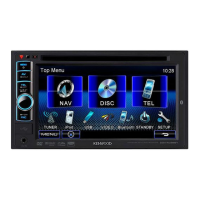
Why is the sound distorted on my Kenwood Monitor?
- CChad DavenportAug 21, 2025
If you are experiencing distorted sound on your Kenwood Monitor, try deactivating the equalizer either on the unit itself or on the connected iPod/iPhone.
Why is the sound distorted on my Kenwood Monitor?
If you are experiencing distorted sound on your Kenwood Monitor, try deactivating the equalizer either on the unit itself or on the connected iPod/iPhone.
What to do if Kenwood DDX4038BT Monitors show a “USB Device Error”?
If your Kenwood Monitor displays a “USB Device Error”, the USB power voltage may be abnormal. Try these steps: * Turn the unit off and then back on. * Connect a different USB device to see if the issue persists.
Why is there static noise on my Kenwood Monitor when listening to the radio?
If you are getting static noise while listening to the radio on your Kenwood Monitor, make sure the antenna is firmly connected.
Why does my Kenwood Monitor have no sound coming out of the speakers?
If no sound comes out of the speakers on your Kenwood Monitor, here are a couple of things you can try: * Adjust the volume to an appropriate level. * Check all cords and connections to ensure they are properly connected.
What to do if my iPod/iPhone doesn't work with my Kenwood Monitor?
If your iPod/iPhone does not turn on or is not working with your Kenwood Monitor, consider the following: * Check the connecting cable and its connection. * Update the firmware version of your device. * Ensure the battery is adequately charged. * Reset the iPod/iPhone.
What does “Miswiring DC Offset Error” mean on Kenwood Monitors?
If your Kenwood Monitor displays “Miswiring DC Offset Error” or “Warning DC Offset Error”, it means a speaker cord has shorted or is in contact with the car chassis. You should wire or insulate the speaker cord appropriately and then reset the unit.
Why won't my Kenwood Monitor detect my Bluetooth device?
If your Kenwood Monitor is not detecting a Bluetooth device, check that the Bluetooth adapter (KS-UBT1) is correctly inserted. If it is, try searching from the Bluetooth device again.
What does “Authorization Error” mean on Kenwood DDX4038BT Monitors?
If your Kenwood Monitor displays “Authorization Error”, verify that the connected iPod/iPhone is compatible with the unit.
Why is the Bluetooth audio skipping on my Kenwood Monitor?
If you're experiencing interrupted or skipped sound while using a Bluetooth audio player with your Kenwood Monitor, try the following: * Reduce the distance between the unit and the Bluetooth audio player. * Disconnect any device connected for Bluetooth phone use. * Turn the unit off and then back on. * If the sound is still not restored, try connecting the player again.
What does “Please Wait...” mean on Kenwood DDX4038BT Monitors?
If your Kenwood Monitor displays “Please Wait…”, it indicates that the unit is preparing to use the Bluetooth function. If this message persists, turn the unit off and on again, then reconnect the device or reset the unit.
Procedure to reset the unit to factory settings if it fails to operate properly.
Explains how to interpret symbols, button indications, and language selection in the manual.
Guides through the first-time setup process, including language and input terminal configuration.
Identifies and describes the various buttons, terminals, and parts of the unit's front panel.
Steps to access the clock setting and manually adjust hours and minutes or synchronize time.
Instructions for turning the unit on/off, standby mode, adjusting volume, and turning the screen on/off.
How to switch between the source control screen, Top Menu, and Setup screens using touch controls.
Overview of available sources like NAV, DISC, TEL, USB, iPod, TUNER, VIDEO, and Bluetooth.
Instructions for inserting, playing, and ejecting discs, including error handling.
Details playback functions like pause, chapter/track selection, and search for various media types.
Guide on connecting iPod/iPhone, available models, and initial playback settings.
Covers band switching, preset tuning, seek modes, and using radio data system information.
Connecting external audio/video devices via the AV-IN terminal and selecting it as a source.
Connecting, viewing, and configuring settings for an external navigation unit.
Adjusting sound with equalizer settings, selecting preset modes, and storing custom sound profiles.
Options to change the unit's background image and button illumination colors.
Adjusting picture quality parameters like brightness, contrast, color, tint, and sharpness.
Options to change video aspect ratio (FULL, JUST, Normal, Auto) and zoom the picture.
Steps to activate the rear view camera and manually display its feed.
Fader, Equalizer, Loudness, X'over, Volume, Preout, Subwoofer, Speaker Select options.
Dimmer, User Customize, OSD Clock, Scroll, Menu Customize, Screen Adjust, Video Output options.
AV Input, R-CAM Interrupt, Navigation, Language, Clock, Beep, Remote Sensor, Security Code, Serial Number, Touch Panel Adjust.
Procedures for saving, loading, locking settings, and calibrating the touch panel position.
General precautions and information regarding Bluetooth connectivity and device compatibility.
Step-by-step guide for pairing new Bluetooth phones or audio players and setting a PIN code.
How to connect, disconnect, manage phonebook, and use phone/audio player functions.
Introduction to the remote controller, battery installation, and understanding mode switch functions.
Basic operations using the remote, including source selection, volume, media playback, and navigation.
Guidelines on cleaning the unit panel, handling discs, and avoiding damage.
Technical details for the monitor, DVD player, and USB interface sections of the unit.
Technical details for tuner sections, video input/output, audio output power, and general unit specifications.
Technical details and usage instructions for the KS-UBT1 USB Bluetooth adapter.
| Resolution | 800 x 480 pixels |
|---|---|
| Bluetooth | Yes |
| USB Input | Yes |
| HDMI Input | No |
| Audio Output Power | 50W x 4 |
| Built-in Navigation | No |
| Touchscreen | Yes |
| DVD Player | Yes |
| AUX Input | Yes |
| Rear View Camera Input | Yes |
| Preamp Outputs | 3 (Front, Rear, Subwoofer) |
| Maximum Power | 4 x 50W |
| Display Size | 6.1 inch |
| Screen Size | 6.1 inch |
Loading...