Need help?
Do you have a question about the Keychron K1 Max and is the answer not in the manual?
Connect the 2.4GHz receiver to the device USB port.
Press fn + 1 (for 4 seconds) and pair with device named Keychron K1 Max.
Connect the keyboard to the device using the Type-C cable.
Ensure the system toggle matches your computer's operating system.
Use usevia.app to remap keys for advanced customization.
Understand the four layers of key settings for Mac and Windows.
Control backlight effects, brightness, and speed.
Information about keyboard customization and part replacement.
Steps to reset the keyboard to factory default settings.
Explains the status indicators for charging, Bluetooth, and 2.4G modes.
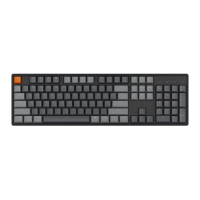
Identifies key components and indicators on the keyboard.
Shows the default key layout activated in Mac mode.
Key layout activated in Mac mode with Fn/MO(1).
Key layout activated in Windows mode.
Key layout activated in Windows mode with Fn/MO(3).
Details on how to charge the keyboard and indicator lights.
Explains 2.4GHz, Cable, and Bluetooth connection modes.
Instructions for switching and reconnecting Bluetooth devices.
How to use wired mode and turn off the keyboard.
Backlight settings, OS toggle, and input method switching.
 General
| Backlighting | RGB |
|---|---|
| Key Rollover | N-Key Rollover |
| Layout | ANSI |
| Hot-swappable | Yes |
| Keycap Material | ABS |
| Frame Material | Aluminum |
| Switch Type | Low-profile Gateron Mechanical |
| Key Switch Options | Gateron Low-Profile Red, Gateron Low-Profile Brown, Gateron Low-Profile Blue |
| Connectivity | Bluetooth 5.1, USB Type-C |
| Compatibility | Windows, macOS |
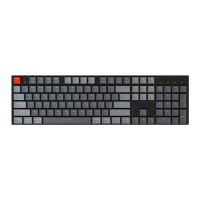
| Size | Full-size |

 To Next Page