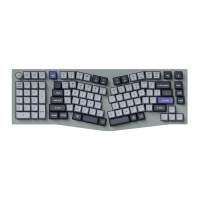
SWITCH BLUETOOTH DEVICES
Short press key combination "fn" + "1" / "fn" + "2" / "fn" + "3" to switch to other device.
RECONNECT:
1. Switch the keyboard to the Bluetooth option to activate the keyboard.
2. The Bluetooth indicator flashes for 4 seconds and automatically pairs with the last paired device.
3. If the Bluetooth indicator is off, press any button to enter the connection again.
*The keyboard must have been paired with the device to perform this function.
TURN OFF THE KEYBOARD
Switch the keyboard to the Cable option and unplug the power cable.
BACKLIGHT SETTING
• Short press key combination "fn" + "tab" or "fn" + "knob (press)" to turn the backlight on/off.
• Short press key combination "fn" + "Q" / "fn" + "A" to switch between different types of lighting effects.
OS TOGGLE SWITCH
1 - MAC/iOS
Switch the toggle to Mac/iOS when the keyboard is connected to a Mac or iOS operating system.
2 - WINDOWS/ANDROID
Switch the toggle to Windows/Android when the keyboard is connected to a Windows or Android
operating system.
*When using the Windows/Android mode, "
20
keys are used for "Windows" and "Alt" functions.


 To Next Page